Troubleshooting | 49
Troubleshooting
WARNING: Before you begin any of the procedures in this section, follow
the Safety Instructions.
Self-test
Your monitor provides a self-test feature that allows you to check whether your
monitor is functioning properly. If your monitor and computer are properly connected
but the monitor screen remains dark, run the monitor self-test by performing the
following steps:
1. Turn o both your computer and the monitor.
2. Unplug the video cable from the back of the computer. To ensure proper Self-Test
operation, remove all video cables from the back of computer.
3. Turn on the monitor.
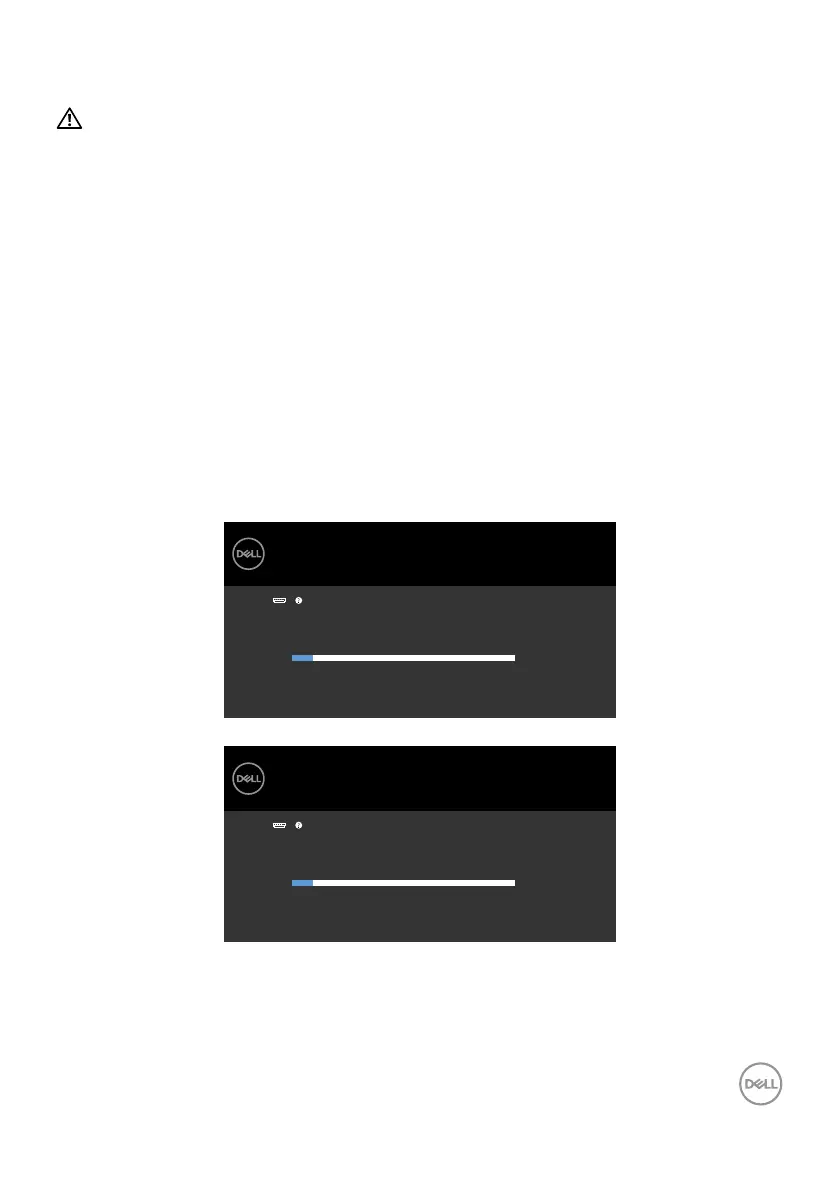
The floating dialog box should appear on-screen (against a black background), if the
monitor cannot sense a video signal and is working correctly. While in self-test mode,
the power LED remains white. Also, depending upon the selected input, one of the
dialogs shown below will continuously scroll through the screen.
The display will go into Standby mode in 4 minutes.
www.dell.com/S2421H
www.dell.com/S2721H
Dell 24/27 Monitor
S2421H/S2721H
No HDMI1 Cable
or
The display will go into Standby mode in 4 minutes.
www.dell.com/S2421H
www.dell.com/S2721H
Dell 24/27 Monitor
S2421H/S2721H
No HDMI2 Cable
4. This box also appears during normal system operation if the video cable is
disconnected or damaged.
5. Turn o your monitor and reconnect the video cable; then turn on both your
computer and the monitor.



 To Next Page