Back to Contents Page
Operating the Monitor
Dell™ ST2420L/ST2421L monitor User's Guide
Using the Front Panel
Using the On-Screen Display (OSD) Menu
Setting the Maximum Resolution
Using the Dell Soundbar (Optional)
Using the Tilt
Using the Front Panel
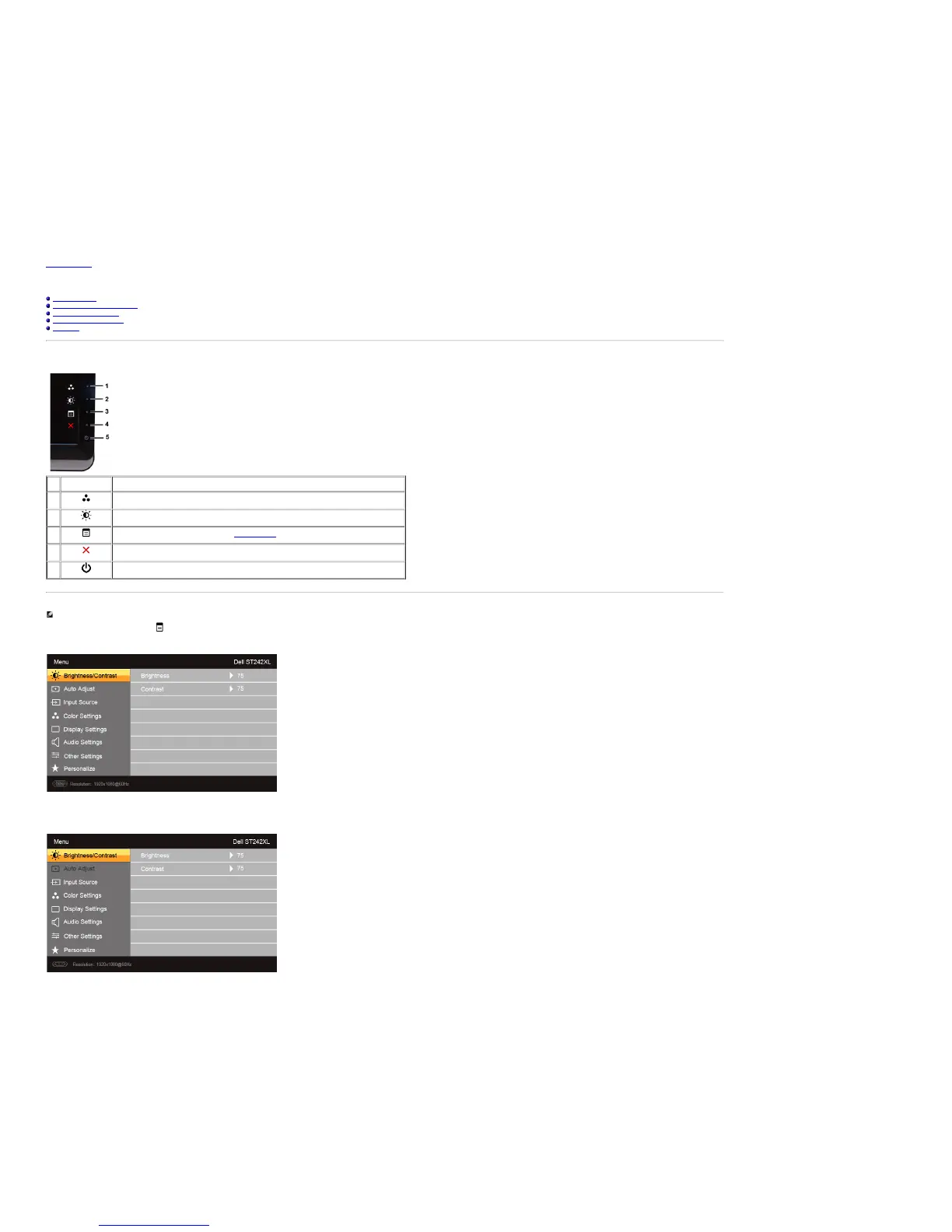
Use the control buttons on the side of the monitor to adjust the characteristics of the image being displayed. As you use these buttons to adjust the controls, an OSD shows the numeric values of the characteristics as they change.
1-2 Shortcut keys Use this button for direct access to the control menu that you define in the personalize menu.
*The default settings are Preset Modes Select and Brightness/Contrast Select.
1
Preset Modes Select
Use this button for different display preset modes on your monitor.
2
Brightness/Contrast
Use this button to access the "Brightness/Contrast" control menu.
3
OSD Menu
Use this button to open the On-Screen Display (OSD). See Using the OSD Menu
.
4
Exit
Use this button to exit the OSD menu.
5
Power button
Use the power button to turn the monitor on and off.
The white light indicates that the monitor is on and fully functional. An amber light indicates power save mode.
Using the On-Screen Display (OSD) Menu
NOTE: If you change the settings and then either proceed to another menu, or exit the OSD menu, the monitor automatically saves the changes. The changes are also saved if you change the settings and then wait for the OSD menu to disappear.
1. Press any key to launch the OSD menu and press
to display the main menu.
Main Menu for Analog (VGA) Input
Or
Main Menu for non Analog (non VGA) Input


 To Next Page