2. Fit the two tabs on the upper part of the stand to the groove on the back of the monitor.
3. Press the stand till it snaps into its place.
Connecting Your Monitor
WARNING: Before you begin any of the procedures in this section, follow the Safety Instructions.
To connect your monitor to the computer:
1. Turn off your computer and disconnect the power cable.
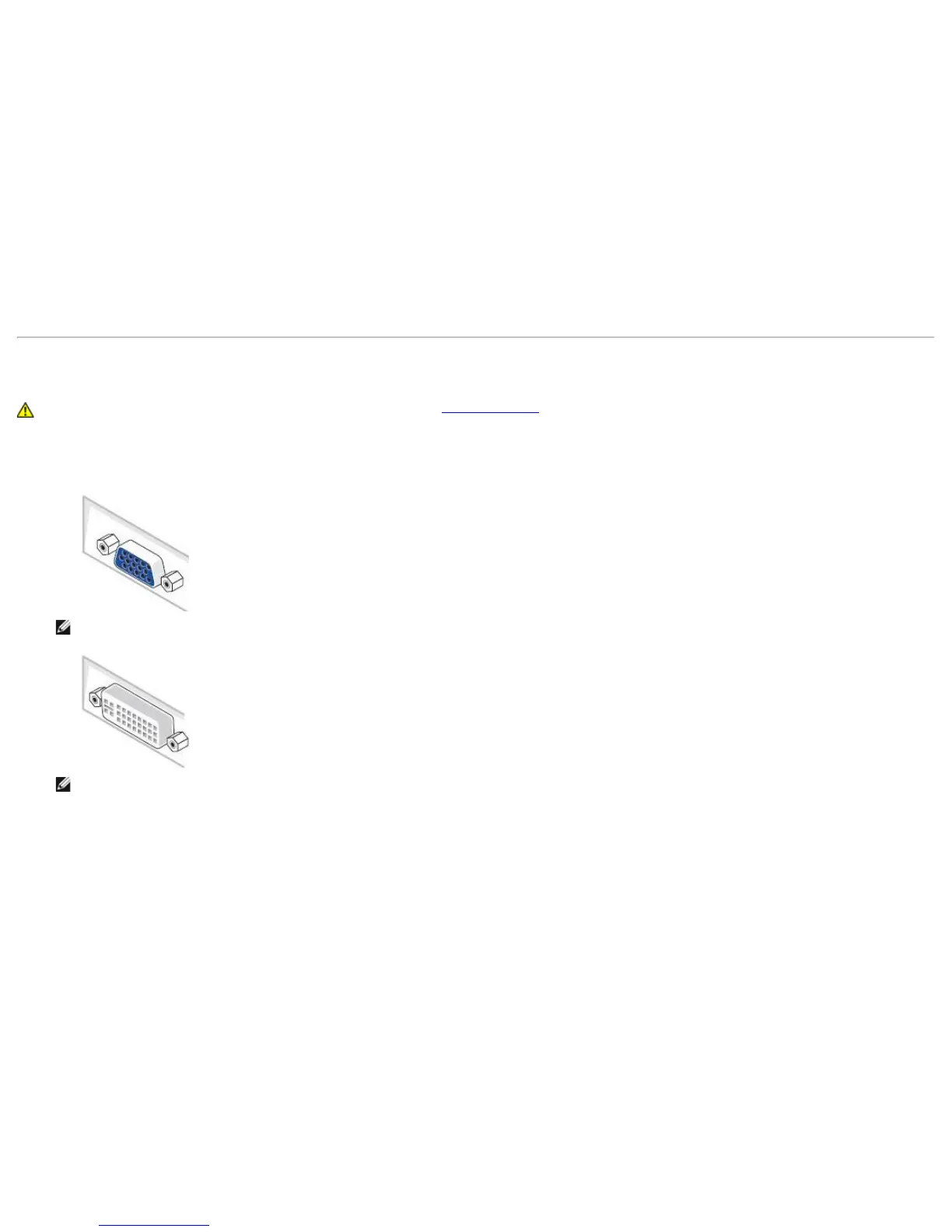
Connect the blue (VGA) cable from your monitor to your computer.
NOTE: If your computer supports a white DVI connector, unscrew and detach the blue (VGA) cable from the monitor and then connect
the White DVI cable to the monitor and the white DVI connector on your computer.
NOTE: Do not connect the blue VGA, the white DVI, or the black DisplayPort cables to the computer at the same time.
2. Connect the white (digital DVI-D) or the blue (analog VGA) or the black (DisplayPort) display connector cable to the corresponding video port on the back of your
computer. Do not use the three cables on the same computer. Use all the cables only when they are connected to three different computers with appropriate video
systems.
Connecting the white DVI cable


 To Next Page