EasyManua.ls Logo

Dell UltraSharpUP3216Q - User Manual

Dell UltraSharpUP3216Q
57 pages
Print Icon
To Next Page IconTo Next Page
Loading...
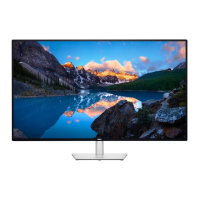
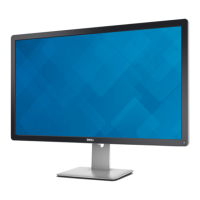
Dell UltraSharp 32 Monitor
User’s Guide
Model No. : UP3216Q
Regulatory model: UP3216Qt

Questions and Answers

  • J
    Jordan FrazierSep 4, 2025
    How to prevent image retention on a Dell UltraSharpUP3216Q Monitor?
    • J
      Joshua SantiagoSep 4, 2025
      To prevent image retention on your Dell monitor, use the Power Management feature to turn off the monitor when it's not in use. Alternatively, use a dynamically changing screensaver.
  • B
    Brandon MorseSep 18, 2025
    How to assign a drive letter for my Dell monitor in Windows XP?
    • D
      dunnpatrickSep 18, 2025
      To assign a drive letter on Windows XP for your Dell monitor, right-click the My Computer icon, then click Manage. In the Computer Management window, select Disk Management. Right-click the removable drive, then click Change Drive Letter and Paths. Select Change, and specify a drive letter that is not assigned to mapped network drives. Click OK.
  • S
    Steven DicksonSep 16, 2025
    Why can't I format media on my Dell UltraSharpUP3216Q Monitor?
    • M
      Marcus JohnsonSep 16, 2025
      If you cannot format or write on the media with your Dell monitor, verify that the write-protect switch of the media is unlocked.
  • L
    lhuntSep 14, 2025
    Why is my media not accessible on my Dell UltraSharpUP3216Q Monitor even with a drive letter?
    • L
      Lisa YoderSep 14, 2025
      If a drive letter is assigned but the media is not accessible on your Dell monitor, the media may need reformatting. Right-click the drive in Explorer and choose 'Format' from the resulting menu.
  • I
    istewartSep 12, 2025
    What if I eject media while the LED is blinking on my Dell UltraSharpUP3216Q?
    • A
      Alexis OrtegaSep 13, 2025
      If you eject your media while the LED is still blinking, even if the pop-up window has disappeared, you may not complete your action. Format the media before writing or erasing the same folder or file name.
  • D
    Denise SmithSep 12, 2025
    What happens if media is ejected during writing on a Dell UltraSharpUP3216Q?
    • J
      Joseph NicholsSep 12, 2025
      If your media has been ejected during writing or erasing on your Dell monitor, reinsert the media and try writing or erasing again. If the issue persists, format the media before writing or erasing the same folder or file name.
  • L
    Linda ReidSep 9, 2025
    How to fix stuck-on pixels on a Dell UltraSharpUP3216Q Monitor?
    • K
      Kimberly RhodesSep 9, 2025
      To address stuck-on pixels on your Dell monitor, cycle the power on and off. A pixel that is permanently off is a natural defect that can occur in LCD technology. For more information, see the Dell Monitor Quality and Pixel Policy on the Dell Support site.
  • K
    Kenneth ReillySep 7, 2025
    What to do for missing pixels on a Dell monitor?
    • C
      Christopher JacksonSep 7, 2025
      To address missing pixels on your Dell monitor, cycle the power on and off. A pixel that is permanently off is a natural defect that can occur in LCD technology. For more information, see the Dell Monitor Quality and Pixel Policy on the Dell Support site.
  • M
    mooretinaSep 5, 2025
    What to do if Dell UltraSharpUP3216Q buttons are not working?
    • C
      Charles LiSep 6, 2025
      If you cannot adjust your Dell monitor using the buttons on the front panel, turn off the monitor, unplug the power cord, plug it back in, and then turn the monitor back on.
  • D
    Deborah NicholsonAug 21, 2025
    What to do if my Dell UltraSharpUP3216Q has no video but the power LED is on?
    • N
      Nichole MarshAug 21, 2025
      If your Dell monitor has no video but the power LED is on, try the following: * Increase the brightness and contrast in the OSD. * Perform the monitor's self-test. * Check the video cable connector for bent or broken pins. * Run the built-in diagnostics. * Ensure the correct input source is selected via the Input Source menu.

Summary

About Your Monitor

Product Features

Details the monitor's capabilities and specifications.

Operating the Monitor

Using the On-Screen Display (OSD) Menu

Guide to navigating and using the monitor's OSD menu system.

Troubleshooting

Self-Test

Procedure to perform a monitor self-test for functionality.

Common Problems

Lists common issues and their potential solutions.

Product Specific Problems

Addresses issues unique to this monitor model.

Appendix

WARNING: Safety Instructions

Critical safety warnings and precautions for monitor use.

Dell UltraSharpUP3216Q Specifications

General IconGeneral
BrandDell
ModelUltraSharpUP3216Q
CategoryMonitor
LanguageEnglish

Related product manuals