Unifying Pairing Features for Windows and Chrome │ 13
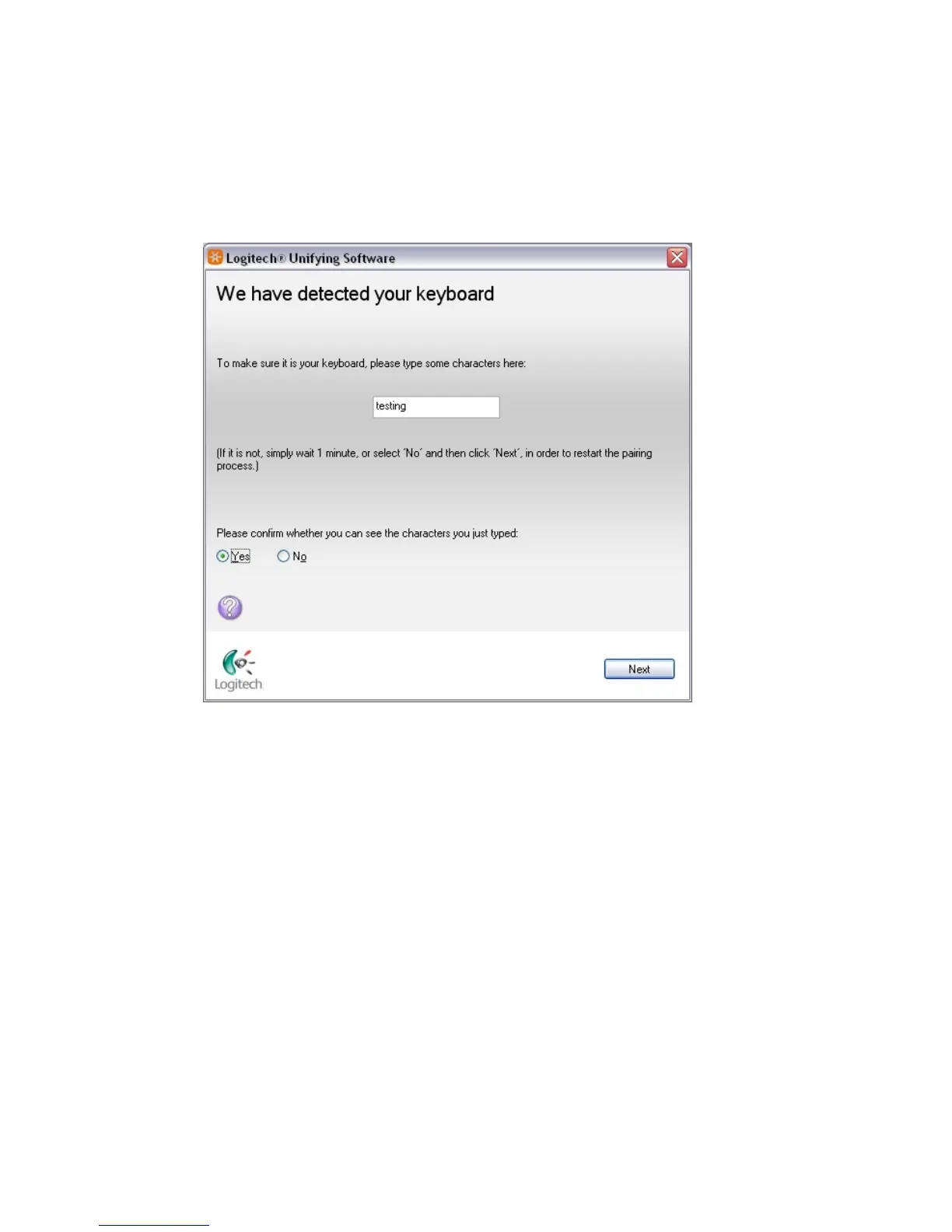
d) When your device is detected, you’ll see a confirmation screen opens.
If you connected a:
• Keyboard: Type a test message in the field provided to make sure it
works.
• Mouse: Move the mouse around to see if the cursor moves with it.
e) If your device connected successfully, click Yes and then Next.
If your device does not work right away, wait a few minutes to see if it
connects. If it doesn’t, select No and then click Next to restart the pairing
process from step a).
f) Click Finish to exit the unifying software (or Pair Another Device to pair
additional devices). Your devices should now be connected.


 To Next Page