EasyManua.ls Logo

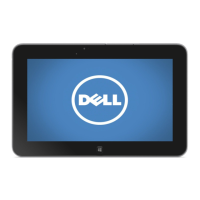
Dell XPS 10 - User Manual

Dell XPS 10
47 pages
Print Icon
To Next Page IconTo Next Page
Loading...
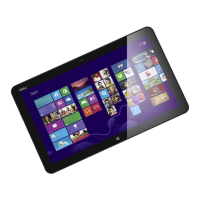
XPS 10 Tablet
User's Manual
COMMENT

Other manuals for Dell XPS 10

Questions and Answers

  • M
    michellestephensAug 16, 2025
    What to do if my Dell XPS 10 Tablet won't turn on?
    • M
      Mark SmithAug 16, 2025
      If your Dell Tablet is not turning on, the battery may be completely discharged. Charge the tablet for at least 4 hours. If charging doesn't help, press and hold the Power and Sleep/Wake button for 4 seconds.
  • H
    Herbert MarshAug 19, 2025
    What to do if Dell Tablet is not charging?
    • M
      michelle90Aug 19, 2025
      If your Dell Tablet is not charging, try the following: * Unplug the Dell AC power adapter from the wall and check if the outlet is working. * Check all cable connections, plugging them back into the wall and the tablet. * Ensure all connectors are properly connected. * If the tablet's temperature is below 0 °C or above 35 °C, charge the battery in an ambient temperature between 0 °C and 35 °C. * If the battery or power adapter is damaged, contact a Dell authorized reseller to replace them.
  • L
    Laura FrazierAug 21, 2025
    Why does my Dell XPS 10 Tablet battery drain so fast?
    • E
      Erika ShafferAug 22, 2025
      If your Dell Tablet is rapidly losing battery, even in standby mode, it might be because it's struggling to find a network connection. The tablet constantly sends signals to locate a base station, which drains the battery. You can either temporarily turn off the tablet, move closer to a network it can connect to, or disable the wireless connection.
  • B
    bruce61Aug 26, 2025
    How to fix slow internet connection on Dell XPS 10 Tablet?
    • J
      James AlexanderAug 26, 2025
      If you are experiencing slow internet connections on your Dell Tablet, the signal strength may not be strong enough. Try moving your tablet to a different location to improve signal reception.
  • C
    cwagnerAug 28, 2025
    What to do if my Dell XPS 10 touchscreen responds slowly?
    • S
      Sierra EstesAug 28, 2025
      If the touchscreen on your Dell Tablet is responding slowly or improperly, it could be due to a protective cover interfering with the input. Try gently wiping the display with a clean, dry cloth and removing any protective covers from the touchscreen.
  • M
    Michelle EwingAug 31, 2025
    What to do if my Dell XPS 10 is not responding?
    • B
      Brian HayesAug 31, 2025
      If your Dell Tablet is not responding or behaving unexpectedly, try rebooting the tablet. If that doesn't work, refresh the tablet.
  • N
    Nathan MorrisSep 3, 2025
    What to do if my Dell XPS 10 Tablet won't turn off?
    • M
      Mario JohnsonSep 3, 2025
      If your Dell Tablet is not turning off, press and hold the Power and Sleep/Wake button for 11 seconds to perform a hard shut down.
  • P
    peter02Sep 6, 2025
    Why is there no wireless connection on my Dell XPS 10 Tablet?
    • A
      Alan CortezSep 6, 2025
      If you're experiencing no wireless connection on your Dell Tablet, first check if the wireless radio is turned on. If it is, try moving closer to the wireless access point. If you're using a private network, reset the wireless router. If you're using a public network, open the browser to view the landing page.
  • K
    Kyle HallSep 9, 2025
    What to do if my Dell XPS 10 Tablet locks up?
    • J
      Jose DrakeSep 9, 2025
      If your Dell Tablet locks up, press and hold the Power and Sleep/Wake button for 11 seconds to perform a hard shut down.
  • C
    Christopher AdamsSep 12, 2025
    What to do if software isn't working on Dell XPS 10 Tablet?
    • L
      Lisa MillsSep 12, 2025
      If software or a feature is not working as expected on your Dell Tablet, try restarting your tablet.

Dell XPS 10 Specifications

General IconGeneral
RAM2 GB
Operating SystemWindows RT
Wireless802.11a/b/g/n
BluetoothBluetooth 4.0
Battery LifeUp to 10 hours
Display10.1 inches, 1366 x 768 pixels
ProcessorQualcomm Snapdragon S4 dual-core 1.5GHz
Storage32 GB / 64 GB
Battery28 Wh battery
Camera5MP rear-facing, 2MP front-facing
Weight635 grams

Related product manuals