28
10ms 15ms
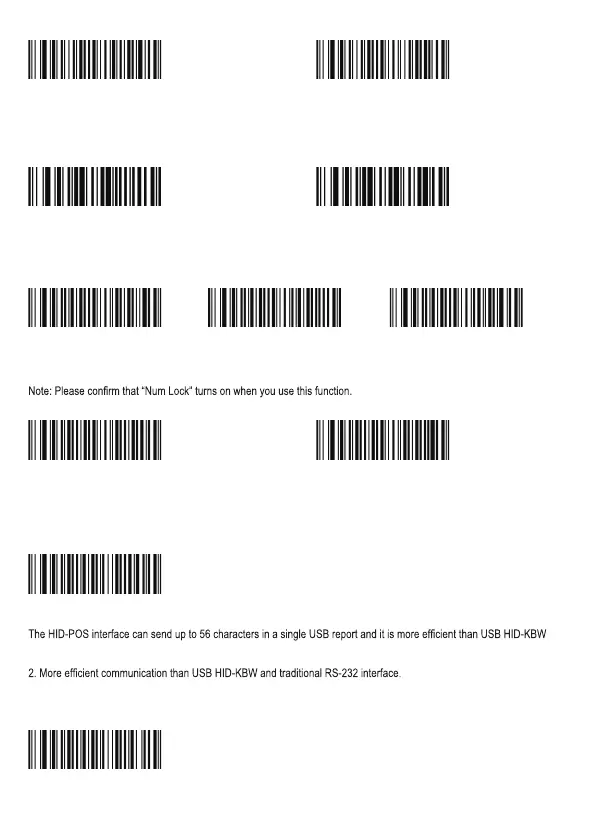
Caps Lock
“Turn on Caps Lock” inverts the letter case in the barcode. Similar to using Caps Lock on a regular keyboard.
Note: If “Keyboard emulation characters mode” or “Change to uppercase/lowercase” is active, this function is not valid.
Example output: If you scan “AbC”, the host will receive “aBc”.
Turn off Caps Lock Turn On Caps Lock
Change to uppercase/lowercase
If you scan “convert all to uppercase”, all the letters in the barcode will change to uppercase.
If you scan “convert all to lowercase”, all the letters in the barcode will change to lowercase.
No case conversion Convert all to lowercase Convert aII to uppercase
Emulate Num Lock
When Num Lock is turned on the scanner converts the numbers 0 to 9 to the Numeric Pad equivalent.
When Num Lock is turned off the scanner does not convert the numbers.
Turn on Num Lock Turn off Num Lock
*
Emulate COM port via USB
Connect the scanner to the host via USB. Scan the “Emulate COM port via USB” barcode to allow the host to receive data
like a serial port. You need to set barcode settings on the scanner to match the host’s requirements. A driver for the host is
required for this.
Emulate COM port via USB
Enable HID-POS
.
Features:
1. HID based, no custom driver required.
Note: HID-POS does not require a custom driver. However, a HID interface on Windows 98 does. All HID interfaces employ
standard driver provided by the operating system. Use defaults when installing the driver.
Enable HID-POS
WC06F80
W086000
W306F00 W306F30 W306F20
W046F00W046F04
W030D02
W030D03
WC06FC0
W086008



 To Next Page