33
Engine Lighting
The Engine Lighting menu allows you to control
connected lighting devices such as DMX fixtures and
Smart Lights using SoundSwitch to seamlessly sync your
music and lights.
To enable Engine Lighting, make sure the Engine
Lighting option under Services in the hardware
Settings menu is set to On. Once Engine Lighting is
enabled, you can tap the gear icon in the Settings
menu to open the lighting control page. You can also
access this page after enabling it by double-pressing
the View button.
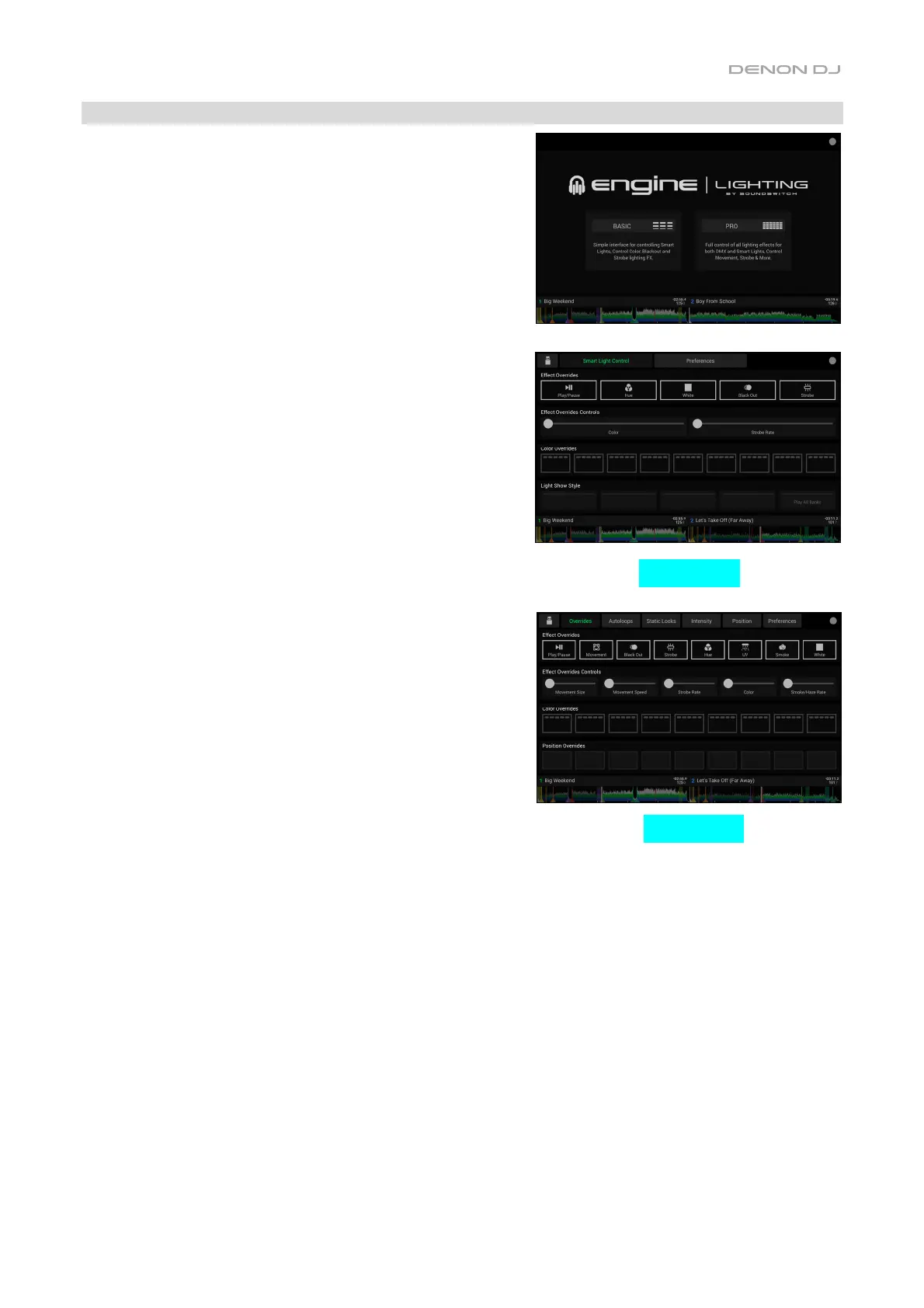
The first time you use Engine Lighting, you can select a
Basic or Pro layout for performing (see right):
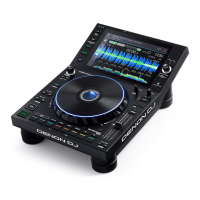
Basic: A simple interface for controlling Smart Lights,
Control Color, Blackout and Strobe Lighting FX.
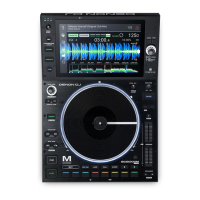
Pro: Full control of all lighting effects for both DMX
and Smart Lights, Control Movements, Strobe and
more.
You will also be prompted if you want to connect Philips
Hue or NanoLeaf Smart Lights when you first use Engine
Lighting. This can also be configured later through the
Engine Lighting Preferences menu.
Visit soundswitch.com for more information on using
SoundSwitch lighting controls with your PRIME hardware.
Basic View
Pro View


 To Next Page