GB-6
Network Connection
Wired network
1. Check first of all whether the control lamps (LINK/ACT) of your LAN
connection or your router light up.
2. Connect the NETWORK socket on the unit to the corresponding port on
your Router using a commercially available LAN or Ethernet cable (CAT5 or
better with RJ45 connector).
3. Proceed with the operations described in the below “GETTING STARTED”.
It is not necessary to run through the setup wizard.
4. Using a wired network provides a better performance than a wireless
connection because the attached devices connect directly to the network
and are not subject to radio frequency interference.
Wireless network
1. Check first of all whether the control lamps (LINK/ACT) of your LAN
connection or your router light up.
2. Proceed with the operations described in the below “GETTING STARTED”.
It is highly recommended to run through the setup wizard in the System
Settings section.
This unit cannot be connected to a standalone modem directly. A
router or a modem incorporated with a router has to be used.
Since there are various connection congurations, please follow the
specications and instructions of your telecommunication carrier,
Internet service provider, and router setting guidebook.
GETTING STARTED
Powering ON/OFF
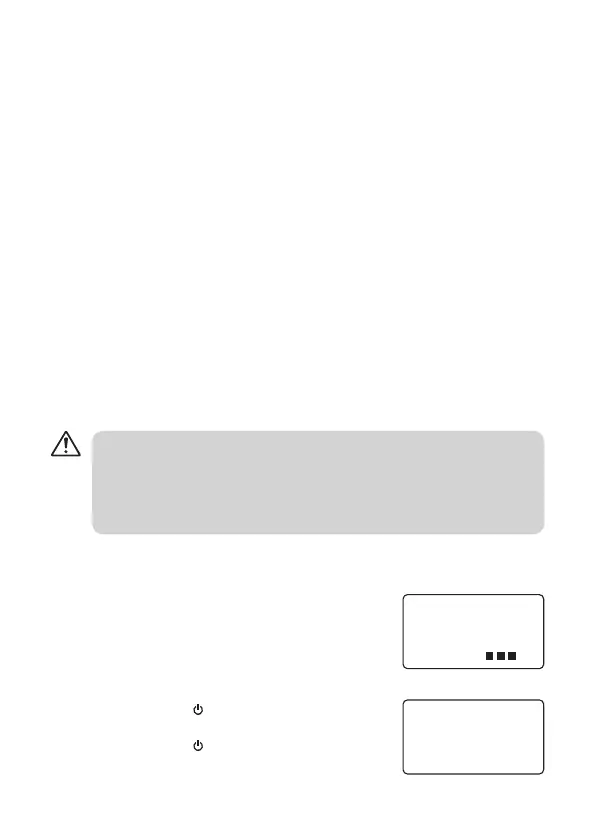
1. When you first connect the unit to the mains
socket, the unit will be in STANDBY mode
after showing “Welcome to Internet Radio
STARTING….” (F.1)(F.2)
2. Press the Standby
button on the unit or
remote control to switch the unit on.
3. Press the Standby
button on the unit or
remote control to switch the unit back to
standby on mode.
Welcome to
Internet Radio
STARTING
(F.1)
00/00/000
00 : 00
(F.2)


 To Next Page