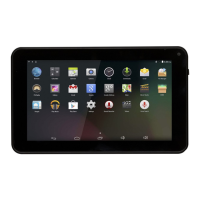
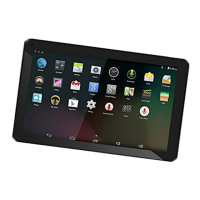
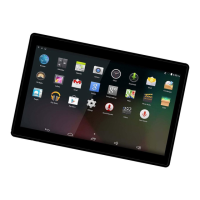
This document serves as the user's manual for the DENVER TAQ-70363L tablet, providing essential information for its safe and effective operation. It covers initial setup, application usage, internet connectivity, file transfer, SIM card management, mobile data settings, and troubleshooting.
Before using the tablet, it is crucial to read and understand the safety information provided. The device contains a lithium battery, and specific precautions must be observed:
- Do not open the tablet. Attempting to open the device can damage the battery and potentially cause overheating or injury.
- Avoid exposure to heat, water, moisture, or direct sunlight. These conditions can harm the tablet and its internal components.
- Only use the original adapter supplied with the product for charging. Using unauthorized chargers may lead to damage or safety hazards.
- Battery replacement should only be performed by a skilled engineer. The lithium-ion battery must be recycled or disposed of separately from household waste and should not be incinerated.
To mitigate the risk of fire or electric shock, the tablet should not be exposed to rain or moisture, and no objects filled with liquids, such as vases, should be placed on or near the apparatus. The direct plug-in adapter functions as a disconnect device and must remain readily operable.
The tablet is a Class II, double-insulated electrical appliance, meaning it does not require a safety connection to electrical earth. A lightning flash symbol within an equilateral triangle warns users of uninsulated "dangerous voltage" inside the product, indicating a risk of electric shock. To avoid electric shock, do not remove the cover or back, as there are no user-serviceable parts inside; refer servicing to qualified personnel. An exclamation point within an equilateral triangle alerts users to important operating and maintenance instructions in the accompanying literature.
Proper disposal of this product is essential. The crossed-out trash can symbol indicates that the tablet and its included batteries should not be disposed of with other household waste within the EU. Instead, they should be recycled responsibly to promote the sustainable reuse of materials and prevent harm to the environment or human health from uncontrolled waste disposal. Users should utilize return and collection systems or contact the retailer for proper disposal.
Unit at a Glance
The tablet features several key components:
- USB Port: Connects to USB devices or a computer for data transfer (music, videos, photos, files).
- Headphone Jack: Audio output connection for headphones.
- Power Button: Used to turn the unit on, turn the screen on/off, or access the Power Off menu by pressing and holding.
- MicroSD Slot: For loading external microSD memory cards.
- RESET Pin-hole: Use a needle or paper clip to reset the unit.
- Volume Buttons (V-/V+): Adjust the volume.
- SIM Card Slot: Located under the back cover at one corner, for inserting SIM cards.
Getting Started
Turning the Tablet On or Off:
- To turn on: Press and hold the Power key until the LCD screen illuminates. Wait for the Home screen to appear, indicating the tablet is ready for use.
- To turn off: Press and hold the Power key until the power off menu appears, then touch "Power off."
Turning the Screen On or Off (Standby):
- While the tablet is on, press the Power key once to turn the screen off and conserve battery power. Press it again to turn the screen back on.
- To conserve battery life, the screen can be set to turn off automatically after a period of inactivity (15 seconds to 30 minutes). This "Screen timeout" option is found in the Display menu.
Unlocking the Screen:
- When the screen is off, drag the lock icon upwards on the screen to unlock the tablet.
About Applications
Accessing Applications:
- From the home screen, slide upwards to enter the application page.
Preinstalled Applications:
The tablet comes with several preinstalled applications for user convenience:
- Chrome: For web browsing.
- Calculator: For simple mathematical operations.
- Camera: To take pictures or videos using the front-facing camera.
- Gmail: To check email.
- Music: To play music.
- Settings: To adjust the tablet's options.
Installing Additional Applications:
- Users can download and install more applications from the Google™ Play Store or other sources.
- To install applications from non-Market sources, the "Unknown sources" option must be enabled in the Application settings menu.
Connecting to the Internet
Connecting to Wireless Internet (Wi-Fi):
- Press the Settings icon.
- Find and tap "Network & Internet."
- Tap the toggle switch to activate Wi-Fi.
- Tap "Wi-Fi" to start detecting available networks. A list of networks will appear.
- To manually add a network, select the "Add Network" button.
- Select "Connect" from the pop-up menu.
- If the network is secured, enter the password.
- Once connected, the display will show "Connected" under the network name.
- Maintenance Tip: Turn off Wi-Fi when not in use to conserve battery life.
Email
Setting Up an Email Account:
- Press the Gmail icon (M) under the App menu.
- Enter your email address and password, then press "Next."
- If this fails, you may need to manually configure the account.
Manually Configuring an Email Account:
- It is recommended to consult an IT professional for manual configuration.
- Determine the server type (POP3, IMAP, or Exchange).
- Enter your email address and password, then press "Next."
- Fill in all information for the Incoming server setup.
- Press "Next"; the app will test the settings (Wi-Fi must be active).
- Fill in all information for the Outgoing server settings.
- Press "Next"; the app will test the settings again.
Transferring Files
Transferring Files with a Computer:
- Connect one end of the included Mini-USB to USB cord to the tablet and the other end to a computer's USB port.
- Slide down from the top of the tablet screen to reveal the notification panel.
- Tap the USB icon.
- Click "Tap for more options" and choose "Transfer files." You can now transfer files to your computer.
SIM Card Management
The tablet has two SIM card slots.
- Important: Ensure the tablet is off before inserting SIM cards. Use standard-size SIM cards; micro or nano SIM cards are not compatible.
Voice Call Settings:
- Go to Settings, then "SIM cards."
- Click "Calls" and choose the default SIM card for calls.
Message Settings:
- Go to Settings, then "SIM cards."
- Click "SMS messages" and choose the default SIM for messages.
Data Connection Settings:
- Go to Settings, then "SIM cards."
- Click "Mobile data" and choose the default SIM for data.
Mobile Data Setting on 4G Tablets:
- When inserting a SIM card and turning on the tablet, it will prompt you to use the inserted SIM for calls, SMS, and data. Confirm by selecting "OK." This process may take up to one minute.
- To turn on mobile data:
- Slide down from the top of the screen once to see the quick settings panel.
- Slide down again to expand the quick settings.
- Click the mobile data icon to toggle it on/off.
Troubleshooting
This section provides solutions for common issues:
1.1 Device cannot connect to Wi-Fi:
- Verify the wireless network is working with another device.
- Ensure the tablet is within range of the router.
- Confirm the security password is correct.
1.2 Device doesn't turn on:
- Charge the battery if it's critically low.
- Use a needle or paper clip to press the RESET button and try restarting.
- Check if the charger is connected correctly.
1.3 Heat Issues:
- It is normal for the device to get warm when running multiple applications, using the screen at brightest settings, or charging. This should not cause inconvenience.
1.4 System anomalies and incorrect operation:
- Third-party applications can sometimes cause system issues. Press the RESET button and perform a system reset.
1.5 Cannot set E-mail Account or registration application:
- Ensure the tablet is connected to a Wi-Fi network and the internet.
- Verify email settings are correct.
- Check system and local time settings.
1.6 Cannot record:
- Use a needle or paper clip to press the RESET button and check if the record function works.
1.7 The stand-by time of the device is too short:
- Battery duration varies with environmental temperature and service conditions. Use the device at normal temperature.
- High volume, Wi-Fi, and frequent use can drain the battery faster.
1.8 No sound via earphone:
- Check if the volume setting is 0.
- Check if the audio file is broken by trying another file. A broken file may cause noise or static.
1.9 Color distortion of video or picture display:
- Use a needle or paper clip to press the RESET button on the back of the device.
1.10 Cannot copy files:
- Check if the device is connected to the computer correctly.
- Check if memory space is full.
- Check if the USB cable is broken.
1.11 Other troubles:
- Step 1: Use a needle or paper clip to press the RESET button and check if the function works.
- Step 2: Upgrade the firmware from a PC and restart the device, then check if the function works.
Bluetooth Connectivity
The tablet supports Bluetooth connectivity:
- Open the Settings menu and select "Bluetooth."
- Slide the switch to turn on Bluetooth. The tablet will automatically detect and list all available Bluetooth devices.
- Select a device from the list to start pairing.
- Once paired, you can transfer files between the devices.

 Need help?
 General

 To Next Page