Need help?
Do you have a question about the Denver TAQ-90083 and is the answer not in the manual?
This document serves as a comprehensive user manual for the DENVER TAQ-90083 tablet PC, providing essential information for its operation, maintenance, and troubleshooting.
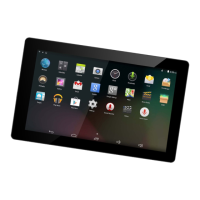
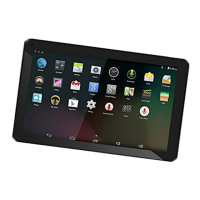
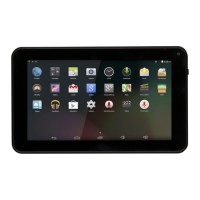
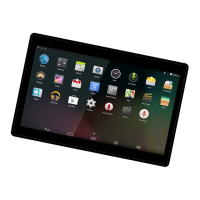
The DENVER TAQ-90083 is a tablet PC designed for various digital tasks, including web browsing, email communication, multimedia playback, and running a variety of applications. It operates on the Android™ 8.1 operating system, offering a user-friendly interface and access to a wide ecosystem of apps. The tablet features a capacitive touchscreen display for intuitive interaction and is equipped with Wi-Fi connectivity for internet access. It includes a built-in microphone and a 1W speaker for audio input and output, respectively. For capturing images and videos, a 2MP interpolated camera is integrated. The device is powered by a rechargeable Li-poly battery, ensuring portability and extended use.
The tablet's design emphasizes ease of use, starting with its physical controls. The POWER button allows users to turn the unit on or off, and a long press provides access to the Power Off menu. In case of system unresponsiveness, a RESET function is available, requiring a needle or paper clip to activate. For personal audio experience, a Headphone jack is provided. Data transfer and connectivity with other devices or computers are facilitated via the USB port. An ESC button offers a quick way to exit certain functions or menus. The Mic enables voice input for various applications. Additionally, a microSD slot allows for the expansion of storage by loading external memory cards.
Getting started with the tablet involves a straightforward process. To turn the tablet on, users press and hold the Power key until the LCD screen illuminates, then wait for the Home screen to appear. Turning the tablet off involves pressing and holding the Power key to access the power off menu and selecting "Power off." The screen can be turned on or off to conserve battery power by simply pressing the Power key. The tablet also features a screen timeout option, configurable between 15 seconds and 30 minutes in the Display menu, to automatically turn off the screen when inactive.
Unlocking the screen is done by dragging the lock icon upwards from the bottom of the screen. Once unlocked, users can access applications by sliding upward on the home screen to reveal the launcher. The tablet comes with several preinstalled applications for convenience, including:
Users can also expand the tablet's functionality by downloading and installing additional applications from the Google™ Play Store or other sources. To install apps from non-Market sources, the "Unknown sources" option must be enabled in the Application settings menu.
Connecting to the internet is primarily done via Wi-Fi. Users navigate to the "Settings" icon, then "Network & Internet," and tap the toggle to activate Wi-Fi. The tablet will then detect available networks, which will be listed. Users can select a network and, if secured, enter the password to connect. Once connected, "Connected" will be displayed under the network name. To conserve battery, it is recommended to turn off Wi-Fi when not in use.
Setting up an email account is facilitated through the Gmail application. Users press the Gmail icon, enter their email address and password, and then press "Next." If automatic configuration fails, manual setup is possible, requiring detailed server information (POP3, IMAP, or Exchange) from the email provider. The process involves filling in incoming and outgoing server settings, with Wi-Fi connectivity required for testing these settings.
Transferring files between the tablet and a computer is achieved by connecting the tablet via a Mini-USB to USB cord. Once connected, users slide down from the top of the screen to reveal system notifications, tap the USB icon, and select "Transfer files" from the options. This enables the tablet to appear as a storage device on the computer, allowing for easy file management.
Maintaining the DENVER TAQ-90083 involves addressing common issues and ensuring proper care. The manual provides a comprehensive troubleshooting guide for various problems:
The manual also emphasizes the importance of proper disposal of the product and its internal lithium battery. The tablet should not be incinerated or disposed of with household waste. Instead, it should be recycled separately at designated collection points to prevent harm to the environment and human health. The crossed-out trash can symbol on the product indicates this requirement. Users are encouraged to utilize return and collection systems or contact the retailer for proper disposal. The direct plug-in adapter is designed as a disconnect device and should remain readily operable. The device is a Class II, double-insulated electrical appliance, meaning it does not require an electrical earth connection.
 General
| Wi-Fi | 802.11 b/g/n |
|---|---|
| Front camera | 0.3 MP |
| Battery | 4000 mAh |
| Screen size | 9 inches |
| Resolution | 1024x600 |

 To Next Page