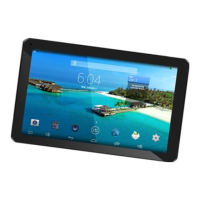
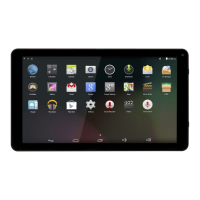
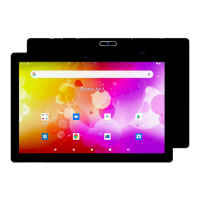
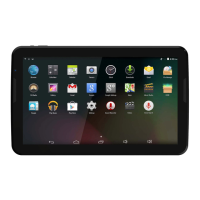
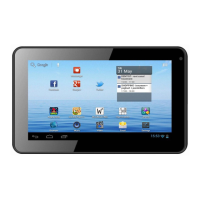
This document is a user's manual for the DENVER TIQ-70182 tablet PC. It provides essential information for safe operation, setup, usage, and troubleshooting of the device.
Function Description
The DENVER TIQ-70182 is a tablet PC designed for various functions including web browsing, email, multimedia playback (music, videos, photos), and running applications. It features a capacitive touchscreen for interactive use and supports Wi-Fi connectivity for internet access. The device is powered by a rechargeable lithium-polymer battery and includes a built-in microphone and speaker.
Important Technical Specifications
- CPU: 1.3GHz QUAD CORE
- RAM: 512MB DDR3
- Storage: 8GB flash built-in, with a micro SD card slot supporting up to 32GB
- Display: 7" LCD (1024x600 IPS) capacitive touchscreen
- Wi-Fi Networking: IEEE 802.11 b/g/n
- Audio Output: 3.5mm headphone jack
- PC Interface: USB 2.0 high speed
- Additional Features: Built-in microphone, Front 0.3MP Camera, 1x1W speaker
- Operating System: Android™ 4.4
- Power: Rechargeable Li-poly battery, Power Adapter (DC 5V, 1.5A)
Usage Features
Getting Started:
- Turning On/Off: Press and hold the Power key until the LCD screen turns on or the power off menu appears. To turn off, select "Power off" from the menu.
- Standby Mode: Press the Power key once to turn the screen on or off to conserve battery.
- Unlocking the Screen: Drag the lock icon across the screen towards the slide lock icon to unlock.
- Applications: Open applications by touching their icons on the home screen or in the Launcher.
Preinstalled Applications:
The tablet comes with several preinstalled applications for convenience:
- Browser: For web browsing.
- Calculator: For mathematical operations.
- Camera: To take pictures or videos using the front-facing camera.
- Email: To check emails.
- Music: To play music.
- Settings: To adjust tablet options.
Installing Applications:
Additional applications can be downloaded and installed from the device's applications marketplace, web browser, or other sources. To install from non-Market sources, the "Unknown sources" option must be enabled in the Application settings menu.
Connecting to the Internet (Wi-Fi):
- Access Settings and locate the Wi-Fi setting.
- Slide the Wi-Fi toggle to the "On" position.
- Select an available network from the list. To refresh the list, press the Scan button. To manually add a network, select the Add Network button.
- Select "Connect" from the pop-up menu.
- If the network is secured, enter the password to continue.
- Once connected, the display will show "Connected" under the network name.
- Battery Conservation: Turn off Wi-Fi when not in use to save battery life.
Email Setup:
- Press the Email icon under the App menu.
- Enter your email address and password, then press "Next."
- If automatic setup fails, manual configuration is required. This involves determining the server type (POP3, IMAP, or Exchange) and entering detailed incoming and outgoing server settings. Wi-Fi must be active for the settings test.
Transferring Files with a Computer:
- Connect the tablet to a computer using the included Mini-USB to USB cord.
- Press the USB icon in the lower right-hand corner of the tablet screen.
- Select "USB Connected."
- Press the "Turn On USB Storage" button.
- Accept any prompts on the connected computer. Files can now be transferred to and from the computer.
- To end the session, press the "Turn Off USB Storage" button on the tablet.
Maintenance Features
Safety Information:
- Electrostatic Discharge (ESD): In case of ESD, manual operation (ON/OFF switch) may be needed to resume normal operation.
- Lithium Battery: Do not open the tablet, expose it to heat, water, moisture, or direct sunlight. Only charge with the original adapter. Battery replacement should only be done by a skilled engineer and must be recycled separately from household waste. Do not incinerate the battery.
- Fire/Electric Shock: Do not expose the apparatus to rain or moisture. Do not place liquid-filled objects on it.
- Direct Plug-in Adapter: The adapter is a disconnect device and should remain readily operable.
- Class II Appliance: This is a double-insulated appliance and does not require an electrical earth connection.
- Servicing: Do not remove the cover or back; refer servicing to qualified personnel.
- Disposal: Do not dispose of this product with other household waste. Recycle it responsibly. Used batteries should be submitted to appropriate collection facilities.
Troubleshooting:
- Wi-Fi Connection Issues: Ensure the wireless network is working, the device is within range, and the security password is correct.
- Device Not Turning On: Charge the battery if it's below critical level. Use a needle or paper clip to reset the unit. Check if the charger is connected correctly.
- Heat Issues: It's normal for the device to get hot when running multiple applications, using the screen at brightest setting, or charging.
- System Anomalies: Installing third-party applications can cause issues. Use the RESET button to perform a system reset.
- Email Account Setup Issues: Ensure Wi-Fi is connected, email settings are correct, and system time/local time are accurate.
- Recording Issues: Use a needle or paper clip to reset the unit and check if the record function works.
- Short Stand-by Time: Battery life varies with environmental temperature and usage conditions (high volume, Wi-Fi, frequent use).
- No Sound via Earphone: Check volume settings and if the audio file is broken.
- Color Distortion: Use a needle or paper clip to reset the unit.
- File Copying Issues: Check if the device is connected correctly, if memory space is full, or if the USB cable is broken.
- Other Troubles: Try resetting the unit with a needle or paper clip. If issues persist, upgrade the firmware from a PC and restart the device.

 Need help?

 To Next Page
 General