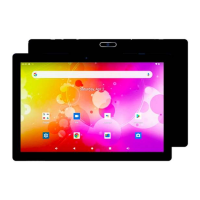
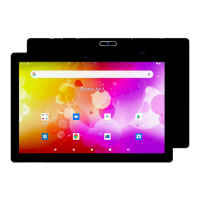
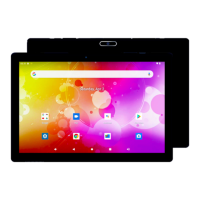
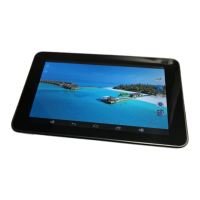
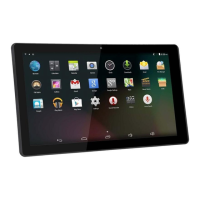
This document serves as the user's manual for the DENVER TIQ-10212 tablet PC, providing essential information for its operation, maintenance, and technical specifications.
Function Description
The DENVER TIQ-10212 is a tablet PC designed for general use, including browsing the internet, running applications, managing email, and multimedia consumption. It operates on the Android™ 5.1 operating system. The device features a capacitive touchscreen display and includes built-in Wi-Fi for internet connectivity. It supports external microSD memory cards for expanded storage. The tablet is equipped with a front-facing camera for taking pictures and videos, a microphone for audio input, and a speaker for audio output. It also includes a 3.5mm headphone jack for private listening.
Important Technical Specifications
- RAM: 1GB DDR3
- Storage: 8GB flash built-in, with a microSD card slot supporting up to 32GB.
- Display: 10.1" TFT LCD (1024x600) with capacitive touchscreen.
- Wi-Fi Networking: IEEE 802.11 b/g/n.
- Audio Output: 3.5mm headphone jack.
- PC Interface: USB 2.0 high speed.
- Additional Features: Built-in microphone, 0.3MP camera, 1W speaker, Quad Core 1.2GHz processor.
- Operating System: Android™ 5.1.
- Power: Rechargeable Li-poly battery (4400mAh), powered by a 5V, 2A power adapter.
Usage Features
- Power On/Off: The tablet is turned on by pressing and holding the Power key until the LCD screen appears. To turn off, press and hold the Power key until the power off menu appears, then select "Power off."
- Screen On/Off (Standby): A single press of the Power key turns the screen on or off to conserve battery. The screen can be set to automatically turn off after a period of inactivity (15 seconds to 30 minutes), configurable in the Display menu.
- Unlocking the Screen: After the screen turns off, it can be unlocked by dragging the lock icon across the screen towards the slide lock icon.
- Applications: Applications can be opened by tapping their icons on the home screen or within the Launcher. The tablet comes with preinstalled applications such as Browser, Calculator, Camera, Email, Music, and Settings. Additional applications can be downloaded and installed from the device's applications marketplace, web browser, or other sources, provided the "Unknown sources" option is enabled in the Application settings menu.
- Internet Connectivity (Wi-Fi): To connect to Wi-Fi, navigate to Settings, then Wi-Fi, and slide the toggle to the "On" position. Select an available network from the list. If the network is secured, enter the password. The device will show "Connected" once successful. To conserve battery, Wi-Fi should be turned off when not in use.
- Email Setup: Email accounts can be set up by accessing the Email icon. Users can enter their email address and password for automatic setup or manually configure server settings (POP3, IMAP, Exchange) if needed. Wi-Fi connectivity is required for email setup.
- File Transfer: Files can be transferred to and from a computer by connecting the tablet via the included Mini-USB to USB cord. Once connected, the tablet will appear as a media device on the computer.
Maintenance Features
- Resetting the Unit: In case of system anomalies or unresponsiveness, the tablet can be reset using a needle or paper clip to press the RESET button located on the device. This can resolve issues such as the device not turning on, recording problems, or display distortions.
- Battery Care: The device contains a lithium battery. Users are warned not to open the tablet, expose it to heat, water, moisture, or direct sunlight. Only the original adapter should be used for charging. Battery replacement should only be performed by a skilled engineer, and the battery must be recycled or disposed of separately from household waste. Battery life can be affected by environmental temperature and usage patterns (e.g., high volume, frequent Wi-Fi use).
- Troubleshooting: The manual provides a comprehensive troubleshooting section for common issues, including Wi-Fi connection problems, device not turning on, heat issues, system anomalies, email setup difficulties, recording issues, short standby time, no sound via earphone, color distortion, and file transfer problems. Solutions often involve resetting the unit, checking settings, or ensuring correct connections.
- Factory Reset: A factory reset of Android 5.1 units can take up to 10 minutes. During this process, the device will display "Android" while reloading firmware. It is crucial not to turn off the tablet during this state; it will automatically restart once the process is complete.
- Disposal: The product and its included batteries should not be disposed of with general household waste. They are marked with a crossed-out trash can symbol, indicating that they must be submitted to appropriate recycling facilities to prevent harm to the environment and human health.

 Need help?

 To Next Page
 General