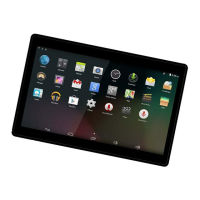
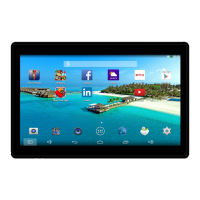
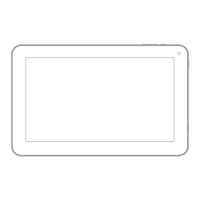
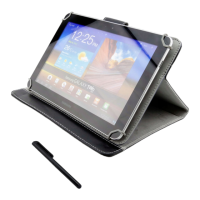
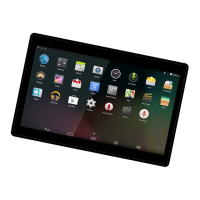
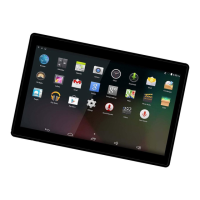
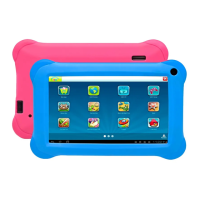
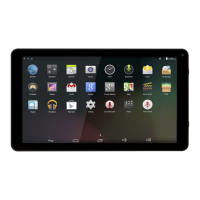
This document is a user manual for the DENVER TAQ-10153 tablet PC, providing essential information for its operation, maintenance, and troubleshooting.
Function Description:
The DENVER TAQ-10153 is a tablet PC designed for general use, offering features such as internet browsing, email, multimedia playback, and application usage. It runs on the Android™ 5.0.1 operating system and is powered by a 1.3G Quad core MTK8127 CPU with 1GB DDR3 RAM. The tablet includes 16GB of built-in flash storage, expandable via a micro SD card slot (supporting up to 32GB). Its display is a 10.1" TFT LCD with a resolution of 1024x600, featuring a capacitive touch screen for intuitive interaction. Connectivity options include IEEE 802.11 b/g/n Wi-Fi for wireless internet access and Bluetooth for connecting to other devices. The tablet also features a built-in microphone, two speakers, and two cameras (0.3MP and 2.0MP) for capturing photos and videos. For navigation, it is equipped with GPS and an FM radio function.
Important Technical Specifications:
- CPU: 1.3G Quad core MTK8127
- RAM: 1GB DDR3
- Storage: 16GB flash built-in, micro SD card slot (max. 32GB supported)
- Display: 10.1" TFT LCD (1024x600), Capacitive touch screen
- Wi-Fi Networking: IEEE 802.11 b/g/n
- Audio Output: 3.5mm headphone jack
- PC Interface: USB 2.0 high speed
- Cameras: 0.3MP (front) and 2.0MP (rear)
- Speakers: 2x1
- Additional Features: Built-in microphone, GPS, FM Radio, Bluetooth
- Operating System: Android™ 5.0.1
- Power: Rechargeable Li-poly battery, Power Adapter (DC 5V, 2A), USB cable included
Usage Features:
The tablet offers a range of user-friendly features:
- Turning On/Off: To turn on, press and hold the Power key until the LCD screen illuminates and the Home screen appears. To turn off, press and hold the Power key until the power off menu appears, then touch "OK".
- Screen On/Off (Standby): A single press of the Power key turns the screen off to conserve battery power and another press turns it back on. The screen can be set to turn off automatically after a period of inactivity (15 seconds to 30 minutes), configurable in the Display menu.
- Unlocking the Screen: When the screen is off, drag the lock icon across the screen towards the slide lock icon to unlock the tablet.
- Applications: Applications can be opened by touching their icons on the home screen or in the Launcher. Preinstalled applications include a web browser, email client, calculator, music player, camera, and settings menu.
- Installing Applications: Additional applications can be downloaded from the device's applications marketplace, web browser, or other sources. The tablet must be configured to allow installations from non-Market sources via the Application settings menu.
- Connecting to Wireless Internet (Wi-Fi): Access Wi-Fi settings, slide the Wi-Fi switch to "On", select an available network, and enter the password if required.
- Email Setup: Email accounts can be set up by entering the email address and password. Manual configuration is also available for specific server types (POP3, IMAP, Exchange).
- GPS: To use GPS, navigate to "Settings" > "Location" and select the desired mode. For optimal performance, it is recommended to be outdoors to search for satellites.
- FM Radio: To use the FM radio, plug in earphones (which act as an antenna) and open the "FM Radio" application. Users can adjust the frequency and change channels.
- Transferring Files: Connect the tablet to a computer using the provided Mini-USB to USB cable. The tablet will offer options such as "Media device (MTP)", "Camera (PTP)", or "Charge only" for file transfer. Selecting "Media device (MTP)" allows for easy file management.
Maintenance Features:
The manual provides important safety information and troubleshooting tips:
- Safety Precautions:
- Do not open the tablet.
- Avoid exposure to heat, water, moisture, or direct sunlight.
- Only use the original adapter for charging.
- Battery replacement should only be performed by a skilled engineer.
- The apparatus should not be exposed to dripping or splashing liquids.
- The direct plug-in adapter serves as a disconnect device and should remain readily operable.
- The device is Class II (double insulated) and does not require an electrical earth connection.
- Do not remove the cover to avoid electric shock; refer servicing to qualified personnel.
- Troubleshooting:
- Wi-Fi Connectivity Issues: Check if the wireless network is working, ensure the device is within range of the router, and verify the security password.
- Device Not Turning On: Charge the battery if it's low. Use a needle or paper clip to reset the unit. Check if the charger is connected correctly.
- Heat Issues: It's normal for the device to get warm during heavy use, bright screen settings, or charging.
- System Anomalies: If the system isn't working correctly, a system reset via the RESET button may resolve issues caused by third-party applications.
- Email Account Setup Failure: Ensure Wi-Fi connectivity, correct email settings, and accurate system time.
- Recording Issues: Reset the unit and check the record function.
- Short Stand-by Time: Battery life varies with environmental temperature and usage (high volume, Wi-Fi, frequent use can drain the battery faster).
- No Sound via Earphone: Check volume settings and verify if the audio file is corrupted.
- Color Distortion: Reset the unit to resolve display issues.
- File Copying Issues: Ensure correct connection to the computer, check memory space, and verify the USB cable.
- Other Troubles: Perform a reset or upgrade the firmware from a PC.
- Factory Reset: A factory reset for Android 5.0.1 units can take up to 10 minutes, during which the device will display "Android" while reloading firmware. It is crucial not to turn off the device during this process.
- Disposal: The product and its batteries should not be disposed of with household waste. They should be recycled responsibly at designated collection points to prevent harm to the environment and human health.

 Need help?

 To Next Page
 General