Need help?
Do you have a question about the Denver TAQ-10182 and is the answer not in the manual?
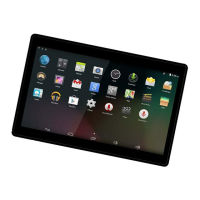
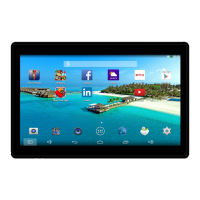
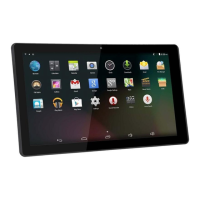
This document describes the DENVER TAQ-10182 tablet, providing essential information for its operation, maintenance, and technical specifications.
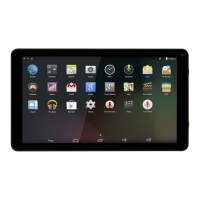
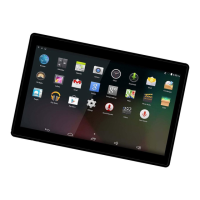
The DENVER TAQ-10182 is a tablet PC designed for various uses, including browsing the internet, running applications, managing emails, and multimedia playback. It features a capacitive touchscreen for intuitive interaction and runs on the Android™ 5.1 operating system. The tablet is equipped with Wi-Fi connectivity for wireless internet access and a USB port for data transfer and connecting to other devices. It also includes a front-facing camera for taking pictures and videos, a built-in microphone, and a speaker for audio functions. The device is powered by a rechargeable lithium-polymer battery, ensuring portability and extended use.
Getting Started: To turn the tablet on, press and hold the Power key until the LCD screen illuminates and the Home screen appears. To turn it off, press and hold the Power key until the power-off menu appears, then select "Power off." The screen can be turned on or off (standby mode) by a single press of the Power key to conserve battery power. The screen timeout can be adjusted in the Display menu (between 15 seconds and 30 minutes). Unlocking the screen involves dragging the lock icon towards the unlock icon on the upper side of the screen.
Applications: Applications can be opened by tapping their icons on the home screen or in the Launcher. Preinstalled applications include a browser, calculator, camera, email client, music player, and settings menu. Additional applications can be downloaded and installed from the device's application marketplace, web browser, or other sources. To install applications from non-Market sources, the "Unknown sources" option must be enabled in the Application settings menu.
Connecting to the Internet: To connect to wireless internet, navigate to Settings, then Wi-Fi, and slide the Wi-Fi setting to the "On" position. The tablet will display a list of available networks. Select a network and, if secured, enter the password. Once connected, the display will show "Connected" under the network name. To conserve battery life, Wi-Fi can be turned off when not in use.
Email Setup: To set up an email account, open the Email application, enter your email address and password, and press "Next." If automatic setup fails, manual configuration is required. This involves determining the server type (POP3, IMAP, or Exchange), entering incoming and outgoing server information, and ensuring Wi-Fi is active for testing the settings.
Transferring Files: Files can be transferred to and from a computer by connecting the tablet via the included Mini-USB to USB cord. Plug one end into the tablet and the other into a computer's USB port. The tablet will then be recognized as a media device, allowing file transfers.
Safety Information: The tablet contains a lithium battery and should not be opened, exposed to heat, water, moisture, or direct sunlight. Only the original adapter should be used for charging. Battery replacement should only be performed by a skilled engineer, and the battery must be recycled or disposed of separately from household waste. The device should not be exposed to rain or moisture, and liquids should not be placed on it. The direct plug-in adapter serves as a disconnect device and should remain readily operable. The product is a Class II double-insulated appliance. Correct disposal of the product and its batteries is crucial to prevent environmental harm and promote sustainable reuse of materials. Users should utilize return and collection systems for disposal.
Troubleshooting:
Factory Reset: Performing a factory reset on Android 5.1 units can take up to 10 minutes. During this process, the screen will display "Android" while reloading the firmware. It is crucial not to turn off the tablet during this state, as it will automatically restart once the firmware reload is complete.

 To Next Page
 General