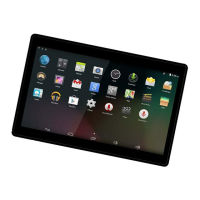
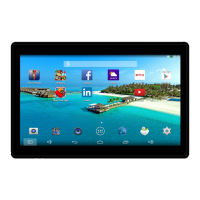
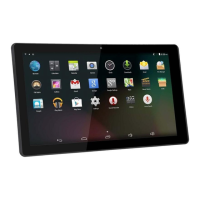
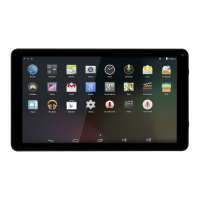
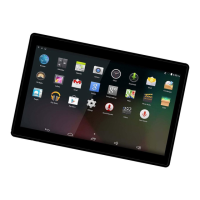
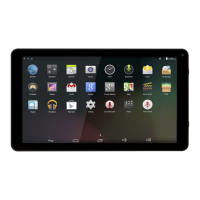
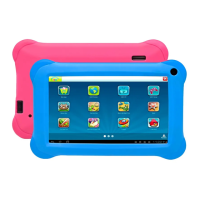
This document serves as the user's manual for the DENVER TAQ-10122 tablet PC, providing essential information for its operation, maintenance, and troubleshooting.
Function Description:
The DENVER TAQ-10122 is a tablet PC designed for general use, including web browsing, email, multimedia consumption, and running various applications. It features a 10.1-inch capacitive touchscreen display, a quad-core processor, and an Android 5.1 operating system. The tablet supports wireless internet connectivity via Wi-Fi and offers various ports for external connections.
Users are advised to read all safety information before using the tablet. For electrostatic discharge (ESD) tests (EN55020), manual operation (power ON/OFF switch) may be required to resume normal operation. The tablet contains a lithium battery, and users are warned not to open the tablet, expose it to heat, water, moisture, or direct sunlight. Only the original adapter should be used for charging. Battery replacement should only be performed by a skilled engineer, and the battery must be recycled or disposed of separately from household waste, not incinerated. The apparatus should not be exposed to dripping or splashing liquids, and objects filled with liquids should not be placed on it. The direct plug-in adapter acts as a disconnect device and must remain readily operable. The equipment is Class II (double insulated) and does not require an electrical earth connection. The lightning flash symbol indicates dangerous voltage inside, and users should not remove the cover. The exclamation point symbol indicates important operating and maintenance instructions. Proper disposal of the product is crucial to prevent environmental harm; it should not be disposed of with household waste but recycled through designated collection systems.
Important Technical Specifications:
- CPU: 1.3GHz QUAD CORE
- RAM: 1GB DDR3
- Storage: 8GB flash built-in; micro SD card slot (max. 32GB supported)
- Display: 10.1" LCD (1024x600), Capacitive touchscreen
- Wi-Fi Networking IE: IEEE 802.11 b/g/n
- Audio Output: 3.5mm headphone
- PC Interface: USB 2.0 high speed
- Additional Features: Built-in microphone, Camera (Front 0.3MP), 2x1W speaker
- Operating System: Android™ 5.1
- Power: Rechargeable Li-poly battery power, Power Adapter (DC 5V, 2A)
Usage Features:
Unit at a Glance:
The tablet features a power button, headphone jack, USB port, reset button, DC IN 5V port, SD CARD slot, MIC, return button, and volume controls (V+/V-).
Getting Started:
- Turning the Tablet On/Off: Press and hold the Power key to turn on/off. A power off menu will appear when holding the key down.
- Turning the Screen On/Off (Standby): Press the Power key once to turn the screen on or off to conserve battery.
- Unlocking the Screen: Drag the lock icon across the screen towards the slide lock icon on the right side to unlock.
- About Applications: Applications can be opened by touching their icons on the home screen or in the Launcher.
- Preinstalled Applications: Includes Browser, Calendar, Camera, Email, Play Music, and Settings.
- Installing Applications: Additional applications can be downloaded from the device's marketplace, web browser, or other sources. The tablet must be set to allow installations from non-Market sources via the Application settings menu.
Connecting to the Internet:
- Press the Settings icon.
- Locate the Wi-Fi setting and slide it to the "On" position.
- Select a network from the list of available networks.
- Select "Connect" from the pop-up menu.
- If the network is secured, enter the password.
- Once connected, the display will show "Connected" under the network name.
To conserve battery life, turn off Wi-Fi when not in use.
Email:
- Setting Up an Email Account: Press the Email icon, enter your email address and password, then press Next. If this fails, manual configuration may be required.
- Manually Configuring an Email Account: This requires detailed information from your provider, including server type (POP3, IMAP, or Exchange). Enter email address and password, then fill in incoming and outgoing server settings. Wi-Fi must be active for testing settings.
Transferring Files:
- Connect the tablet to a computer using the included Mini-USB to USB cord.
- Slide down from the top of the screen and press "Connected as a media device."
- Select "Media device (MTP)" from the USB computer connection options.
- Files can now be transferred to and from the computer.
Maintenance Features:
Troubleshooting:
- Wi-Fi Connection Issues: Ensure the wireless network is working, the device is within range, and the security password is correct.
- Device Not Turning On: Charge the battery, use a needle or paper clip to reset the unit, and check the charger connection.
- Heat Issues: Normal when running multiple applications, using the brightest screen setting, or charging.
- System Anomalies/Malfunctions: Installing third-party applications can cause issues. Use the RESET button to perform a system reset.
- Email Account/Registration Issues: Ensure Wi-Fi is connected, email settings are correct, and system time is accurate.
- Recording Issues: Use a needle or paper clip to reset the unit and check if the record function works.
- Short Stand-by Time: Battery duration varies with temperature and service conditions. High volume, Wi-Fi, and frequent use can drain the battery faster.
- No Sound via Earphone: Check volume settings, and try playing another audio file to confirm if the original file is broken.
- Color Distortion: Use a needle or paper clip to reset the unit.
- File Copying Issues: Check if the device is connected correctly, if memory space is full, or if the USB cable is broken.
- Other Troubles: Try resetting the unit with a needle/paper clip, or upgrade the firmware from a PC and restart the device.
Factory Reset:
A factory reset of Android 5.1 units can take up to 10 minutes. During firmware reload, the screen will display "Android." Do not turn off the tablet during this process; it will restart automatically once complete.
This manual provides a comprehensive guide for users to effectively operate and maintain their DENVER TAQ-10122 tablet PC.

 Need help?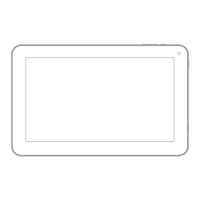

 To Next Page
 General