Need help?
Do you have a question about the Denver TAQ-10383K and is the answer not in the manual?
This document serves as the user's manual for the DENVER TAQ-10383KBLUE/PINK tablet, providing essential information for its connection, operation, and adjustment. It emphasizes the importance of reading the manual thoroughly before use to ensure proper handling and to maximize the device's lifespan.
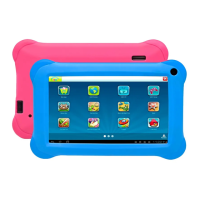
The DENVER TAQ-10383KBLUE/PINK is a versatile tablet designed for various applications, including internet browsing, multimedia consumption, and running a range of applications. It comes pre-installed with Kido'z software, a child-friendly interface that guides users through account setup, language selection, and content personalization upon first launch. The tablet supports Wi-Fi connectivity, which is crucial for accessing online content, downloading applications from the Google Play Store, and utilizing cloud-based services.
The device features a standard set of physical controls and ports. A Power key allows users to turn the unit on or off, and to toggle the screen's standby mode, which helps conserve battery life. A Reset button, accessible with a needle or paper clip, is provided for troubleshooting and restarting the device in case of system anomalies. For audio output, a 3.5mm headphone jack is available, enabling private listening. A USB port facilitates data transfer between the tablet and a computer or other USB devices, allowing users to manage music, videos, photos, and other files. An ESC button is also present, likely for navigating menus or exiting applications. The tablet includes a built-in microphone for audio input, and a microSD card slot for expanding storage, allowing users to load external memory cards.
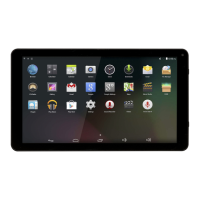
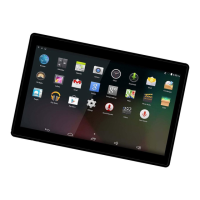
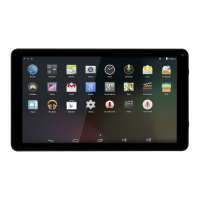
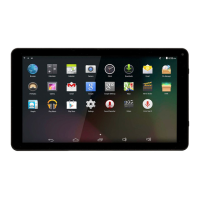
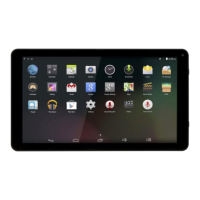
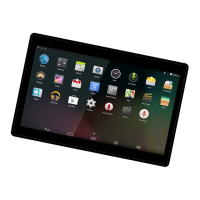
The tablet runs on an Android operating system, providing a familiar and intuitive user interface. It supports a wide array of applications, some of which are pre-installed for user convenience. These include a web browser (Chrome), a calculator for simple mathematical operations, a camera application for taking pictures and videos, Gmail for email management, and Play Music for audio playback. The Settings menu provides comprehensive options for adjusting the tablet's various features and preferences.
Getting started with the tablet involves a few simple steps. To power on, users press and hold the Power key until the LCD screen illuminates and the Home screen appears. To turn off, the Power key is pressed and held until a power off menu is displayed, from which the "Power off" option can be selected. The screen can be turned on or off to enter standby mode by a single press of the Power key, which is an effective way to conserve battery. The screen timeout can be adjusted in the Display menu, allowing the tablet to automatically turn off the screen after a set period of inactivity, ranging from 15 seconds to 30 minutes.
Unlocking the screen after it has turned off involves dragging a lock icon upwards. To access the full range of applications, users simply slide upward on the home screen to reveal the launcher.
Connecting to the internet is primarily done via Wi-Fi. Users navigate to the Settings menu, select "Network & Internet," and then tap to activate Wi-Fi. The tablet will then detect available networks, which are listed for selection. If a network is secured, users will be prompted to enter a password. Once connected, the network name will display "Connected." To conserve battery, it is recommended to turn off Wi-Fi when not in use.
Email setup is straightforward using the pre-installed Gmail application. Users enter their email address and password, then proceed. If automatic setup fails, manual configuration is possible, requiring detailed information about the email server type (POP3, IMAP, or Exchange), incoming server settings, and outgoing server settings. Wi-Fi connectivity is essential for both automatic and manual email setup.
Transferring files to and from a computer is facilitated by connecting the tablet via a Mini-USB to USB cord. Once connected, users slide down from the top of the screen to access system notifications, tap on the USB connection notification, and then select "Transfer files" from the options. This allows for easy management of various file types.
The manual provides a comprehensive troubleshooting section to address common issues that users might encounter. For Wi-Fi connectivity problems, users are advised to check if the wireless network is working, ensure the tablet is within range of the router, and verify the security password. If the device fails to turn on, charging the battery, performing a reset using a needle or paper clip, and checking the charger connection are recommended steps.
Heat issues are addressed, noting that it is normal for the device to become warm during intensive use (e.g., running multiple applications, bright screen settings, or charging). System anomalies or incorrect operation, often caused by third-party applications, can be resolved by pressing the RESET button or performing a system reset.
Problems with email account setup or registration require checking Wi-Fi connectivity, verifying email settings, and ensuring correct system time. If the recording function doesn't work, a reset is suggested. Short standby time is attributed to environmental temperature changes and usage patterns, with high volume, Wi-Fi, and frequent use accelerating battery drain.
Audio issues via earphones, such as no sound, prompt users to check the volume setting and verify if the audio file is corrupted. Color distortion in video or picture display can often be fixed with a device reset. File copying issues typically involve checking the USB connection, available memory space, and the integrity of the USB cable.
For persistent or other troubles, the manual suggests a two-step process: first, performing a reset with a needle or paper clip, and if that doesn't resolve the issue, upgrading the firmware from a PC and restarting the device. These steps aim to resolve most software-related problems before requiring further technical assistance. The manual emphasizes responsible disposal of the product and its batteries, highlighting the crossed-out trash can symbol, which indicates that the device should not be disposed of with household waste but should be recycled separately at designated collection points.
 General
| Screen size | 10.1 inches |
|---|---|
| Operating System | Android 10 |
| RAM | 2 GB |
| Internal storage | 32 GB |
| Resolution | 1280 x 800 pixels |
| Battery Capacity | 5000 mAh |
| Connectivity | Wi-Fi, Bluetooth |
| CPU | Quad-core |
| Camera | 2 MP rear, 0.3 MP front |
| Weight | 530 g |

 To Next Page