Need help?
Do you have a question about the Denver TAQ-10363 and is the answer not in the manual?
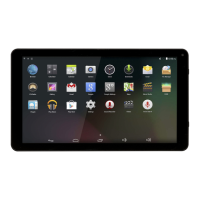
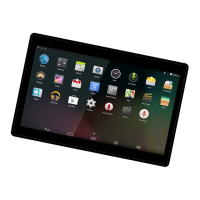
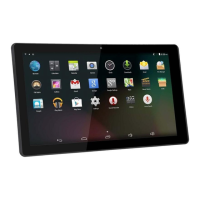
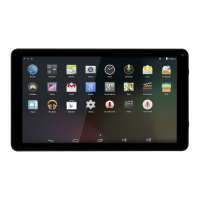
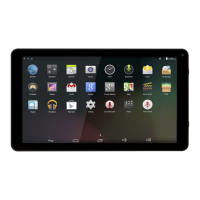
This document outlines the features, usage, and maintenance of the DENVER TAQ-10363 tablet PC. It covers everything from initial setup to troubleshooting and important safety information.
The manual begins with critical safety warnings. For electrostatic discharge (ESD) tests (EN55020), manual operation (power ON/OFF switch) is required to resume normal function after the test. The tablet contains a lithium battery, so users are cautioned against opening the device, exposing it to heat, water, moisture, or direct sunlight. Only the original adapter should be used for charging. Attempting to replace the battery yourself can cause damage, overheating, and injury; battery replacement should only be performed by a skilled engineer and must be recycled separately from household waste. Incineration of the battery is strictly prohibited.
To prevent fire or electric shock, the device should not be exposed to rain or moisture, and no liquid-filled objects, like vases, should be placed on it. The direct plug-in adapter serves as a disconnect device and must remain readily operable. The TAQ-10363 is a Class II, double-insulated electrical appliance, meaning it does not require an electrical earth connection. A lightning flash symbol with an arrowhead within an equilateral triangle warns of uninsulated "dangerous voltage" inside the product, indicating a risk of electric shock. Users are advised not to remove the cover or back, as there are no user-serviceable parts inside, and to refer servicing to qualified personnel. An exclamation point within an equilateral triangle indicates important operating and maintenance instructions in the accompanying literature.
Correct disposal of the product is emphasized with a crossed-out trash can symbol, signifying that it should not be disposed of with other household waste in the EU. This promotes responsible recycling to prevent environmental or human health harm from uncontrolled waste disposal. Users should utilize return and collection systems or contact the retailer for proper disposal of the used device.
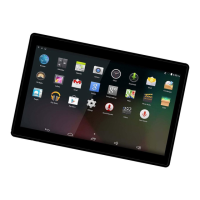
The tablet features several external components:
Turning the Tablet On or Off: To turn the tablet on, press and hold the Power key until the LCD screen illuminates and the Home screen appears. To turn it off, press and hold the Power key until the power off menu appears, then touch "Power off" on the screen.
Turning the Screen On or Off (Standby): While the tablet is on, the screen can be turned off to conserve battery power by pressing the Power key once. Pressing it again will turn the screen back on. To further conserve power, the screen can be set to turn off automatically after a period of inactivity (15 seconds to 30 minutes), configurable in the Display menu.
Unlocking the Screen: When the screen is off, it will be locked. To unlock it, drag the lock icon across the screen towards the slide lock icon, which will reveal an unlock icon.
About Applications: Applications can be opened by touching their icons on the home screen or in the Launcher, which is accessed by tapping the ":::" icon on the home screen.
The tablet comes with several preinstalled applications for user convenience:
Installing Applications: Additional applications can be downloaded and installed from the device's applications marketplace, the web browser, or other sources. To install applications from non-Market sources, the "Unknown sources" option must be enabled in the Application settings menu.
Connecting to Wireless Internet:
Setting Up an Email Account:
Manually Configuring an Email Account: It is recommended to consult an IT professional for manual configuration.
Transferring Files with a Computer: To transfer files, connect one end of the included Mini-USB to USB cord to the tablet and the other end to a computer's USB port. The tablet will then be accessible for file transfers.
The manual provides solutions for common issues:
1.1 Device cannot connect to Wi-Fi:
1.2 Device doesn't turn on:
1.3 Heat Issues:
1.4 System anomalies and incorrect operation:
1.5 Cannot set E-mail Account or registration application:
1.6 Cannot record:
1.7 The stand-by time of the device is too short:
1.8 No sound via earphone:
1.9 Color distortion of video or picture display:
1.10 Cannot copy files:
1.11 Other troubles:
The device supports Bluetooth connectivity:
A factory reset on Android 6.1 units can take up to 10 minutes. During the firmware reload, the screen will show "Android." It is crucial not to turn off the tablet during this state. The tablet will automatically restart once the firmware reload is complete.
 General
| Display Size | 10.1 inches |
|---|---|
| Resolution | 1280 x 800 pixels |
| Processor | Quad-core 1.3 GHz |
| RAM | 1 GB |
| Camera (Rear) | 2 MP |
| Camera (Front) | 0.3 MP |
| Connectivity | Wi-Fi, Bluetooth |
| Weight | 530 g |
| Operating System | Android |

 To Next Page