Need help?
Do you have a question about the Depstech WF020X-025-028 and is the answer not in the manual?
Identifies power button, LED dimmer, WiFi/power indicators, reset button, and charging port.
Instructions for downloading the app on iOS and Android devices.
Steps to register a personal account before using the app.
Guide on how to turn on the endoscope.
Steps to connect the device to WiFi using SSID and password.
Steps to confirm and establish the connection between the endoscope and the app.
Details on rotate, photo, record, gallery, settings, and camera switch buttons.
Explains button hiding and zoom functions via gestures.
Options to change video resolution and WiFi channel.
How to modify the WiFi SSID and password.
Options to modify WiFi, resolution, reboot, and clear password.
Recommendations against modifying WiFi settings due to potential issues.
Guidelines for charging the device.
Instructions on how to attach accessories to the endoscope.
Detailed technical specifications of the device models.
Solutions for problems connecting to the WiFi endoscope.
Troubleshooting steps for no real-time image or black screen issues.
Addressing issues where WiFi signal is found but connection fails.
Solutions for flickering, freezing, or disconnection during use.
Warnings against fire, liquid, acid, shock, and temperature considerations.
Advice on proper use, cleaning, storage, and WiFi interference.
Details on the water resistance of the camera probe and WiFi box.
Compliance information with FCC and EU directives.
Guidelines for proper disposal of electronic waste and batteries.
This document serves as a multi-language user manual for the DEPSTECH FHD Inspection Camera, specifically models WF020X-025-028. It provides comprehensive instructions for setting up, operating, and maintaining the device, ensuring users can effectively utilize its features for various inspection tasks.
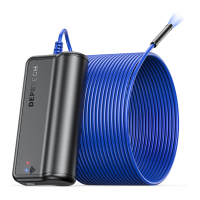
The DEPSTECH FHD Inspection Camera is a versatile tool designed for visual inspection in hard-to-reach areas. At its core, the device functions as an endoscope, allowing users to explore confined spaces and capture high-definition images and videos. The main unit, often referred to as the WiFi box, houses the power button, camera LED dimmer, WiFi signal indicator, power indicator, reset button, and a Micro-USB charging port. This unit wirelessly transmits data to a smart device (smartphone or tablet) via WiFi, enabling real-time viewing and recording through a dedicated mobile application.
The camera itself is attached to a flexible cable, allowing it to be maneuvered into tight spots. It features integrated LEDs, whose brightness can be adjusted to illuminate dark environments, ensuring clear visibility during inspections. The camera's waterproof design (IP67 for the camera part only) extends its utility to damp or submerged environments, such as pipes or drains, for limited durations.
The device's primary function is to provide visual feedback from inaccessible locations. This is achieved through its wireless connectivity, which streams live footage to the user's smart device. The accompanying "DEPSTECH-View" application acts as the control interface, offering functionalities such as image rotation, photo capture, video recording, and access to a gallery of captured media. It also includes settings for resolution adjustment and WiFi configuration.
The inspection camera is designed for user-friendly operation, starting with a straightforward setup process.
APP Downloading and Registration: To begin, users must download the "DEPSTECH-View" application. iOS users (iOS 9+) can find it on the APP Store, while Android users (Android 7.0+) can download it from the Google Play Store. After installation, a personal account registration is required, involving email, password, and agreement to terms. It's crucial to maintain network connectivity during registration.
Powering On and WiFi Connection: The device is powered on by pushing the power button to "ON." Before first use, a full charge is recommended. Once powered, the WiFi module activates, indicated by a steady blue LED. Users then navigate to their smart device's WiFi settings to locate and connect to the endoscope's WiFi SSID, which typically appears as "DEPSTECH_" or "Jetion_." The default password is "12345678." The "******" represents a series of random numbers and letters, and users should be patient as the WiFi signal and connection may take a few seconds to establish.
Real-time Viewing and Control: After successfully connecting the smart device to the endoscope's WiFi, users return to the "DEPSTECH-View" app. If the connection is successful, real-time images from the endoscope will be displayed, and the blue LED on the endoscope's WiFi transmitter will remain on.
The app provides several interactive features for controlling the inspection:
Hidden Buttons and Zoom Functionality: For an unobstructed view, the control buttons can be hidden by tapping the screen and brought back by tapping again. The app also supports zoom functionality: users can expand two fingers outwards on the screen to zoom in on the real-time image and pinch two fingers together to zoom out.
APP Settings (WiFi SSID: DEPSTECH_**): Within the app's settings, users can:
APP Settings (WiFi SSID: Jetion_): For models with the "Jetion_****" SSID, the settings allow users to:
Accessories Installation: The manual also provides guidance on installing accessories. These are typically attached by turning them clockwise to tighten and removed by turning counterclockwise.
Proper maintenance is crucial for extending the lifespan and ensuring optimal performance of the DEPSTECH FHD Inspection Camera.
Charging Guide: The device is charged by connecting it to a DC 5V USB adapter. During charging, a green LED indicator light will be steady on. Once fully charged, this green LED will turn off. Regular charging, even when not in frequent use, is recommended (every three months) to maintain battery health.
Cleaning and Storage: After each use, the endoscope should be turned off and stored in a dry environment. The camera lens can be cleaned with a soft cotton cloth lightly dampened with alcohol to ensure clear images. This practice helps maintain image quality and prevents debris buildup.
Environmental Considerations: The device's storage temperature should be between 32-158°F (0-70°C), and the working temperature between 32-113°F (0-45°C). It should be kept away from fire sources, liquids, and acidic substances to prevent electrical shocks and damage.
Durability and Waterproofing: The unit is not shock-resistant, so users should avoid dropping it or subjecting it to high impacts. While the lens and tube are water-resistant (IP67 for the camera probe part), the WiFi box itself is not. The camera part can withstand underwater inspections up to 3.33 feet (1 meter) for a maximum of 30 minutes. It is critical not to immerse the WiFi box in water.
Operational Stability: It is normal for the camera to become warm during operation, especially when the LEDs are at their brightest setting. This does not affect regular usage or the endoscope's lifespan. To ensure stable WiFi transmission, the device should be kept within 16.5 feet (5 meters) of the phone/tablet without obstacles and away from strong WiFi interference areas.
Troubleshooting and Support: The manual includes a comprehensive FAQ section to address common issues such as connection problems, black screens, and flickering images. Solutions often involve restarting the device, performing a factory reset using a reset pin, ensuring sufficient charge, or checking WiFi settings on the smart device. For iOS users, specific permissions for "photo/media content," "document storage," "Cellular Data," and "Native network" must be enabled for the app to function correctly. If issues persist after following the troubleshooting steps, users are advised to contact customer support via email at support@depstech.com.
Safety and Compliance: The device complies with FCC and EU regulatory standards, including CE marking, indicating adherence to health, safety, and environmental protection requirements. It also adheres to WEEE directive for proper disposal of electronic waste and battery recycling guidelines, emphasizing environmental responsibility. Children should only operate the device under adult supervision.
 General
| Resolution | 1920x1080 |
|---|---|
| Effective Pixels | 2MP |
| Frame Rate | 30fps |
| Night Vision | Yes |
| Sensor | CMOS |

 To Next Page