EasyManua.ls Logo

Desoutter Delta 1D - User Manual

Desoutter Delta 1D
249 pages
Print Icon
To Next Page IconTo Next Page
Loading...
Part Number
Issue
Date
Page
6159938880
13
01/2018
1 / 249
1 (249) 01/2018
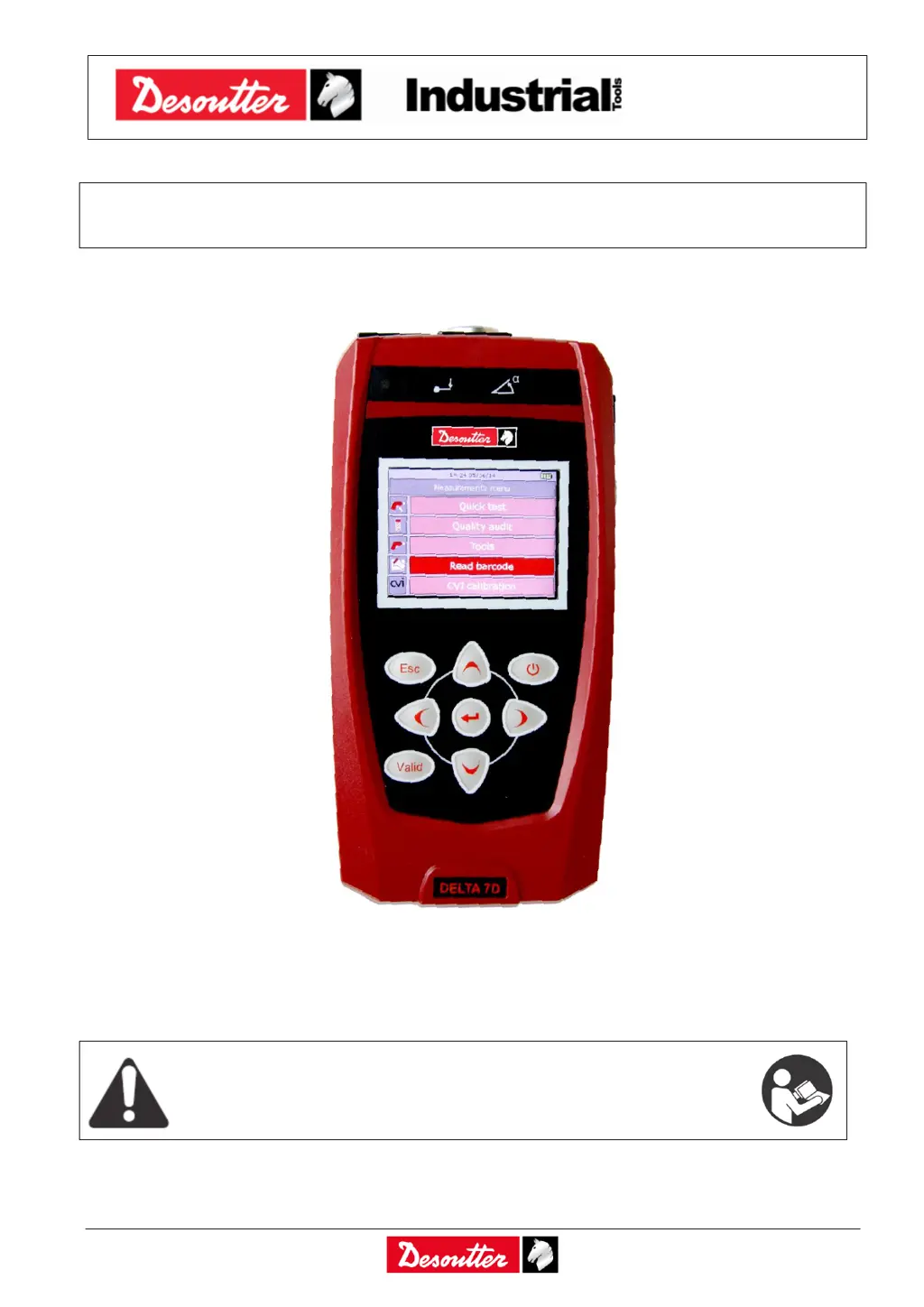
DELTA User Guide
WARNING
To reduce the risk of injury, before using or servicing tool, read and understand
the following information.
The features and descriptions of our products are subject to change without
prior notice.

Table of Contents

Questions and Answers

  • C
    Courtney SmithAug 14, 2025
    What to do if “No tool” appears on Desoutter Delta 1D Delta display?
    • D
      Daniel FischerAug 14, 2025
      If the Delta display shows “No tool” when you access the Tools menu, it means that no tool has been defined. To resolve this, create at least one tool with a Pset associated to start a test.
  • E
    Erik HansenAug 18, 2025
    What to do if “No Pset available” appears on Desoutter Delta 1D Measuring Instruments Delta display?
    • T
      Tracy WrightAug 18, 2025
      If the Delta display shows “No Pset available” when selecting a tool, it means that the tool has no Pset associated with it. To fix this, associate at least one Pset to the tool.
  • M
    Michael BaileyAug 21, 2025
    What does “Capacity error” mean on Desoutter Delta 1D Delta display?
    • B
      Bradley SanchezAug 21, 2025
      A “Capacity error” on the Delta display during a test indicates that the transducer's capacity is not adequate for the test. The solution is to use a transducer with a higher capacity.
  • D
    daniel54Aug 25, 2025
    What to do if “No more Psets available” appears on Desoutter Delta 1D Measuring Instruments Delta display?
    • J
      Joseph HollandAug 25, 2025
      If the Delta display shows “No more Psets available” when starting a test, it means the tool has been deleted. To solve this, exit the test menu and create a tool with at least a linked Pset.
  • J
    Jeffery BarnesAug 27, 2025
    What does “Transducer not suitable” mean on Desoutter Delta 1D Delta display?
    • P
      Paul RobersonAug 27, 2025
      If the Delta display shows “Transducer not suitable”, it means an incompatible transducer is being used for the test, such as a static transducer for a test requiring angle measurement. To resolve this, connect a compatible transducer for the test.
  • G
    gibbsmelissaAug 31, 2025
    What does “Min Load Error” mean on Desoutter Delta 1D Measuring Instruments Delta display?
    • C
      Christine RileyAug 31, 2025
      If a “Min Load Error” appears on the Delta display when starting a test, it means that the Pset and transducer data are not matching. To fix this, check both the transducer and the Pset data to ensure they are compatible to start the test.
  • J
    jacquelinemillerSep 3, 2025
    What to do if test result is always Not OK when testing a tool on Desoutter Delta 1D?
    • M
      Miss Kimberly Butler DDSSep 3, 2025
      If the test result is always Not OK or the click-point of a wrench is never detected when testing a tool with Desoutter Measuring Instruments, ensure you are using the proper setup. Check and, if necessary, modify the test setup parameters; the thresholds are the most critical parameters.
  • E
    Erica ClarkSep 6, 2025
    Why can't I connect the DeltaQC to the Desoutter Delta 1D Delta?
    • T
      tracysilvaSep 6, 2025
      If you cannot connect the DeltaQC to the Delta, it might be due to a wrong connection type. When clicking on the Connect icon, make sure that the USB or Network is selected. To select the connection method, click on the arrow on the right side of the icon.
  • S
    Stephanie TaylorSep 10, 2025
    How to fix cannot enter the test menu on Desoutter Delta 1D Measuring Instruments?
    • S
      srollinsSep 10, 2025
      If you cannot enter the test menu on your Desoutter Measuring Instruments, it may be because the transducer is not connected. Connect a valid transducer to the Delta, ensuring that the cable is also the correct one.

Summary

SAFETY INFORMATION

General Safety Warnings

Mandatory reading of safety information before operating the Delta device.

INTRODUCTION AND OVERVIEW

1.1 About this Document

Outlines the manual's structure, content, and purpose.

1.2 Specifications

Details technical specifications of the Delta device and its capabilities.

2 SYSTEM OVERVIEW

Provides context on the Delta instrument, its models, and components.

USER INTERFACES AND BASIC OPERATION

Device Components and Ports

Covers transducer connector, Ethernet, Mini USB, and Serial ports.

Input and Feedback Mechanisms

Details the Display, Keyboard, LEDs, and Buzzer for user interaction.

Getting Started with Delta

Guides on powering on the device and performing initial demo tests.

DELTAQC SOFTWARE OPERATION

4.1 Software Installation

Guides through the installation of DeltaQC software and SQL Server.

4.2 DeltaQC Overview

Overview of the DeltaQC interface and its main areas.

4.4 Connecting with the Delta

Details USB and Ethernet connection methods.

TRANSDUCERS AND CALIBRATION

5 TRANSDUCERS

Describes different transducers and their connection.

8.3 CVI Calibration

Details CVI II, CVI3, and CVIC II calibration functions.

TEST CONFIGURATION AND EXECUTION

7 USE OF DELTA 1 D

Guides on using the Delta 1D for testing tools.

8 USE OF DELTA 6 D;7 D

Guides on using Delta 6D/7D for tests and analysis.

9 PSET

Details Pset configuration for controlling test processes.

OFFLINE MODE OPERATIONS

10 OFFLINE MODE

Explains offline mode for creating test assets without a connected Delta.

10.1 Create a Route

Guides on creating routes to group test programs.

10.2 Transfer Offline Data to Delta

Details transferring offline data to the Delta.

SPECIFIC TEST PROCEDURES

11 TESTING CLICK-WRENCHES

Guides on testing click wrenches.

12 PEAK TEST

Measures maximum torque during a test.

13 TESTING NUTRUNNERS

Tests nutrunner tools for torque application.

14 TESTING PULSE TOOLS

Tests pulse tools using a series of pulses.

15 TESTING PULSE TOOLS WITH PRELOAD

Tests ELRT tools using load measurements.

16 TOOL CHECK: FREE ANGLE TEST

Checks angle values against limits.

17 QUALITY TEST ON JOINTS

Evaluates residual torque on joints.

18 JOINTS ANALYSIS

Evaluates torque/angle characteristics of a joint.

19 PRODUCTION TIGHTENING OPERATIONS

Executes tightening operations using various strategies.

DELTA SETTINGS AND STATISTICS

20 DELTA SETTINGS

Covers device settings configurable via Delta or DeltaQC.

21 STATISTICS

Calculating and analyzing statistical data.

DATA REVIEW AND EXPORT

22 RESULTS VIEWER

Allows retrieval and review of test results.

23 CURVES VIEWER

Enables viewing and analyzing recorded curves.

ADVANCED FEATURES AND MAINTENANCE

24 CALCULATING CORRECTION COEFFICIENTS FOR EXTENSIONS

Explains calculating coefficients for extensions.

25 SCHEDULED MAINTENANCE

Provides maintenance procedures for the device.

TROUBLESHOOTING AND SETTINGS

26 TROUBLESHOOTING GUIDE

Offers a guide to troubleshoot common Delta issues.

27 DELTA FACTORY SETTINGS

Details the default factory settings for the Delta device.

28 ABBREVIATIONS

Lists abbreviations used in the manual.

DECLARATION OF CONFORMITY

Product Conformity Information

Details conformity with EU directives, standards, and issuer information.

Desoutter Delta 1D Specifications

General IconGeneral
BrandDesoutter
ModelDelta 1D
CategoryMeasuring Instruments
LanguageEnglish

Related product manuals