MA_ENG_Bluetooth Installation Manual_Rev 1508 4
Metal surfaces under or frames very near your e-Board may reduce the sensitivity of the board. Please do not place
the e-Board on a metal table or a table with metal construction beneath or beside it.
Place the e-Board on a stable surface and connect the USB cable (included) between the e-Board and a free USB
port of your computer. Windows will automatically detect this new USB device and install the required windows driver
for the basic USB connection. The next step is to set-up the external Bluetooth dongle (if required) and the Bluetooth
connection.
Preparing the Bluetooth connection in Windows
If you have not yet installed a Bluetooth USB dongle (stick) or if you do not have built in Bluetooth hardware in your
computer or laptop, you need to insert a Bluetooth dongle (not included) in a free USB port of your computer.
Windows normally recognizes almost all of these dongles and will automatically install the driver included within the
Windows package, which is already on your computer.
If the installation does not start automatically, please install the drivers that came with your Bluetooth USB dongle.
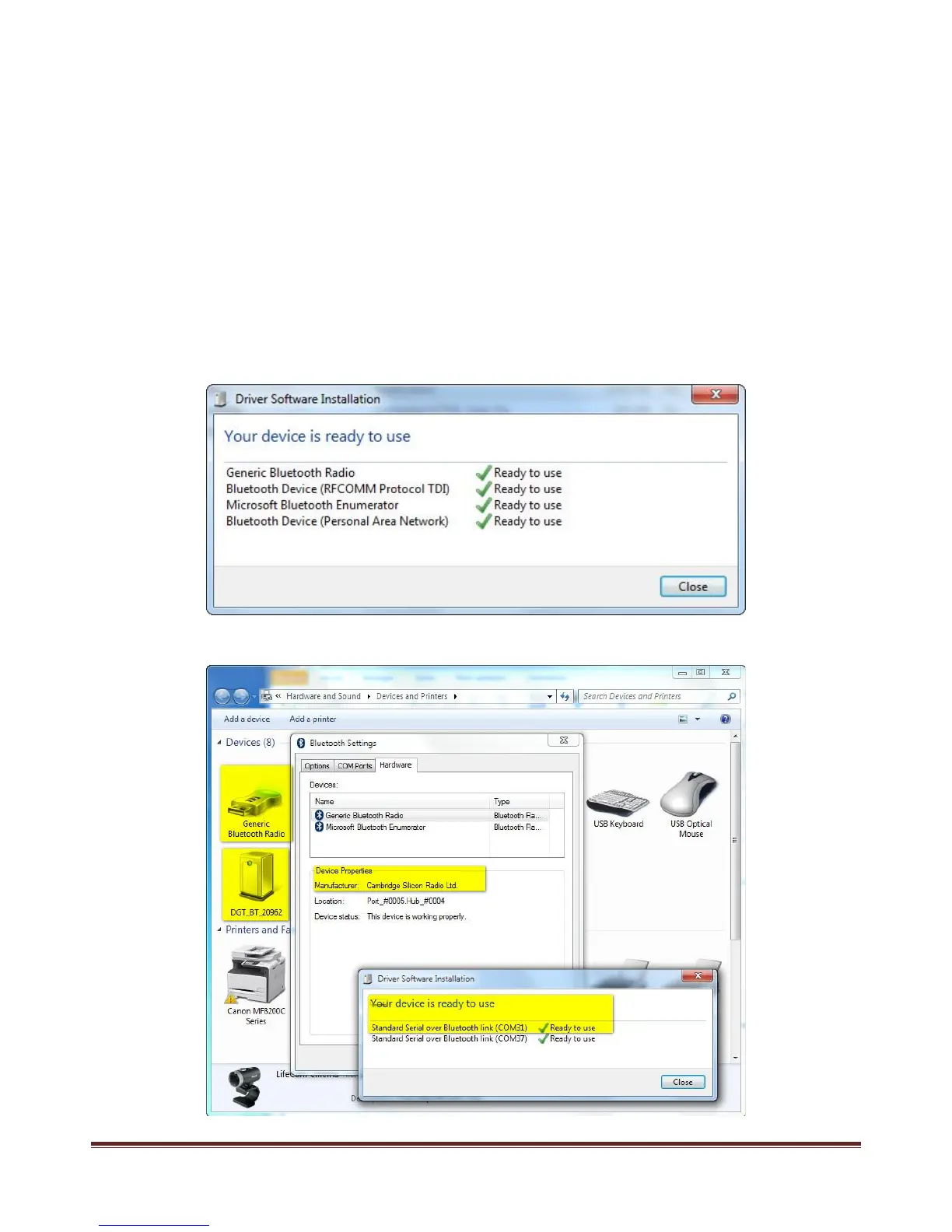
When the Bluetooth device is ready for use, Windows will inform you as per following screen.
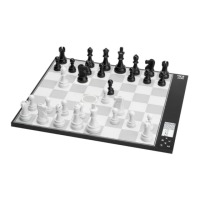
A Bluetooth plug icon (See: generic Bluetooth Radio) will appear in the system control panel as in following screen:


 To Next Page