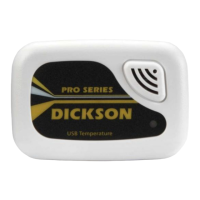
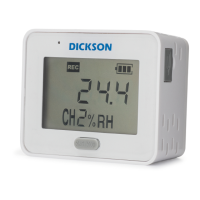
Getting Started with the DBL
Follow these easy steps to begin logging data quickly:
1. Open the rear battery compartment door and add 1 AA battery
2. The device will power on and flash the current firmware version on the screen for a few sends
3. 4 static dashes along with a wrench icon will appear on the screen
4. To configure the DBL, using a USB cable, connect the device to a computer (with DicksonWare 2.0 software
installed)
Configuring Device Settings Using DicksonWare 2.0
Install DicksonWare 2.0 (if not already installed)
1. Plug the USB stick that contains the file into your computer
2. Open the external USB drive to view the installation file
3. Click on the Dicksonware installation file to begin downloading
4. Once the download is complete
Note: DicksonWare 2.0 Version 20.3.2.0 or greater required
Note: The DicksonWare 2.0 USB includes a manual for DicksonWare 2.0 operation.
Configure Device Settings
Launch DicksonWare 2.0
1. Launch the program by clicking the icon on your desktop or by finding it in the Start menu
2. Connect the DBL to your computer using the USB cable. The software will recognize the connected device
3. Click the “Configure” button at the top of the screen. Give the logger a name
Sample Rate
1. On the “Configure” screen of Dicksonware 2.0, go to the “Sample Rate” tab in the sidebar
2. Select a sample interval (how often the device takes a reading) from the dropdown
a. (NOTE: selecting a faster sample rate will affect battery life.)
3. Select whether you want the device to STOP logging when full, or WRAP (overwrite) when full
Note on battery life
The two year battery life specification with a regular AA battery is based on the following assumptions:
● 5 minute sample rate
● 3 second display refresh rate
● 3 Audible/visual alarms per month
● Operating at ambient temperature
Channels
● On the “Configuration” screen of Dicksonware, go to the “Channels” tab in the sidebar
○ Adjust the temperature units in Fahrenheit or Celsius
● Humidity channel recording can be turned off/on via this tab
Alarms
● On the “Logger Settings” screen, go to the “Alarms” tab in the sidebar
○ For each alarm, select either:
■ Min = lower threshold (device alarms when temperature goes below this point)
■ Max = upper threshold (device alarms when temperature goes above this point)
For additional support


 To Next Page
 Loading...