○ Input the temperature value or humidity % for the threshold
○ Click “Save”
● Device will sound an alarm when the temperature and/or humidity readings cross the predefined threshold
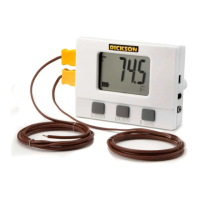
○ The alarm icon will illuminate in the display
○ The unit will blink a specific color to indicate the type of alarm:
■ Red = Temperature alarm
■ Green = Humidity alarm
■ Blue = Calibration past due
○ Alarm will sound for 1 minute until readings fall back within the set range.
○ If the DBL continues logging and the device remains in an alarm state after 1 minute then the device
will continue to beep twice every 5 minutes.
○ Audible/Visual alarm will clear automatically when the current reading no longer exceeds min/max
limits
Start Logging
● Once the device is properly configured click Save
● It is now safe to disconnect the device
● 4 flashing dashes will appear on the screen signaling the device is ready to begin logging data
● To begin logging data, hold Start/Stop button for 5 seconds
● “Strt” will appear on the screen to signal that datalogging has begun
● To stop or pause logging, hold the Start/Stop button for 5 seconds. Logging will continue when you again
press the Start/Stop button for 5 seconds
Downloading Data
Downloading data from the data logger requires DicksonWare 2.0 or DicksonWare 2.0 Secure and a USB cable, both
are sold separately.
To download data from the device:
1. Launch DicksonWare 2.0
2. Connect the DBL via the USB cable
3. On the Dicksonware home screen, click the “Download” button
4. Data will automatically start downloading from the device. This may take a few minutes depending on the
amount of data stored on the logger
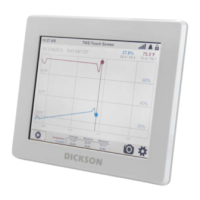
Once download is complete, you will be able to view the data in the interface and select a range
You can extend the battery life up to 6 years by using a Lithium AA battery with the same assumptions above.
Firmware
The DBL comes preloaded with up-to-date firmware. When the unit is powered on, the current version number will
flash on the screen. You should not normally have to update the firmware on the unit, but on the rare occasion
where a new update is available, you can visit our website for information:
https://dicksondata.com/product/compact-data-logger/
For additional support


 To Previous Page
 Loading...