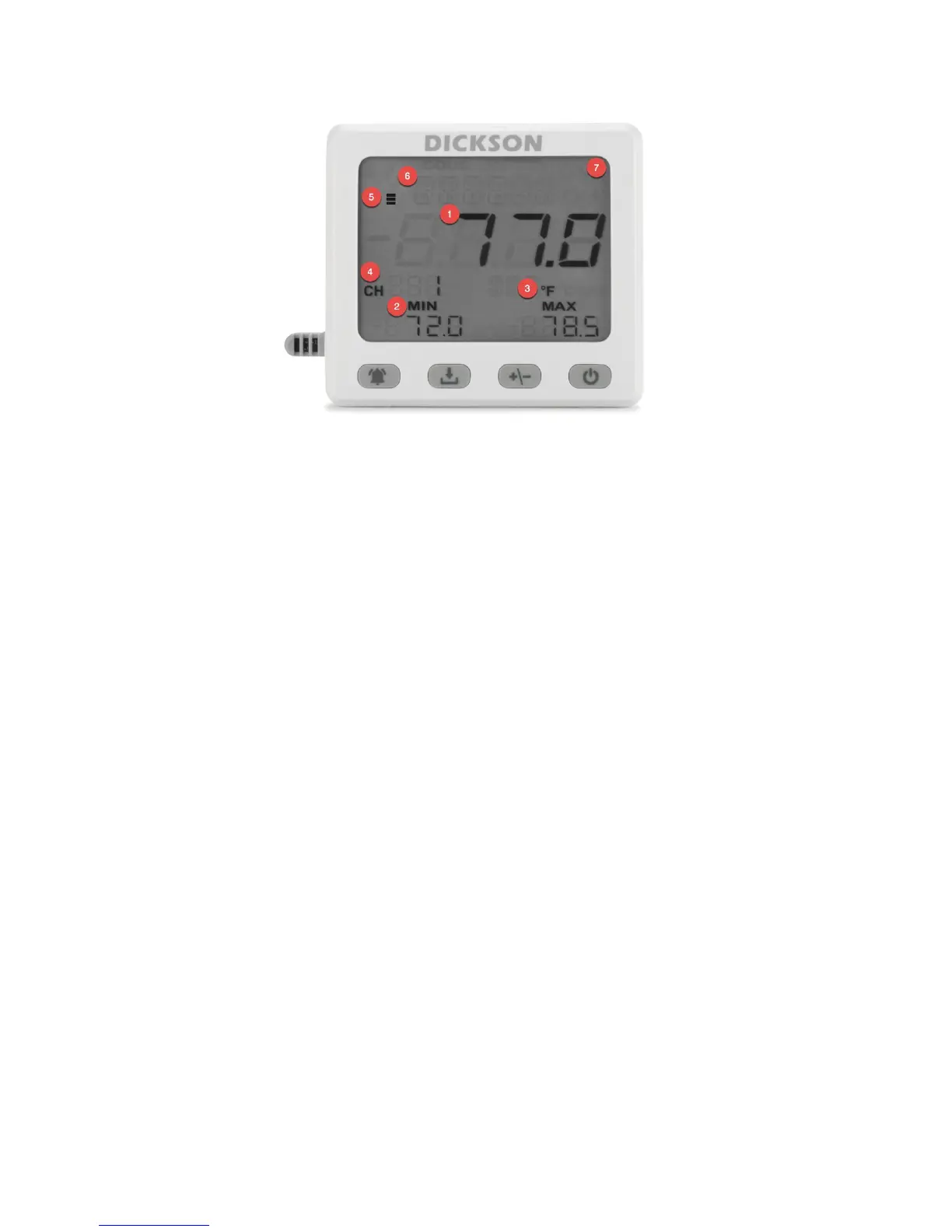
Navigating the Display
1. Recent reading
2. Min/max readings (since last reset)
3. Temperature units (rotates between any channels on the device)
4. Channel number (rotates between any channels on the device)
5. Battery indicator
6. Message
7. Alarm icon
Configuring Device Settings Using DicksonWare
If you purchased Dicksonware software with the device:
1. plug the USB stick that contains the file into your computer
2. Open the external USB drive to view the installation file
3. Click on the Dicksonware installation file to begin downloading
4. Once the download is complete, launch the program by clicking the icon on your desktop
5. Connect the DSB to your computer using the USB cable. The software will recognize the connected device
6. Click the “Configure” button at the top of the screen. Give the logger a name
Sample Rate
● On the “Logger Settings” screen of Dicksonware, go to the “Sample Rate” tab in the sidebar
○ Select a sample interval (how often the device takes a reading) from the dropdown
○ Select a display refresh interval. This determines how often the display’s recent reading, min/max
readings will be refreshed
○ NOTE: selecting a faster sample rate and/or refresh rate will affect battery life. The “battery efficiency”
indicator will adjust based on the selected settings
○ Select whether you want the device to STOP logging when full, or WRAP (overwrite) when full
Channels
● On the “Logger Settings” screen of Dicksonware, go to the “Channels” tab in the sidebar
○ Adjust the temperature units in Fahrenheit or Celsius


 To Next Page