Recommended Procedure
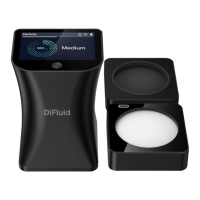
1) Take off the protective cover.
2) Click to power up, put the main unit over the calibration plate.
3) Swipe from left to right on READY page to enter the menu page. Click on the 'Calibration'
button or start calibration by short click and then long click the button. The screen will
display 'Success' after After completion.(See page 15 for more details)
Test
Each Omni has its unique calibration plate. If you lost the original calibration plate, you
could contact our online store to purchase a new one.
On the menu screen, click the <Settings> option to enter the settings
page.
1. Roast:
The settings related to roast analysis.
2. Particle:
The settings related to particle analysis.
3. General:
Device settings like language and screen brightness.
4. Device Info:
See more Omni product information.
5. Factory Reset:
Long-press on the reset icon and wait for the progress bar to complete
lling (5 seconds). This will restore the device to its factory settings (Please note: This
operation will clear all the history records, reset all settings and reboot the device).
Calibration
Settings
10


 To Next Page
 Loading...