3
Invite GREEN Button (or Unblock) - Numbers
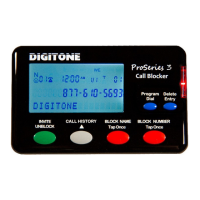
Invited Callers, store up to 80 numbers, can be entered pressing and holding the
GREEN Invite button on the front panel for one second until you see “Release Button”
displayed. Release the button and you will see “NBR Invite Saved”. When an invited
caller calls in, the caller ID will display their number and “Invited”. Use this process to
override or Unblock ANY number that was blocked in Call History.
Invite GREEN Button – VIP Numbers
Invited VIP Callers, store up to 80 numbers, can be entered by pressing the GREEN
Invite button Twice quickly on the front panel. “NBR VIP Saved” will display and
the caller ID will display their number and “VIP”. Use this process to override ANY
number that is blocked as Out of Area, Private or associated with a blocked Name.
Delete Entry BLUE (right) Button – Numbers
To delete a single number from Call History, Tap Delete Entry Button Once, “Confirm
Delete?” will then show. To clear that displayed call, tap Delete Entry Button again.
To Remove the entire Call History Press and Hold the Delete Entry Button, then
Confirm Delete, you will then see “CID List Deleted” displayed, clearing all Call History.
Program Dial BLUE (left) Button – The Dial button lets you dial the number shown
in the display. Tap once to start the dialing process. The Program button allows you
to change the default settings of the DPS3 using programming. Press and hold the
Program button or use the remote command # # or *** to enter programming.
Clearing Display – One Number - Delete Entry BLUE (right) Button
To delete a single number from Call History, use the Call History button to select the
number you want to remove. Tap the Delete Entry Button Once, “Confirm Delete?”
will then show. To clear that displayed call, tap Delete Entry Button again. This does
not delete any entries you stored in caller lists.
Clearing Display – All Numbers - Delete Entry BLUE (right) Button
To remove the entire Call History, Press and hold the Delete Entry Button for 3
seconds, you will then see “Release Button”. “CID List Deleted” will then display,
clearing Call History items. This does not delete any entries you stored in caller lists.
Call History GRAY Button - The Call History button defaults to displaying the "T"
icon with the most recent call. Tapping the button takes you towards older calls. To go
in the opposite direction, press and hold the Call History Button until the RED LED
glows. The "T" icon will not display and you can now go towards newer calls.
Voice Mail & Message Waiting
There is an envelope icon above the VIP icon that indicates a message waiting if you
have this service. Message waiting signal is passed automatically to your phones.
Call Waiting (with Caller ID)
–
When on the phone, and you hear the Call Waiting
signal, callers on your Blocked list will not be blocked because you are on the phone
line. Blocked callers only hear ringing and you will see who is calling on your phone’s
display, but not on the DPS3 display. You can however, answer invited callers that
ring-in through Call Waiting using your Flash key or Switch Hook. Alternatively, you can
just let the call go to voice mail if you have that service.


 To Next Page
 Loading...