24
Getting Familiar
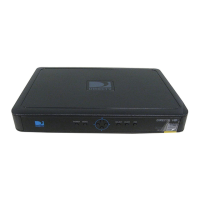
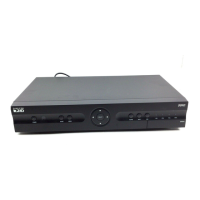
DIRECTV HD Receiver Front Panel
1) POWER – Turns your DIRECTV HD Receiver on or off. Most people leave the power
to the DIRECTV HD Receiver on at all times, then just use the remote to turn on their
TV set to view programming. Your DIRECTV HD Receiver still receives messages and
other necessary information when power is turned off.
2)
REMOTE SENSOR/RESOLUTION INDICATOR – The infrared sensor picks up
commands from the remote control. This window also includes LED’s that indicate the
current resolution setting.
3) RESOLUTION – Switches the output resolution of the HD receiver to match the
resolution supported by your TV. Each time you press the key, it cycles to the next
available resolution: 1080i, 720p, 480p/i, and Native.
4)
GUIDE – Displays the guide sort screen, so you can sort the Guide to display only
channels of a particular kind such as sports channels or movie channels. Then displays
the on-screen programming guide.
5) MENU – Brings up the helpful Quick Menu of settings and services
6)
ARROWS – Move the on-screen highlight up, down, left or right
7) SELECT – Chooses the item highlighted
8)
ACTIVE – For future use
9)
INFO – Displays channel banner for full screen TV or other relevant information for a
highlighted item
10) EXIT – Exits any menu and returns to last channel viewed.
11) DOOR PANEL – The access card slot and reset button are located behind the door panel.
Getting Connected
Getting Familiar
Your equipment may not look exactly like the model illustrated.



 To Next Page