CHAPTER 3
32
Using the Quick Menu
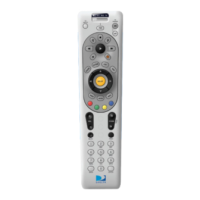
Press MENU on your remote to easily access DIRECTV Plus
®
service features. Once the
Quick Menu is displayed, use the UP and DOWN arrows to highlight a desired menu item,
then press SELECT to access that item. Some menu items will display a submenu, others
will take you directly to a new screen. To remove the Quick Menu at any time, press MENU
again.
The Quick Menu is context-sensitive, meaning it shows different options depending upon
where you are when you press MENU.
Settings
Selecting Settings in the Quick Menu displays a submenu of items that lets you customize,
adjust and keep track of your DIRECTV viewing experience.
Setup
The Setup item in the Quick Menu displays the Setup screen, where you can access the Info
& Test, Satellite Setup, Audio Setup, Display Setup, Access Card and System Reset screens.
Info & Test
The System Info option lets you view the current system information. The System Test
option lets you run a test on the tuner, access card, receiver ID and phone line.
Satellite
This option is useful if your DIRECTV Plus Receiver has lost signal strength, or you need to
realign your satellite dish.
Access Card
Follow the onscreen directions to replace your access card. You will need your old and new
access cards to complete this process. (Note: DIRECTV will provide new access cards and
instructions when necessary.)
Using the Quick Menu



 To Next Page