31
Wally
03
Settings
Parental Controls
Wally gives you all sorts of options when it comes to establishing
control over what programming and channels are accessible to
everyone in your house.
3
1
2
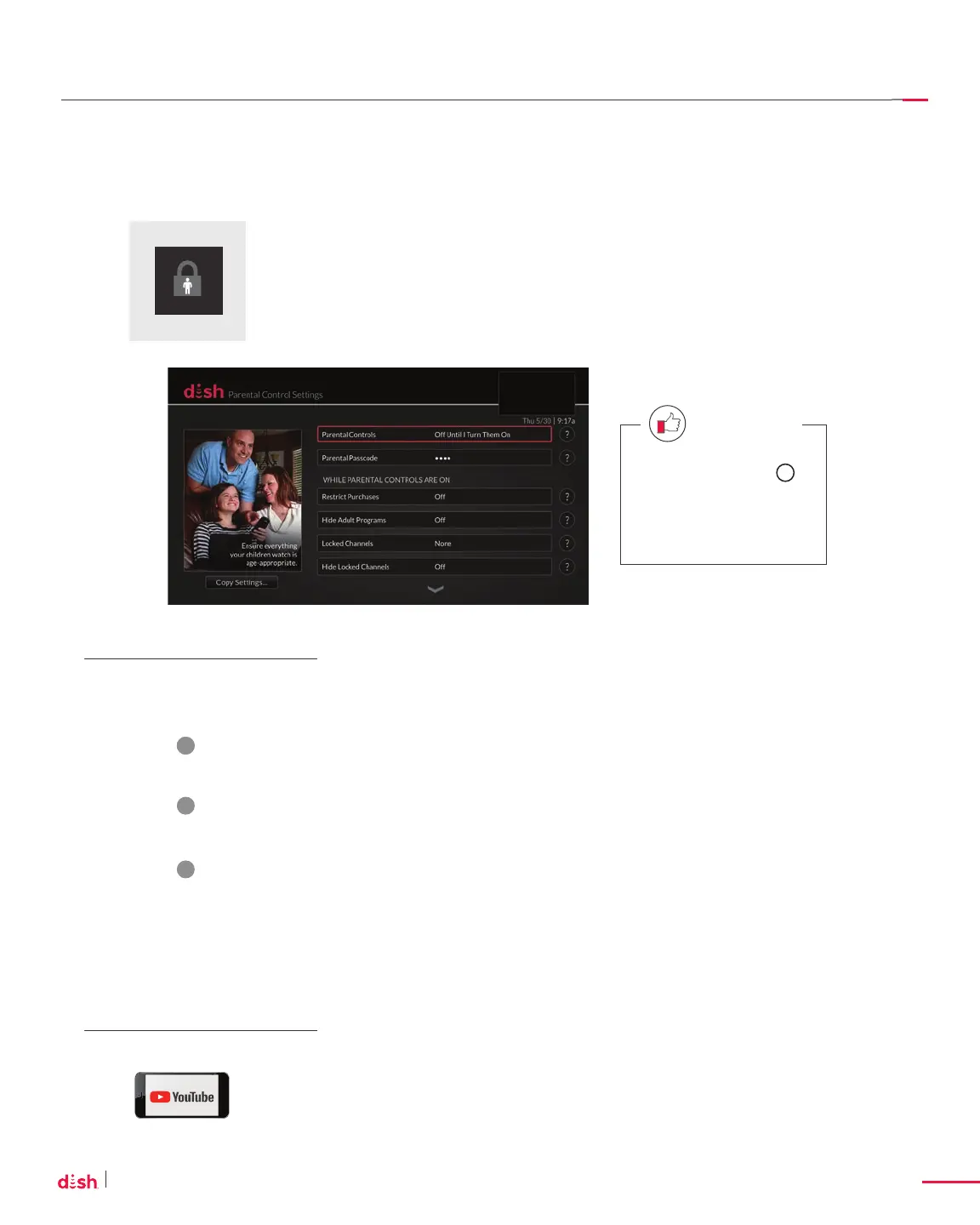
Setting Up Parental Controls
Press HOME twice on your remote and
select Settings, then Parental Controls.
Select your desired restrictions from the
options on screen.
Before you can add restrictions, you will
need to create a four-digit passcode.
While parental controls are on, this
passcode must be entered whenever you
wish to access restricted video content,
channels, or apps.
Get the lowdown on Parental Controls
with DISH at youtube.com/user/dish
Here are just a few of the
things you can customize:
• Restrict purchases
• Hide adult programs
• Lock specifi c channels
• Hide locked channels from
your guide
• Restrict TV or movie ratings
• Limit what apps your kids
can access
• Protect kids from coarse
language, sex, and violence
• Allow kids to watch only
what’s suitable for their age
Anytime you see a
you can select it to see
additional information
about that feature.
QUICK TIP
?









 To Next Page