Web Power Switch Pro
7
The IP address of the controller needs to initially match the “class C”
of your system. In other words, the rst three bytes (192.168.0) must
match the IP on your computer to access the Pro. Using a ping utility is
a good way to conrm a valid network conguration. An “unreachable”
report from Ping indicates miscongured network settings.
Once you have a connection, the Pro may be operated via a web
browser. To access the Pro, enter the IP address in the URL eld of
your web browser. The default is http://192.168.0.100 SSH is disabled
by default.
After setup, the HTTP and SSH ports (if enabled) may be moved to
improve security. For example, changing the HTTP port to 2015 requires
a browser URL of 192.168.0.100:2015 to reach the power controller.
Note: Some browsers deny connections to ports under 1024 by default.
Setup and Control via Keypad
In addition to setup via LAN, you may use the keypad and display to
get started and to manually control the basic functions of the switch.
This section describes basic keypad usage.
Press any key to activate the keypad. If you don’t receive a response,
they keypad is locked out (see below).
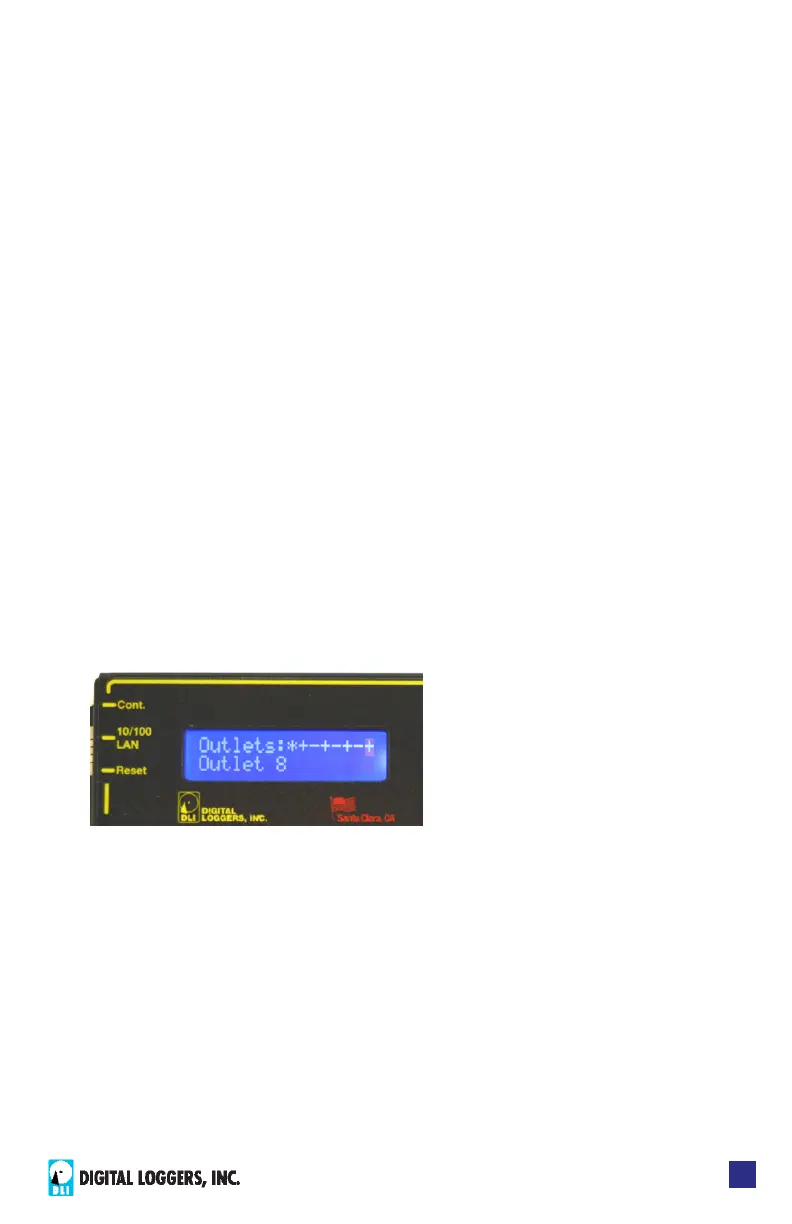
Outlet (port or relay) status shows on the rst line. The outlet name or
time/date of last modication shows on the second line. Three symbols
are used for relay status + (ON), - (OFF), and * (LOCKED). In this
example, the relay 1 is locked ON, the even numbered relays are ON,
and relays 3.5.7 are OFF. The ashing cursor indicates outlet 8 is
selected:
Select an outlet by pressing ‘UP’ (next) or ‘DOWN’ (previous). Hold ‘UP’
or ‘DOWN’ to advance automatically. Select an outlet, then:
• Turn the selected outlet ON by pressing ‘1’.
• Turn the selected outlet OFF by pressing ‘0’.
• Cycle selected outlet OFF-then back-ON by pressing ‘CYCLE’.



 To Next Page