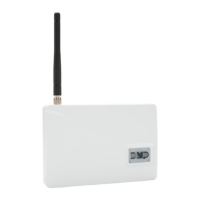
263LTE-V INSTALLATION GUIDE | DIGITAL MONITORING PRODUCTS 3
TEST THE 263LTE-V
1. Navigate to the Tech APP.
2. Tap Find a Customer then search for a customer.
3. Tap Add a System.
4. Enter a System Name.
5. Scan or enter the Serial #.
6. Select XTLplus from the System Type drop-down menu.
7. Select either Cellular or EASYconnect + Cell Backup in the Connection Type field.
8. Enter the Account Number.
9. Enter the SIM Number found on the 263LTE-V label then tap Get SIM Status.
10. Select a Rate Plan for the 263LTE-V.
11. Tap Activate Cellular Device.
Tech APP Activation
The panel provides a diagnostic function to test the communication integrity and cellular
signal strength of the 263LTE-V to the nearest tower for the cellular carrier. To use the
diagnostic function, reset the panel, enter 2313 (DIAG), and press CMD.
Communication Status
This option tests the individual components of cellular or wireless network
communication.
1. Select CELL STATUS from the Diagnostic menu. Possible test results are shown
in Table 1.
2. Select YES to continue through the remaining component tests or select NO to
stop testing and return to CELL STATUS.
Confirmed Faulty
MODEM OPERATING NO MODEM FOUND
IDENTIFIED NO SIM CARD
TOWER DETECTED NO TOWER
REGISTERED NOT REGISTERED
CONNECT SUCCESS
CONNECT ERROR
NOT ACTIVATED
CELL PATH GOOD NO ACK RECEIVED
Remote Link Activation
1. Navigate to Remote Link and select a panel.
2. Select Program in the top menu and select Communications from the drop-down
menu.
3. Select Cellular Network as the Communication Type and click Activate.
4. Select SIM as the SIM Type.
5. Enter the SIM number found on the 263LTE-V label and click Activate.
6. Select a Rate Plan for the 263LTE-V and click Activate.
4
Table 1: Cell Status Test Results


 To Next Page
 Loading...