Entering a Destination Address
• From the main Navigation menu, touch Where To?, then touch Address.
• Follow the on-screen prompts to enter the address and touch Yes.
NOTE:
Destination entry is not available while your vehicle is in motion. However, you can also
use V oice Commands to enter an address while moving. Refer to Common Navigation
V oice Commands in the Uconnect™ V oice Command section.
Setting Your Home Location
• Touch the NAV soft-key in the menu bar to access the Navigation system and the Main
Navigation menu.
• Touch Where To?, then touch Go Home.
• Y ou may enter your address directly, use your current location as your home address, or
choose from recently found locations.
• To delete your Home location (or other saved locations) so you can save a new Home
location, touch Where To? from the Main Navigation menu, then touch Go Home, and
in the Yes screen touch the Options soft-key. In the Options menu touch Clear Home.
Set a new Home location be following the previous instructions.
Go Home
• A Home location must be saved in the system. From the Main Navigation menu, touch
Where To?, then touch Go Home.
•
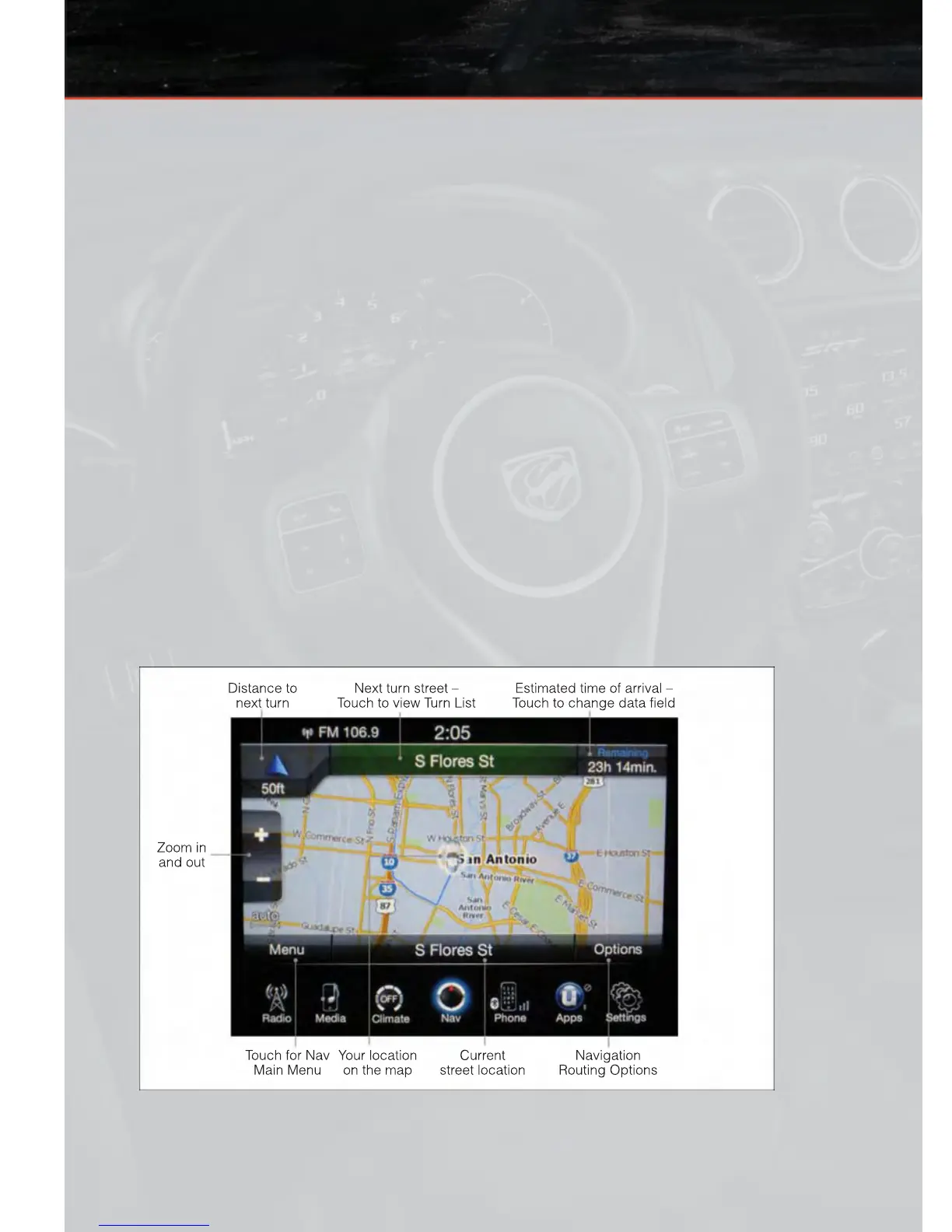
Your route is marked with a blue line on the map. If you depart from the original route, your
route is recalculated. A speed limit icon could appear as you travel on major roadways.
ELECTRONICS
38








 To Next Page