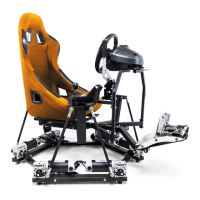
If your motor arm is out of the natural/level position it should be reset. Correct calibration is
the default resting arm position of the motor. Setting this correctly fixes several problems
commonly experienced by users. To recalibrate the motor arm, you will need the small “allen
wrench” or “hex key” provided in your hardware kit.
Over time the motor-sensor coupler bolts may get loose and the neutral motor position can get
malaligned from normal (often the arm moves just a bit higher than horizontal). If this is the case
perform tests (see section 5.4) to make sure motor is moving correctly first or consult DOF Reality
support.
Please review the video of the calibration procedure:
https://www.youtube.com/watch?v=Wa6hRdMB4vA
1. Before starting, fully exit everything else on the PC possible, especially SimRacingStudio and
SimHub (check the Windows task manager to make sure).
2. Download http://dofreality.com/SMC3Utils.zip, unzip all contents into any local folder on
your PC. Open with notepad file SMC3Utils.ini and set COMM_PORT= to proper COM port
number from your Windows Device Manager (see 5.1). If you have H6/P6 DOF: each control
box has a specific port number. In order for SRS find the control box, you must know which
box corresponds to the desired control box. See section 5.2.4.Run SMC3Utils.exe. If you are
getting an error messages about COM port communication, you haven’t set port the number
properly in this step.
3. Make sure the DOFR control box power is OFF (make sure motor connections and the USB
remain fully plugged in).
4. Using a wrench and the large allen wrench, disconnect the silver threaded “motor arm”
from the motor that needs to be re-calibrated. Disconnect only from motor side and leave
hanging freely. If you have a damper attached, you will need to disconnect that as well. The
motor needs to be free to move.
5. On the side of the motor pointing towards the center of the platform, use a small allen
wrench to loosen the “coupler” (silver tube like roller). You only want to loosen the two small
allen screws on the MOTOR SIDE. The other side is the “sensor” that connects to the plastic
cover. Do not touch the sensor side allen screws.
6. On your PC go to the SMC3 application.
7. With a computer screen-shot (or your phone) take a picture of the SMC3 screen with the
current settings and values (IMPORTANT). The default settings are: Fpid / 10, Kp = 120, Ki = 1,
Kd = 10, Ks = 5, PWMmin = 0, PWMmax = 180, PWMrev =200, Max limit = 50, Clip Input =
190, Deadzone = 0.
8. At top left of SMC3 tool now click “ON” the motor that needs calibrated.
9. Click the “step 1” buttons to say “step 10”
10. Click “KP” down to “60”
11. “PWMmax” to “60” and “Ki” to “0” (zero).
12. At this point the “Max Limits” and “Clip Input” should also have adjusted down to 0 as well.
If not, then click them both to “0”.
13. Power ON the DOFR control box.
14. By hand, slowly rotate the “coupler” (silver tube like roller). It will move the green graph
line in the SMC3 tool. Make sure this is happening. If not, start over.
15. Now slowly rotate the coupler until the small black motor arm is leveled to flat horizontal
position (pointing inward to another pair motor).
16. Power OFF the DOFR control box.


 To Next Page
 Loading...