English
Add Senior
You should now complete the set-up by inviting the Senior that you wish
to be able to assist. The Senior will receive an invitation text message/SMS
SMS explaining the service Response by Doro and how to set it up and ac-
cept your invitation. Always inform the Senior user that you will start the
service as it will require actions from the Senior user also.
1. Tap Invite, or if you would like to add another Senior to assist, the
press Add Senior.
2. Find the wanted contact, change the name if wanted, then press Send.
3. The Senior will receive an invitation text message/SMS SMS explaining
the service Response by Doro and how to accept your invitation. Tap
DONE.
For the senior
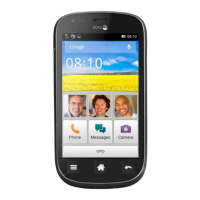
Accept the invitation on the Doro 8100
1. You will receive an invitation via text message/SMS.
2. Start the app Response and agree with the terms and conditions for
the service. Check the box and press Next.
3. Enter your mobile number and press Next.
4. You will receive a text message (SMS) shortly with a verification code.
If you don’t receive the message, make sure you have entered the cor-
rect number. Tap Resend text to resent a the message.
5. Your account has now been verified and now you should complete
the set-up by accepting the invitation.
6. Tap Open next to the name of the person who invited you and then
Accept.
Senior and Responder are now connected and the Senior can make an
alarm with the assistance button on the back of the Doro phone to test the
service.
The Responder can now also use the app Response to check the status of
the Doro phone and quickly assist with some basic phone settings, like
sound and display settings.
Both the Senior and the Responder can now also invite more persons to
act as Responders.
56



 To Next Page