3130
CONTENTS
Banknote counter DORS 820 Banknote counter DORS 820
Fig. 47
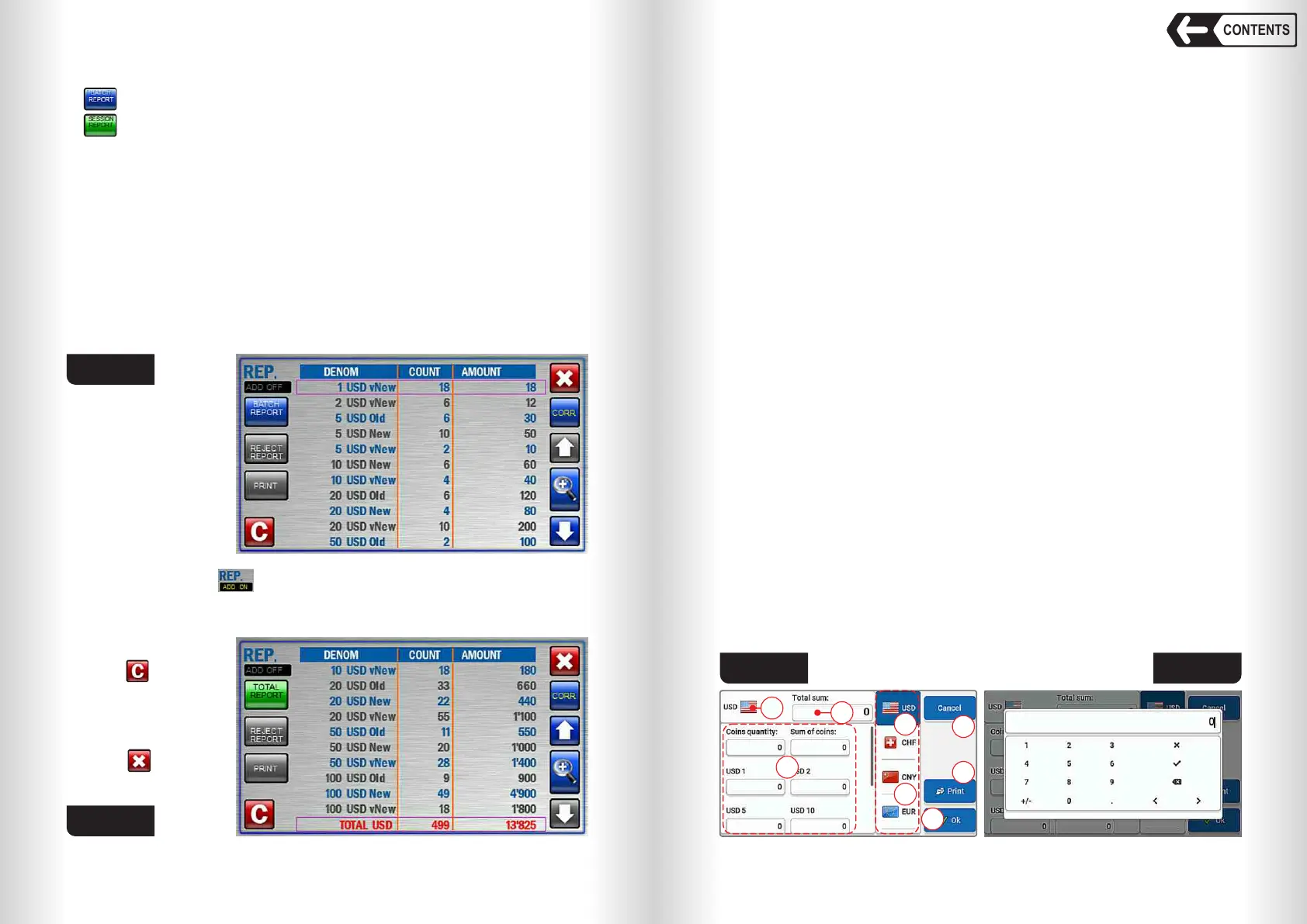
If ADD mode is on , then batch report will contain all the banknotes
counted in ADD mode. SESSION REPORT (see Fig. 48) displays all the
banknotes counted since switching on the counter. Session report is
created separately for
User I and User II
Touch key to clear
the reports.
An acknowledgement
window may appear
(see Fig. 45).
Touch to exit the
report screen.
Fig. 48
DENOM is the column where all denominations of counted banknotes are
listed.
COUNT contains the quantity of counted banknotes of all listed
denominations.
AMOUNT is the total amounts for all denominations.
TOTAL is the total quantity and the total amount of all counted banknotes.
Batch report (see Fig. 47) shows all the counted banknotes that got into the
stacker during the last counting. If ADD mode is on, then the batch report
will include the total amount of the banknotes counted in ADD mode.
Session report (see Fig. 48) displays the list of all the banknotes counted
since the counter has been switched on (see article 2 of subsection
OPERATION).
The report is available in two versions:
– Batch report;
– Session report.
Both versions have DENOM, COUNT and AMOUNT columns.
Manual amount correction
Pressing the CORR key (see Fig. 48) opens the menu for manual
correction of the amount of counted banknotes (see Fig. 49).
This menu allows you to manually adjust the amount of counted banknotes
including adding the required amount of coins, save to the report or print the
corrected results.
In fig. 49:
1 – The currency selected for adjustment (highlighted in the list of
currencies).
2 – The total amount of all denominations obtained as a result of the
correction.
3 – Fields for entering: the number and amount of coins, the quantity for each
denomination of the selected currency (the list can be scrolled).
4 – A list of all available currencies (depends on your counter's firmware). At
the top of the list there are the currencies that have been counted before
entering the correction menu. All the other currencies are arranged after
in alphabetical order (the list can be scrolled).
5 – «Cancel» button to exit the menu without saving the entered changes.
6 – «Print» button to print a receipt with correction results.
7 – OK button - saves the changes and switches to the REPORT menu.
Correction order:
1 – Select the currency in the list of currencies.
2 – Touch the input field of the required denomination, in the window that
opens (see Fig. 50), enter the required quantity (for coins the quantity
and amount) and touch the checkmark to confirm.
3 – Repeat steps p. 1, 2 for all denominations and currencies that are
required.
4 – Press OK button to save the entered changes and exit to the REPORT
menu.
When manually adjusting the amount, please note that:
• When ADD mode is on, all available banknote counts are saved, and
newly entered data will be added to them.
• When ADD mode is off and there are counted banknotes in the stacker,
then the newly entered data will be added to them.
• When ADD mode is off and there are no counted banknotes in the
stacker then only newly entered data is displayed.
1
2
1
3
4
5
6
7
Fig. 50 Fig. 49


 To Next Page
 Loading...