Page 5 / 27
settings or the playback position of audio files. The enter key is used to select a menu or save
settings.
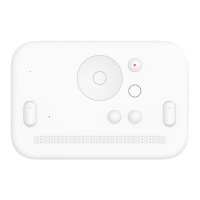
4) Back key
The back key is located to the right of the direction keys. When you make a short press with the
back key, it will allow you to go to the previous menu or cancel what's running. When you hold
the key to make a long press, it will take you back to the Home menu.
5) Shift key and control key
The shift key and control key are located to the lower right of the direction keys. The key to the
left is the shift key, and the key to the right is the control key.
The shift and control keys are mostly used in combination with other keys.
6) Previous Key and Next Key
The previous and next keys are combined as a single key that is located in two places – on the
left and right ends above the braille cells. There is a small dot on the key marking the division
between the previous key and the next key. Above the marking dot is the previous key, and
below the marking dot is the next key. The previous and next keys are used to scroll to the
previous or next line of braille.
7) Volume Key
The volume keys are located on the right side of the Dot Mini device, and consist of two keys – a
key to turn the volume up and another to turn the volume down. The volume keys are used to
raise or reduce the volume of the Dot Mini.
8) External Devices
There are three ports on the left side of the Dot Mini. In order of top-to-down, they are the USB-
C port, USB-A port, and the Micro HDMI port.


 To Next Page
 Loading...