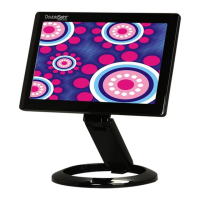
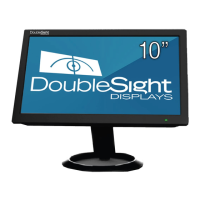
The DoubleSight USB Monitor is a compact and versatile display solution designed for enhanced productivity and convenience. This user-friendly device connects to your computer via a single USB cable, eliminating the need for a separate power adapter and simplifying setup. It functions as an extended or mirrored display, offering additional screen real estate for various applications, from professional work to multimedia consumption.
Function Description
The primary function of the DoubleSight USB Monitor is to provide an additional display for your computer. It utilizes USB technology to transmit both video signals and power, making it a highly portable and efficient solution for expanding your desktop. The monitor can operate in several display modes:
- Extend Mode: This mode allows you to expand your Windows desktop across multiple monitors, providing more space for multitasking. You can drag and drop applications between your main display and the USB monitor, significantly improving workflow efficiency. The monitor's extension direction (Right, Left, Above, Below) can be configured to match your physical setup.
- Mirror Mode: In this mode, the USB monitor duplicates the content of your main display. This is useful for presentations, sharing content with others, or when you need to view the same information on two screens simultaneously.
- Off Mode: The USB monitor screen can be turned off while still maintaining its connection to the PC. The screen can be turned back on by selecting Extend or Mirror mode.
For specific models (DS-10UT), the monitor also incorporates a Resistive Touch function, allowing for interactive input directly on the screen. This feature enhances usability for applications requiring direct manipulation or touch-based navigation.
Usage Features
The DoubleSight USB Monitor is designed for ease of use, with several features that streamline its operation:
- Simple USB Connection: The monitor connects to your PC using a standard USB cable, which handles both power and video transmission. This eliminates cable clutter and simplifies setup, making it ideal for mobile users or those with limited power outlets.
- Driver Installation: To enable full functionality, a driver installation is required. The process is guided by an intuitive interface, starting with inserting the provided CD into your CD-ROM drive. The installation allows you to choose between a monitor-only driver or a combined monitor and touch driver for touch-enabled models.
- Display Configuration: Once the driver is installed, the monitor's settings can be easily accessed and adjusted through the system tray icon. Users can customize various display parameters:
- Resolution: While some models have a fixed resolution (e.g., 800x480 for 7" and 1024x600 for 8.9"), the display will show the current resolution.
- Color Quality: Users can select between 16-bit and 32-bit color depths.
- Screen Rotation: The monitor supports screen rotation, allowing you to pivot the display to different orientations (Normal, Rotated Left, Rotated Right, Upside-Down). This is particularly useful for viewing documents or web pages in portrait mode.
- Extension Direction: When using the monitor in extend mode, you can specify the direction of extension relative to your main display (Right, Left, Above, Below).
- Touch Screen Setting (for DS-10UT): For touch-enabled models, a dedicated "Touchside: USB Controller" application provides additional settings. Users can enable "Multiple Monitors" and calibrate the touch screen for accurate input. The calibration process involves touching flickering points on the screen to ensure precise touch response.
- Brightness Adjustment: The monitor includes physical buttons for adjusting brightness, allowing users to optimize the display for different lighting conditions.
- Stand Assembly: The monitor comes with a stand that is easy to assemble, providing a stable base for desktop use. The stand features a fixed handle for secure attachment.
Maintenance Features
Maintaining the DoubleSight USB Monitor involves simple practices to ensure its longevity and optimal performance:
- Cleaning: When cleaning the product, it is recommended to wipe it with a soft fabric. Avoid using water mops or excessive moisture, as liquid entering the external gaps could cause fire or electric shock. Care should be taken not to scratch or pound the LCD with sharp objects, as this can damage the screen.
- Safe Handling and Installation:
- Avoid Disassembly: Do not disassemble the monitor without authorization. Any internal issues should be addressed by an authorized A/S Center to prevent electric shock or fire.
- Environmental Considerations: Use the product in a dry place, away from sources of inflammation, furnaces, or high humidity to prevent fire or electric shock.
- Chemicals and Objects: Do not use the product near inflammatory substances or combustible sprays. Avoid inserting chopsticks, drivers, or other foreign objects into the input areas, as this could lead to electric shock or fire.
- Stability: Install the product in a stable location, out of reach of children, to prevent it from falling and causing damage to the product or injury.
- Troubleshooting: The user manual provides a comprehensive guide to common problems and their solutions:
- Screen Not Displaying: Check USB cable connection, driver installation, LED indicator, and power button status. If the issue persists, refer to Microsoft's problem-solving methods for USB devices.
- Screen Motion Stopped: For PCs with specific chipsets (e.g., i815), re-booting may be required after changing legacy USB support options in the BIOS.
- Driver Removal: Instructions are provided for removing the installed DisplayLink Graphics program via the 'Add/Remove Programs' feature in the control panel.
- Touch Screen Issues: If the touch screen is not working, reconnect the USB cable, check for the "USB Connection" icon, and if necessary, recalibrate the touch screen using the "Touchside - Tool - 4Points Calibration" option. A PC reboot after driver installation is also recommended.
- Flicker/Distortion with Skype (Windows XP): This issue, often caused by DirectX function usage, can be resolved by setting hardware acceleration to "None" in the display properties' troubleshoot tab.
- Windows Vista Compatibility: Specific steps are outlined for adjusting display settings in Windows Vista (Home Premium, Business, Ultimate, and Home Basic editions) to ensure proper display functionality.
The DoubleSight USB Monitor is a robust and adaptable display solution, offering a blend of portability, ease of use, and practical features for various computing environments.

 Need help?
 General




 To Next Page