Need help?
Do you have a question about the Doxie One and is the answer not in the manual?
Details the Doxie's power and USB connection ports for functionality and data transfer.
Location for inserting the SD card used for storing scanned documents.
The entry point for feeding documents into the scanner.
Adjustable guides to ensure paper is fed straight into the scanner.
Located on the bottom, this covers the compartment for battery installation.
Indicates the operational status of the Doxie scanner.
Used to turn the Doxie scanner on and off.
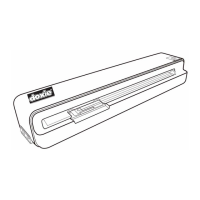
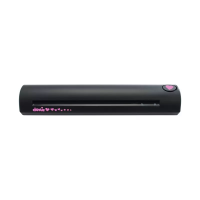
The main Doxie One document scanner unit.
Includes power adapter and various plugs for different regions.
Memory card for storing scanned documents; syncs to computer or iPad.
Protective sleeve for scanning old or fragile photos.
Used to calibrate the Doxie scanner for optimal performance.
Tool for cleaning the scanner's internal rollers and paper path.
Used for connecting Doxie to a computer for syncing if no SD card slot is available.
The manual providing instructions and guidance for Doxie usage.
Remove protective film and tape from the Doxie scanner before use.
Connect to wall power or use rechargeable batteries for operation.
Insert the SD card where scans will be stored.
Perform initial calibration using the provided sheet for accurate scanning.
Activate the scanner by pressing the power button until the status light is solid green.
Insert documents face up, aligned left, and ensure firm feeding for scanning.
Transfer scans from SD card or USB connection to the Doxie app.
Browse, zoom, rotate, and adjust scans within the Doxie software.
Combine multiple selected scans into a single multi-page document.
Save scans locally as PDF, JPEG, or PNG files.
Share scans with other installed applications like Evernote or Acrobat.
Upload scans directly to online cloud services like Dropbox or Flickr.
Use iPad Camera Connection Kit to connect SD card reader and insert scans.
Photos app opens to review and import scans directly to iPad.
Choose to keep or delete scans from SD card after importing to iPad.
Organize imported scans within the iPad's Photos and Albums.
Share scans from iPad via Photos app or other compatible applications.
Addresses lines or dots in scans by recommending cleaning the Doxie scanner.
Steps to resolve paper jams, including power cycling and guide adjustment.
Guidance for inserting paper correctly to avoid feeding issues.
Use a scanning sleeve for photos and insert barcode side first.
Reset Doxie by removing power and ensure batteries are charged and correct type.
Clarifies that USB is for import only, not scanning while connected.
Troubleshoot rapid blinking lights indicating paper jams or memory card problems.
Information on finding FAQs or contacting support for additional help.
Identifies registered trademarks of Apparent and Doxie, and third-party trademarks.
Crucial safety advice: do not open or repair Doxie; contact support for assistance.
Product contains small parts that may pose a choking hazard to children.
Notes Doxie's use of ABBYY FineReader technology for OCR capabilities.
Instructions for safe operation, including surface use and avoiding liquids.
Details compliance with US FCC rules for digital devices.
Confirms compliance with Canadian ICES-003 Class B standards.
Indicates CE marking for use within the European Community.
Outlines the 1-year limited warranty for Doxie hardware and software.

 To Next Page
 General