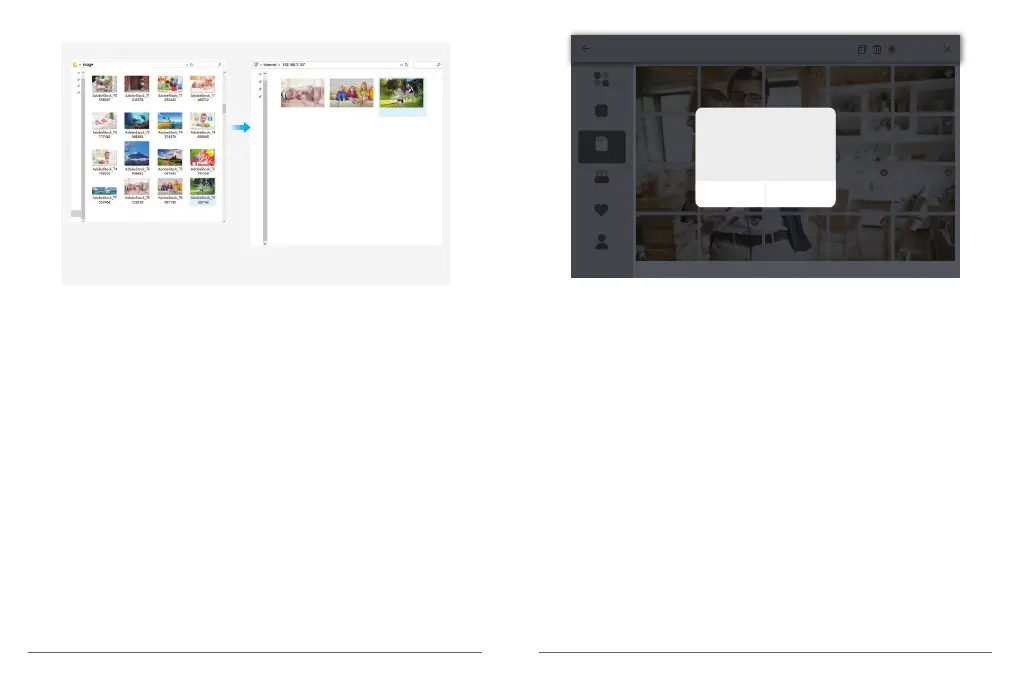
4. Upload photos and videos via USB drive
① Insert USB drive into the frame, and wait for seconds, the frame will let you know when
the USB drive is successfully connected.
② Enter Photo or Video library, click USB and you will see all the photos or videos stored
in the USB drive.
③ Click More icon at the right upper corner, and select the photos or videos you would
like to import to the internal memory of the frame.
④ Click Share icon at the top then choose OK to import the photos or videos.
⑤ Your photos or videos will be received in seconds, you can check the photo or video
library on the frame.
Note:
• If you have too many files stored in the USB drive, it will take more time to read.
• The system will protect and lock the USB drive if there is no action after the USB drive
has been inserted for a while. To activate it, you need to take it out and insert again.
• Please remove all your external devices when you reset the photo frame.
5. Upload photos and videos via SD card
① Insert SD card into the frame, and wait for seconds, the frame will let you know when
the SD card is successfully connected.
② Enter Photo or Video library, click SD card and you will see all the photos or videos
stored in the SD card.
③ Click More icon at the right upper corner, and select the photos or videos you would
like to import to the internal memory of the frame.
④ Click Share icon at the top then choose OK to import the photos or videos.
⑤ Your photos or videos will be received in seconds, you can check the photo or video
library on the frame.
Note:
• Max support 32GB SD card.
• If you have too many files stored in the SD card, it will take more time to read.
• The system will protect and lock the SD card, if there is no action after the SD card has
been inserted for a while. To activate it, you need to take it out and insert again.
• Please remove all your external devices when you reset the photo frame.
12
13
All files
Internal Storage
photo
SD Card
USB
Favorites
User 1
Import
Import files to memory
Cancel
OK
Selected 215
Note: The above screen shot is for reference, please update to the latest firmware version.



 To Next Page