Drobo 5D Getting Started Guide 31
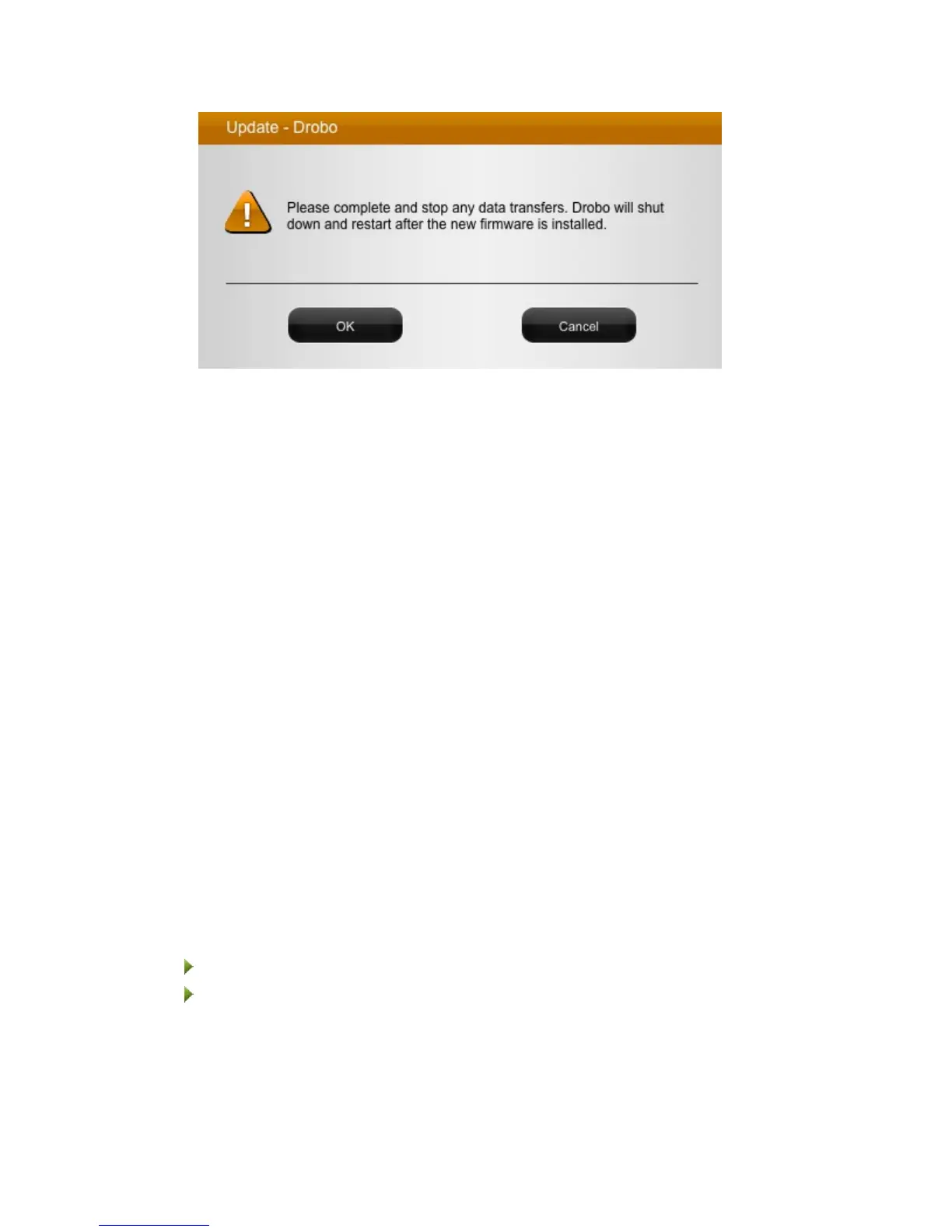
5. Ensure that the Drobo device is not actively transferring data (blinking yellow and green), and
then click the OK button.
A dialog box opens, asking you to locate the zip file on your computer.
6. Please do so and then click the Open or OK button.
Drobo install the firmware. When finished, a message opens, asking you to reboot your
Drobo device to complete the installation.
7. Click the Yes button.
Drobo shuts down and restarts after the new firmware is installed.
Safely Shutting Down Your Drobo 5D
If you plan to shut down your Drobo device for any reason, it is very important that you always do
so safely. Improper Drobo device shutdowns may cause file corruption and/or data loss.
Note: When the Drobo 5D is shut down, but still plugged in and connected to the computer via its
Thunderbolt connector, the Drobo 5D will still be able to pass data through a Thunderbolt daisy-
chain. This allows the Drobo device to be off while a device or monitor down the chain continues
to function.
It is a good idea to shut down your Drobo device before any of the following situations:
•
You are not going to be using your Drobo device for an extended period
•
You are going to disconnect the cable(s) or power cord
•
You want to move your Drobo to another location
•
You are going to remove the entire disk pack
•
You are going to apply operating system updates
This section covers the following topics:
Safely Shutting Down Your Drobo 5D Using Drobo Dashboard
Safely Shutting Down Your Drobo 5D Manually



 To Next Page