Switching the Player On and Off
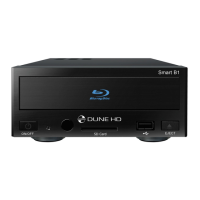
To switch on the player, ensure the power switch on the rear panel is in “on” state, and press the “POWER”
RC button or the “on/off” button on the front panel.
To put the player into the standby mode, press the “POWER” RC button or the “on/off” button on the front
panel. To exit the standby mode, press any of these buttons again.
Depending on the player settings (see the player setup menu), the “hardware standby” or “software stand
by” mode may be used. In the “hardware standby” mode, almost complete power-off takes place and
the player consumes almost no power. In the “software standby” mode, the player produces no signal
on the video output, but is still functioning. For example, if you have some storage devices connected to
the player, you may still access them from network (“NAS” function of the player). Exiting the “software
standby” mode takes just a few seconds. When the player is in the “software standby” mode, it still con
sumes significant power. It is not recommended to keep the player in the “software standby” mode for a
while if you do not need it.
To switch off the player completely, toggle the power switch on the rear panel. Do not do it if some drive is
connected to the player and some write operation is in progress.
NOTE: After switching off the player or putting the player into the “hardware standby” mode, it is recom
mended to wait about 1 minute before switching it on again.
NAS (Network Attached Storage)
You can access storage devices connected to the player from the local network using FTP and SMB pro
tocols. On a Windows PC, just type "ftp://ip_address" or "\\ip_address" in the Windows explorer, where
"ip_address" is the IP address of the player.
WiFi
You can use a USB WiFi adapter to connect the player to the local network via WiFi.
Please see here for the information on supported USB WiFi adapters:
http://dune-hd.com/support/hw_compat/
Internal 3.5" SATA HDD
A possibility to install the internal 3.5” SATA HDD may depend on your reseller. Please contact your local
reseller for more information.
Limitations
Compatibility of the player with a particular hardware (A/V equipment, network equipment, disk drives, etc)
may depend on various factors (particular hardware model, specifics of hardware installation and usage,
configuration of the player and the hardware, etc). If the player does not correctly work with a particular
hardware, try to adjust the configuration of the player or hardware, try to use the hardware in a different
way, or try to use some other hardware.
Compatibility of the player with a particular media content (files, discs, etc) may depend on various factors
(specifics of media content encoding, specifics of the configuration of the player, etc). If the player does not
play correctly a particular media content, try to adjust the configuration of the player, or try to use media
content encoded in a different way.
Dune HD Smart D1 Quick Start Guide


 To Next Page
 Loading...