24
EXPERT UI: NETWORK TAB
The Network tab of the UI focuses on the network as such and offers all controls and information to build, manage
and repair the wireless network of the controller.
EXPERT UI: NETWORK TAB: CONTROL
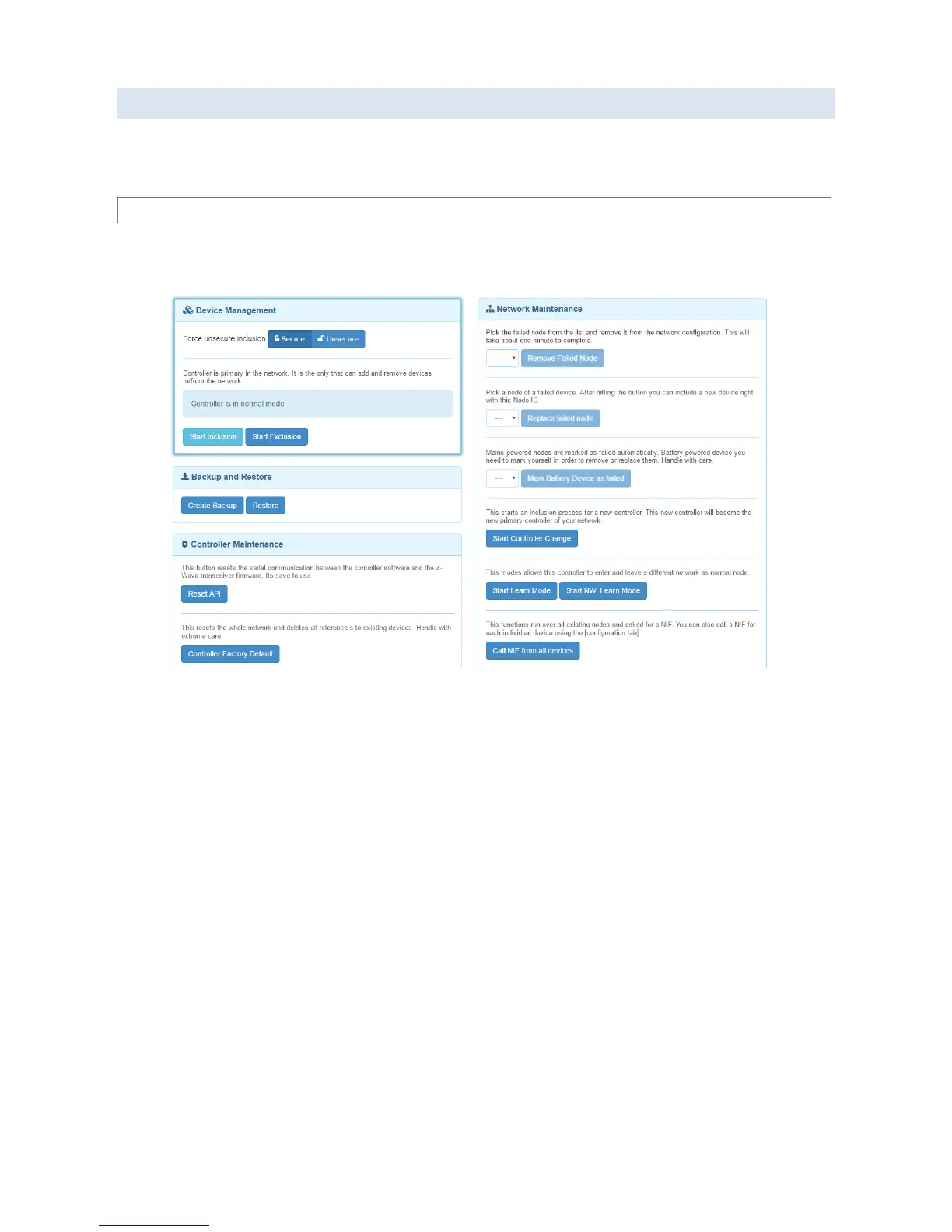
The Control screen summarizes all commands needed to manage the network and the controller. The page is
structured in four boxes.
The device management box allows including and excluding Z-Wave devices. A status display shows the status of the
controller. The “Start Inclusion” and “Start Exclusion” buttons turn the controller into the Inclusion and Exclusion
modes. In this case the status display changes and the button turns into a “Stop” function. The inclusion and exclusion
modes will time out after about 20 seconds but can always be terminated using the “Stop” button.
Another way to stop the inclusion mode is to actually include a new device. In this case the inclusion mode will stop
and the node id of the new device is shown. The controller generated a default name of the device as combination of
its primary function and the new node id. Clicking on this default name leads to the Configuration page where the
name can be changed and other configuration tasks can be performed.
Please refer to the devices manual on how to do an inclusion. In case the inclusion does not work as expected, please
exclude the device first. More than 90 % of all inclusion problems are caused by still included in a different network
and can then not being included again.
The Exclusion mode also stops when one device was successfully excluded. This function can exclude devices from
other networks too but the device need be available and functioning. To remove non functioning or disappeared
devices please refer to “Replace Failed node” or ”Remove Failed node”.
In case the new device supports enhanced security function (Security Command Class) this controller will include the
device securely. After this all data exchange between the controller and the new device is encrypted using AES
encryption. For performance reasons it mays be desired not to use the security function. The slider “Force unsecure
inclusion” turns the controller into a mode where all security functions are suppressed for the included device.
Security functions of other devices are not impacted.


 To Next Page
 Loading...