23
EXPERT UI: CONFIGURATION TAB: EXPERT COMMANDS
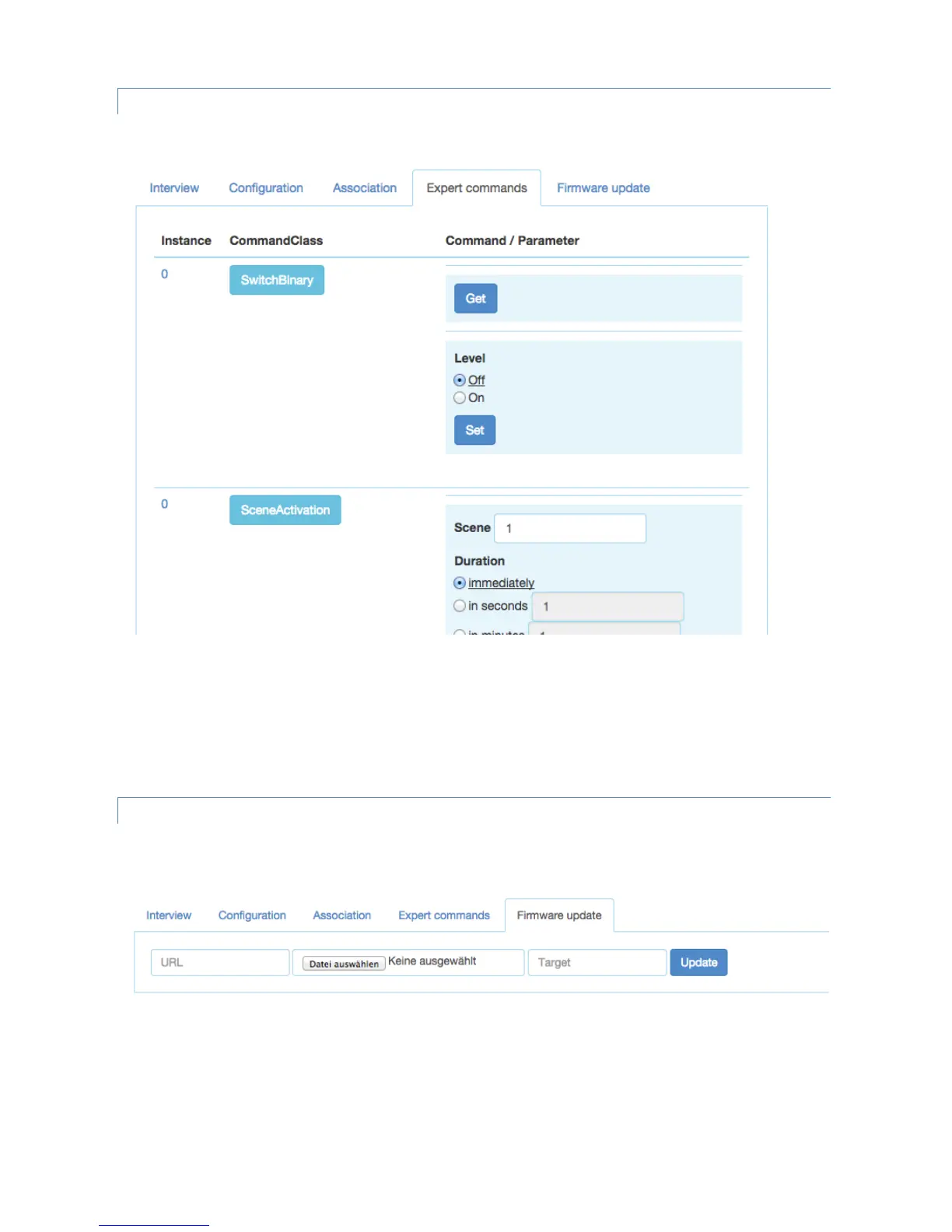
The Expert commands screen displays the status values and possible commands in a very generic way.
On the left hand side the different channels of the device are listed in a column. In case there is only one channel
(that’s the case for most devices) only channel 0 is shown. Clicking on the number opens a dialog showing all internal
variables for the channel. The next column shows all the command classes exposed by the device. Again clicking on
the name opens a dialog with more internal status variable information for this command class. On the right hand side
there is a list of commands. This UI is auto-generated from the information provided by the command class itself and
not optimized for daily usage.
EXPERT UI: CONFIGURATION TAB: FIRMWARE UPDATE
The Firmware update screen allows performing a firmware update of the device if the device supports ‘over the air’
firmware update.
The firmware can be provided in two ways: either as URL in the format http://IP:PORT/file or as file upload using the
file upload dialog. The firmware file must be available in raw ‘BIN’ format or ‘HEX’ format. The target field allows
specifying the target memory/processor for the update process. For updating the Z-Wave firmware part a ‘0’ must be
set. The firmware updating process will take up to 10 minutes. Please don’t do any other operation during this time. It
may be required to activate the firmware update mode on the device to be updated. Please refer to the manual for
further information about activation.


 To Next Page