9
HOME AUTOMATION UI: ROOMS
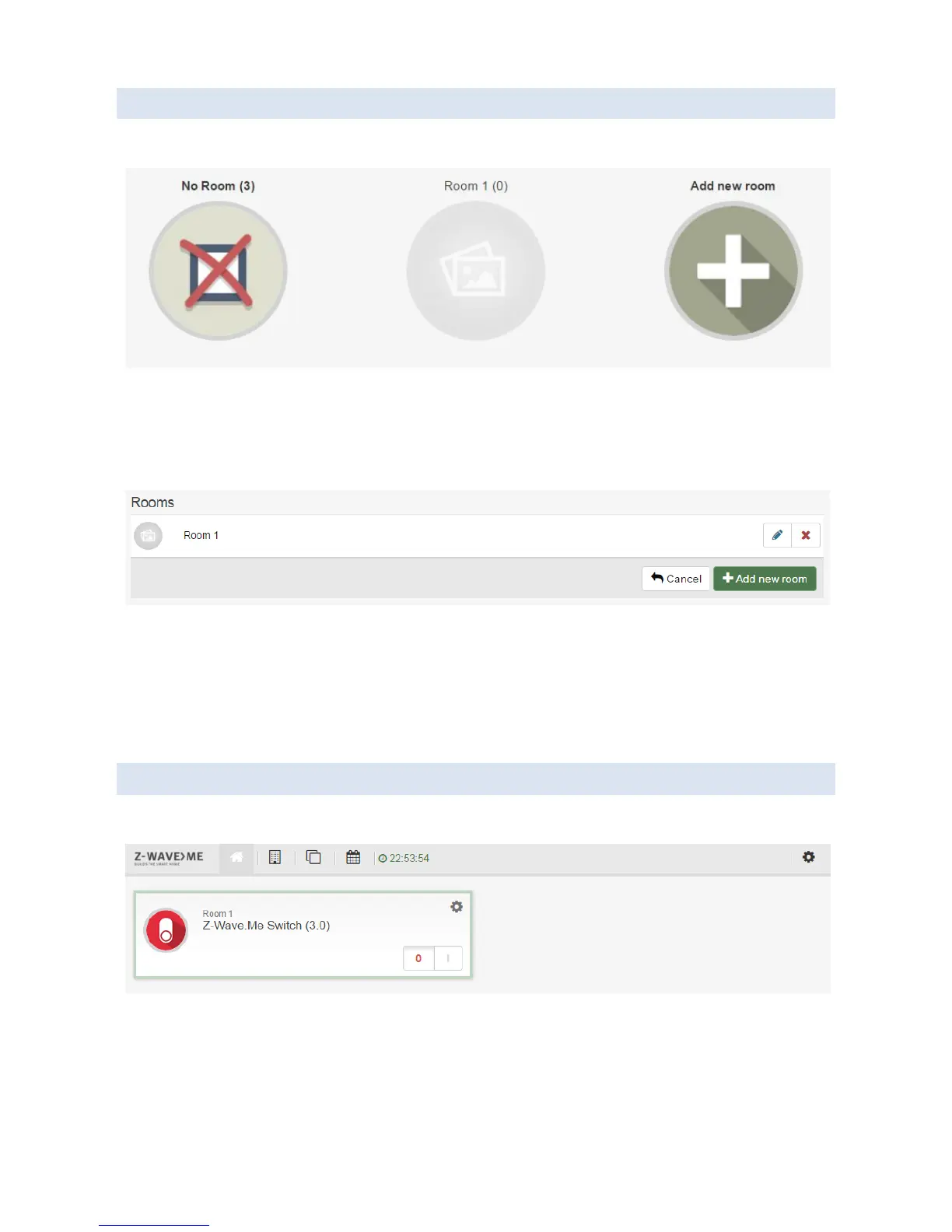
To see the list of all Rooms, click “Rooms” icon in the top menu bar. This will open the “Rooms” screen:
To view Elements in the Room, click the Room.
To create a new Room, click “Add new room” or use the “Rooms Configuration” screen.
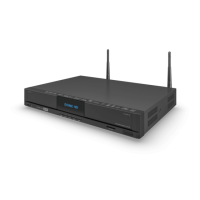
To open “Rooms Configuration” screen, choose “Rooms” in the “Settings” menu. This will show the following screen:
To adjust Room configuration, click the “Edit” icon.
To delete a Room, click the “Remove” icon.
To add/remove an Element to a Room, use the “Element Configuration” screen.
To hide the special “No Room” Room, just move all Elements from this Room to other Rooms.
HOME AUTOMATION UI: DASHBOARD
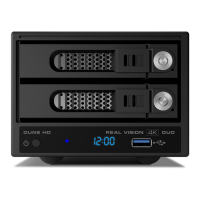
To view the Dashboard, click “Home” icon in the top menu bar. This will show the “Dashboard” screen:
To add/remove an Element to the Dashboard, use the “Element Configuration” screen.


 To Next Page