1110
Reset lter
When the indicator starts illuminating it’s time
to replace your lter. After you’ve replaced your
lter, press and hold the button for 3 seconds
to reset the lter lifespan timer and the indicator
will turn o.
WIFI mode
Press and hold the button until you hear a
feedback sound to enable WIFI mode. The indicator
will start ashing which means it’s ready to pair
with a smartphone or tablet. After a connection
has been established, the indicator will become
solid. To reset the WIFI mode, press and hold the
button for 10 seconds.
WIFI and APP operation
Scan below QR code to download the Duux APP
or search DUUX APP in the App Store or Google
Play Store to start the procedure to download the
APP. Once installed, enter your e-mail address and
complete the registration.
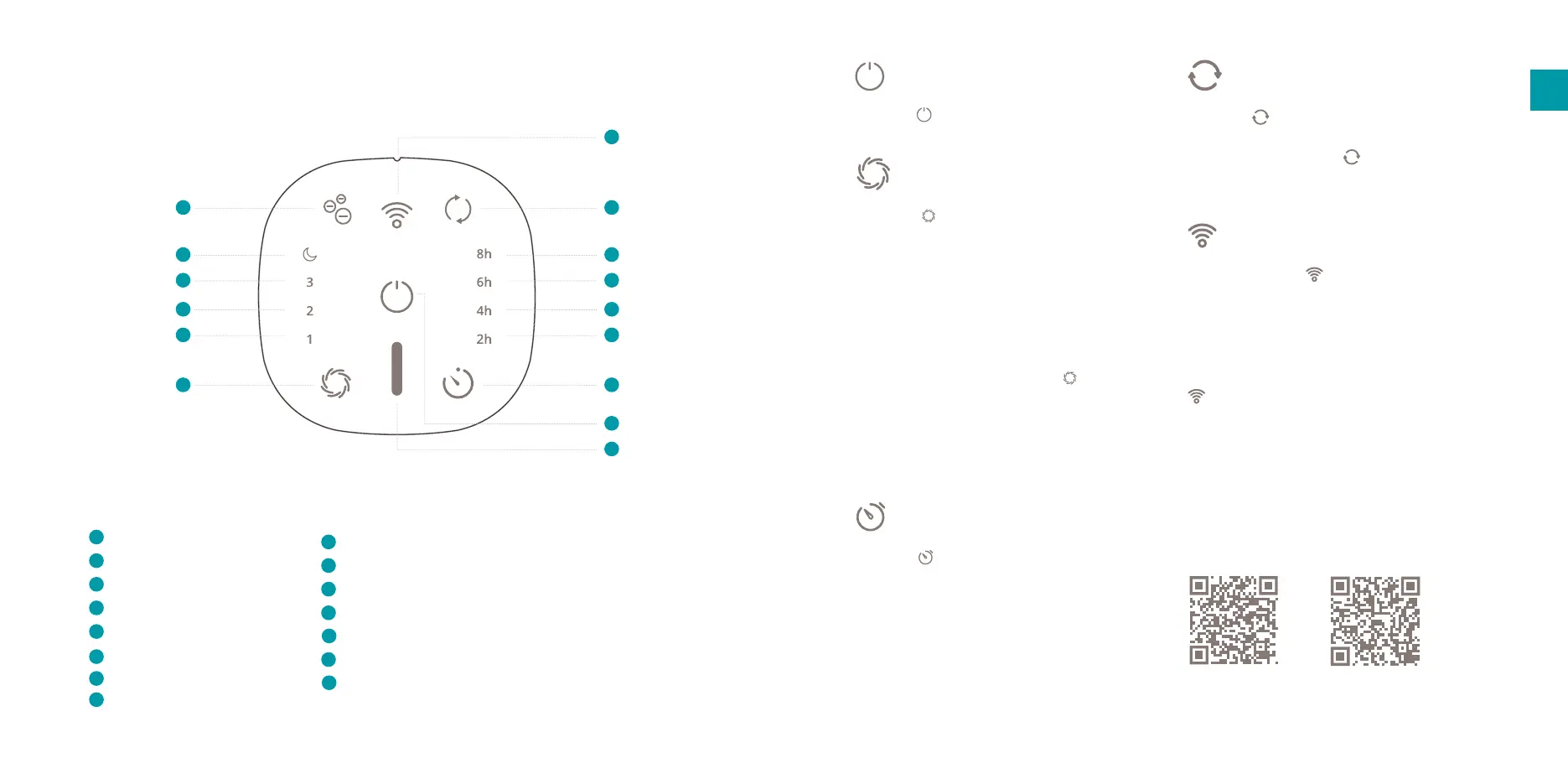
Control panel
3. Functions
Power
Air quality indicator*
Change speed / Auto mode
Timer
Ionizer mode
WiFi mode
Reset lter button
Low wind speed indicator
1
2
3
4
5
6
7
8
13
11
Medium wind speed indicator
High wind speed indicator
Night mode indicator
2 hour timer indicator
4 hour timer indicator
6 hour timer indicator
8 hour timer indicator
9
10
11
12
Power
Press the button to switch on the device.
Change speed
Press the button to change the wind speed
between LOW (1), MEDIUM (2), HIGH (3), NIGHT
and AUTO (A). NIGHT speed is the most quiet
and energy ecient mode and is recommended
for areas with excellent air quality. LOW and
MEDIUM speed is recommended for areas with
good/average air quality while HIGH speed is
recommended for areas with high pollution levels.
In AUTO mode, visible when only lights up,
the speed will change automatically according to
the air quality measured with the PM2.5 particle
sensor. The actual air quality can be derived from
the color indicator on the display or app.
Timer
Press the button to activate a timer. Every
press will increase the timer in the following order:
1h > 2h > 4h > 8h > 0h.
EN
* Green = Excellent/Good
Orange = Average
Red = Bad
APP STORE PLAY STORE
10
9
8
5
3
15
14
13
12
7
4
1
2
6
15
14


 To Next Page
 Loading...