17
EN
WiFi and APP operation
Scan below QR code to download the Duux APP or
search DUUX APP in the App Store or Google Play
Store. Once installed, enter your e-mail address
and complete the registration.
Connect to WiFi
Once registered, click “add duux device” on the
main screen or use the “+” button in the top
right corner to add a new device.,
Search for “North” and press to continue
Connect to your preferred WiFi network and
enter the corresponding password
Follow the instructions in the app to complete
the pairing process.
Note: if you experience any problems with
connecting or using the app, please refer to the
FAQ in the app menu.
APP STORE
PLAY STORE
1
2
3
4
2
3
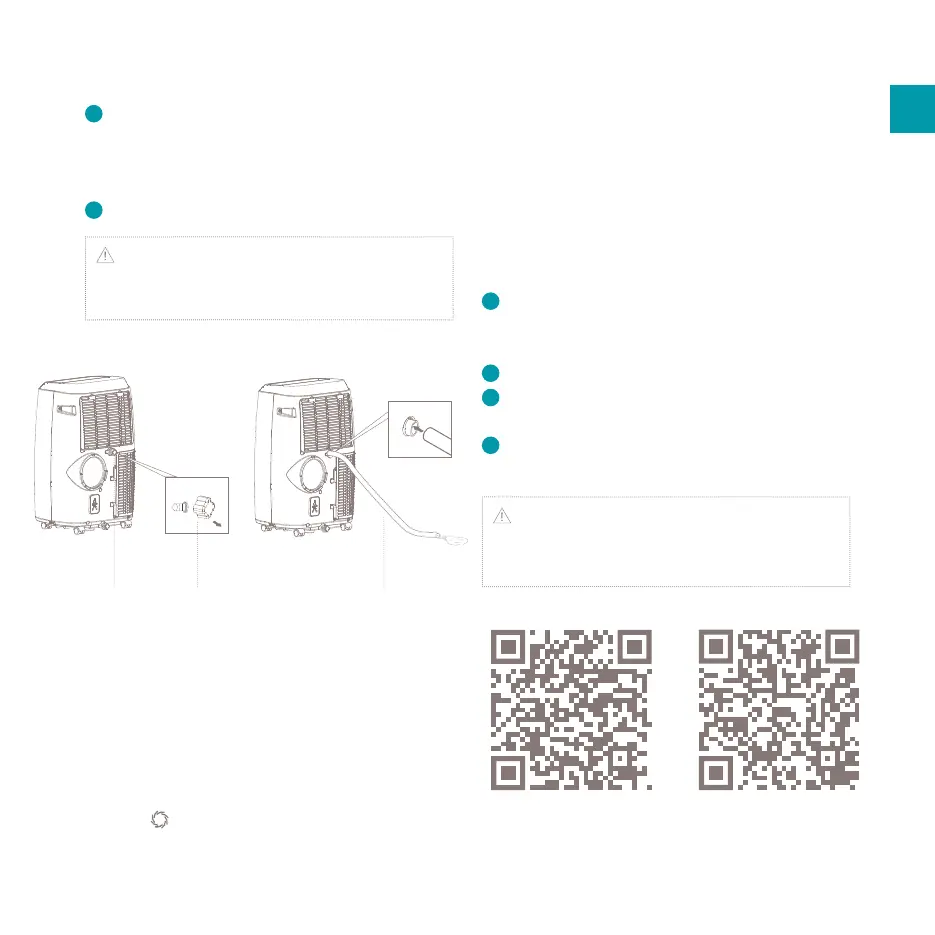
Drain outlet Drain cap Drain hose
(not supplied) to collect the water.
Connect the drain hose as shown in the
diagram. The water can be continuously
drained through the hose into a oor drain or
bucket.
Turn on the unit.
Note: After the unit has stopped, it cannot be
restarted for 3 minutes. Operation will automatically
resume after 3 minutes.
WiFi mode
When pluging the device, the WiFi indicator will
ash and start searching from devices to pair. Once
connected, the WiFi indicator will turn solid.
If you want to change the WiFi setting, press and
hold the button to reset the WiFi setting till
seeing the WiFi indicator ash again.


 To Next Page
 Loading...