13
LabelManager
®
210D+
User Guide
Caring for Your Label Maker
Your label maker is designed to give you long and trouble-free service, while
requiring very little maintenance. Clean your label maker from time to time to keep
it working properly. Clean the cutter blade each time you replace the label
cassette.
Cutter blade is extremely sharp.
To clean the cutter blade
1 Remove the label cassette.
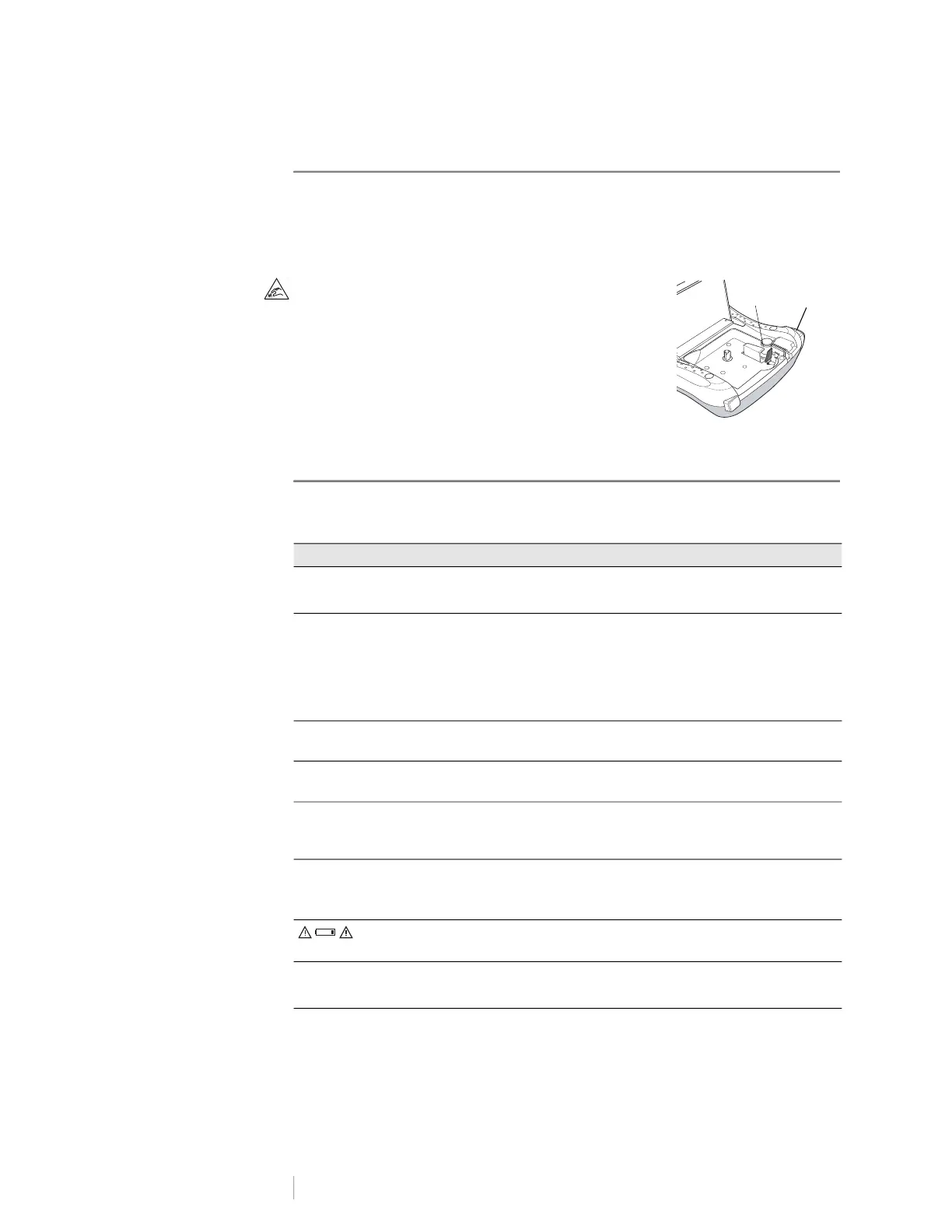
2 Press and hold the cutter button to expose the
cutter blade. See Figure 5.
3 Use a cotton ball and alcohol to clean both sides of
the blade.
Troubleshooting
Review the following possible solutions if you encounter a problem while using
your label maker.
If you still need assistance, contact DYMO Customer Support at http://
support.dymo.com.
Problem/Error Message Solution
No display
Ensure the label maker is turned on.
Replace discharged batteries.
Poor Print Quality
Replace batteries or attach power adapter.
Ensure label cassette is installed properly.
Replace the label cassette.
Clean the print head. Contact Customer Support for
instructions at http://support.dymo.com
Poor Cutter Performance Clean the cutter blade. See
Caring for Your Label
Maker
.
Printing . . . No action required.
Message disappears when printing is finished.
Too many characters
Exceeded maximum number of
characters in buffer.
Delete some or all of the buffer text.
Too many lines
Exceeded maximum number of
lines
Delete a line to fit on the tape width.
Insert a wider label cassette.
Batteries almost discharged.
Replace batteries or connect AC power adapter.
Tape Jam
Motor is stalled due to label jam.
Remove jammed label; replace label cassette.
Clean cutter blade.
Figure 5
Press
and hold
Print head







 To Next Page