This product is CE marked in accordance
with EMC directive and the low voltage
directive and is designed to conform with
the following international standards:
• Safety - EN60950, IEC 950, UL 1950
• EMC emissions - EN 55022 Class B, CIS
PR22 Class B, FCC pt 15 Sub pt B Class B
• EMC immunity - EN 50082-1, IEC 801-2
& IEC801-3
9
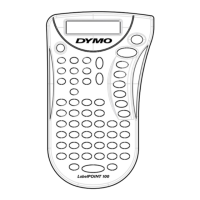
PRINT CONTRAST
May be adjusted by pressing
H
+ SPACE +
PRINT
•
Use or to select lighter or darker print.
•
Press ↵ to confirm the setting.
The contrast level will revert to the mid-
setting when the LabelPoint is turned off
and on again.
Note:
This function enables you to adjust
the print quality under extreme temperature
conditions.
Cleaning
•
Clean the cutter blade regularly: Remove
the cassette, then insert the tip of a ball
pen or pencil between L-shaped piece D1
and the guide pin – see page 2.
•
Press and hold down cutter lever E to
expose cutter blade D3, then use a cotton
bud and alcohol to clean both sides of the
blade. Release cutter lever E.
•
Check and clean print head face D4 regular-
ly using a cotton bud and alcohol ONLY.
Changing the cassette
•
Open hinged access door as above.
•
Hold as shown, then lift cassette B4
straight up and out.
•
Ensure tape and ribbon B3 are taut across
mouth of cassette and tape passes between
guideposts before installing as shown. If
necessary, turn spool B5 clockwise to
tighten ribbon.
•
Insert cassette and push firmly C3 until it
clicks into place.
•
Ensure tape and ribbon are positioned as
shown between pinch roller C1 and print
head C2.
Troubleshooting
No display
•
check that the machine is on
•
replace discharged batteries
No printing or poor text
•
Replace discharged batteries
•
Check that the tape cassette is installed
correctly
•
Clean the print head
•
Replace the tape cassette.
Tape jammed
•
Lift out tape cassette carefully
•
Remove/release jammed tape
•
DO NOT cut the ink ribbon – turn spool to
tighten
•
Cut off excess label tape
•
Refit/replace the tape cassette.
Poor cutter performance
•
Clean the cutter blade regularly
No response to print key
•
!!!!!!!! in the display indicates a printer
jam. Press any key to return to normal
display. Open the cassette compartment
and free the jam.
•
flashing in the display
indicates discharged batteries. Press any
key to return to normal display.
Replace the batteries.
No success?
Call the DYMO customer service hotline tele-
phone number in your country – see the
warranty booklet.
8





 To Next Page

