EasyManua.ls Logo

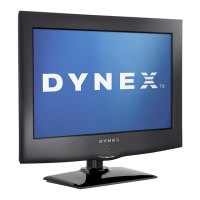
Dynex DX-16E220NA16 - User Manual

Dynex DX-16E220NA16
69 pages
Print Icon
To Next Page IconTo Next Page
Loading...
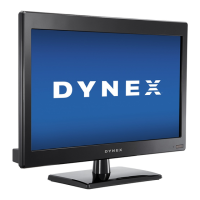
16" LED TV
DX-16E220NA16
USER GUIDE
Before using your new product, please read these instructions to prevent any damage.

Table of Contents

Other manuals for Dynex DX-16E220NA16

Questions and Answers

  • J
    James Clarke PhDSep 23, 2025
    How to prevent after images on Dynex DX-16E220NA16?
    • E
      Eric GuerreroSep 23, 2025
      To prevent after images on your Dynex TV, avoid displaying a still image, such as a logo, game, or computer image, for an extended period of time. This can cause a permanent after-image to be burned into the screen, and this type of damage is not covered by your warranty.
  • P
    Phyllis StevensAug 25, 2025
    What to do if my Dynex DX-16E220NA16 TV has no picture and no sound?
    • T
      Todd BrownAug 25, 2025
      If your Dynex TV screen is not lit and there is no sound, start by pressing the power button on the TV or the remote. Ensure the video cables are securely connected to the TV. Adjust the contrast and brightness settings. Verify that the power adapter is correctly connected to the TV and a power outlet, and that the correct video input source is selected. Try another channel, as the station may be experiencing problems. Ensure the incoming signal is compatible and that the antenna or cable TV is correctly and securely connected. Finally, check the closed caption settings, as some TEXT modes can block the screen.
  • B
    Brian MillerAug 25, 2025
    How to make my Dynex DX-16E220NA16 TV picture fill the screen?
    • D
      Diane GarciaAug 26, 2025
      If the picture on your Dynex TV does not fill the screen and there are black bars around it, change the aspect ratio. Many digital TV shows and movies are presented in widescreen (16:9).
  • V
    Victoria HarperAug 26, 2025
    How to fix “No signal” error on Dynex DX-16E220NA16 TV?
    • B
      Barbara WillisAug 27, 2025
      If your Dynex TV displays a “No signal” error message, press the INPUT button and ensure you've selected the correct input for the device or service you are using. If you are using a cable or satellite box, use the remote that came with the box to change channels and make sure that you have selected the correct input to view channels from the box.
  • A
    adamyoungAug 27, 2025
    Why does my Dynex DX-16E220NA16 TV have a good picture but no sound?
    • J
      Jonathan DavisAug 27, 2025
      If you have a good picture but no sound on your Dynex TV, first, increase the volume and make sure the sound isn't muted. Check if headphones are plugged in and unplug them. Ensure the correct audio mode is selected and that the audio cables are securely connected to the back of your TV. Also, ensure the antenna or cable TV is properly connected. If you're using an antenna, a low digital channel signal could be the cause.
  • K
    Karen BairdSep 14, 2025
    Why are the control buttons on my Dynex TV not working?
    • P
      pamelamendozaSep 14, 2025
      If the control buttons on your Dynex TV do not work, make sure that the Button Lock option is set to No. If that doesn't work, unplug the AC power adapter, wait a few seconds, then plug the adapter back in and turn on your TV.
  • M
    Michael BakerSep 12, 2025
    How do I fix double images on my Dynex DX-16E220NA16?
    • G
      garciarobertSep 12, 2025
      To resolve double images on your Dynex TV, use a highly directional outdoor antenna, cable TV, or satellite TV.
  • J
    Joshua FryeSep 13, 2025
    What is the default password for Dynex DX-16E220NA16 if lost?
    • D
      Danielle HallSep 13, 2025
      If you've lost the password for your Dynex TV, enter 9999 to access parental controls, then set a new password.
  • S
    Shawn BrownSep 4, 2025
    How do I eliminate audio noise on my Dynex DX-16E220NA16 TV?
    • G
      Gabriel RuizSep 5, 2025
      If you are experiencing audio noise with your Dynex TV, other devices like speakers, fans, or hair dryers may be causing interference. Try turning off these devices one at a time to determine which one is causing the interference, and then move it further away from the TV.
  • E
    Erin BrownSep 2, 2025
    Why is picture quality on my Dynex DX-16E220NA16 good on some channels and poor on others?
    • K
      kelseyjohnsonSep 2, 2025
      If the picture quality on your Dynex TV is good on some channels but poor on others while the sound remains good, the issue may stem from a weak signal from the broadcaster or cable TV provider. If you're connected to cable or satellite TV without a set-top box, consider installing one to improve signal reception and picture quality. Contact your provider for details on upgrading.

Summary

CHILD SAFETY

Proper Television Placement Matters

Discusses safe placement and installation for preventing tip-overs and injuries.

Tune In to Safety

Provides general safety recommendations for TV installation and use.

Wall or Ceiling Mount Your Television

Details considerations and requirements for mounting the TV on a wall or ceiling.

Important Safety Instructions

Caution: Electric Shock Hazard

Warns about electric shock hazards and advises against opening the TV.

Warning: Lightning and Power Lines

Alerts users to risks from lightning and power lines, advising unplugging the TV.

Important Safety Instructions (Cont.)

Handling the LCD Panel

Provides instructions on safely handling the glass screen and liquid crystal panel.

Power Source and Servicing

Instructs on correct power connection and emphasizes servicing by qualified personnel.

Installing the TV Stand

Installing the Wall-Mount Bracket

Connecting a Cable or Satellite Box

Connecting a Cable or Satellite Box (Cont.)

Connecting Antenna or Cable TV (No Box)

Connecting a DVD or Blu-ray Player

Connecting a DVD or Blu-ray Player (Cont.)

Connecting Antenna or Cable TV (No Box) (Cont.)

Connecting a Game Console

HDMI (Best) Connection

Instructions for connecting a game console via HDMI for optimal video and audio performance.

Connecting a Game Console (Cont.)

Connecting a Computer

HDMI Connection

Guide for connecting a computer to the TV using an HDMI cable for display output.

Connecting External Speakers or Sound Bar

Connecting External Speakers or Sound Bar (Cont.)

Connecting Power

Using the Remote Control

Installing Remote Control Batteries

Step-by-step guide for inserting batteries into the remote control.

Turning on Your TV for the First Time

Understanding TV Basics

Selecting Video Input Source

Details how to switch between different connected devices and input signals.

Using the On-Screen Menus

Using a USB Flash Drive

Adjusting the TV Picture

Adjusting Picture Settings

Adjusting the Sound

Sound Settings Configuration

Instructions for configuring sound modes, treble, bass, balance, and audio output.

Setting Parental Controls

Setting or Changing the Password

Guide for setting or modifying the parental control password for accessing features.

Managing Parental Controls

Parental Control Options

Adjusting Time Settings

Adjusting Time Settings (Cont.)

Using Closed Captioning

Changing Channel Settings

Checking Digital Signal Strength

Maintaining Your TV

Troubleshooting

General advice for troubleshooting common TV problems.

Troubleshooting Common Issues

Picture Problems

Solutions for issues like dark picture, no picture, incorrect color, or snow.

Sound Problems

Solutions for issues like no sound, audio noise, or one speaker not working.

Troubleshooting Specific Problems

Picture Issues

Solutions for specific picture problems like bright/dark spots or afterimages.

Sound and Remote Issues

Solutions for sound output problems and non-functional remote controls.

Troubleshooting General and Specific Issues

General Issues

Solutions for problems like no power, 'no signal' errors, or no channels after scan.

Programming Universal Remote Controls

Dynex DX-16E220NA16 Specifications

General IconGeneral
Screen Size16 inches
Resolution1366 x 768
Display TypeLED
HDMI Ports1
USB Ports1
Refresh Rate60Hz
Aspect Ratio16:9
Sound Output5W x 2
Power Consumption25W
InputsHDMI, USB, RF, Composite

Related product manuals