EasyManua.ls Logo

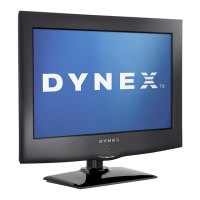
Dynex DX-32L100A13 - User Manual

Dynex DX-32L100A13
46 pages
Print Icon
To Next Page IconTo Next Page
Loading...
32” LCD TV
DX-32L100A13
USER GUIDE
12-0956_DX-32L100A13 MAN_V2_EN.book Page 0 Monday, September 24, 2012 10:39 AM

Table of Contents

Other manuals for Dynex DX-32L100A13

Questions and Answers

  • M
    margaret92Aug 20, 2025
    Why is my Dynex LCD TV remote not working?
    • E
      Elizabeth PalmerAug 20, 2025
      If your Dynex LCD TV remote control isn't working: * Ensure the TV's power cord is properly connected to both the TV and a working power outlet. * Remove any obstructions between the remote and the TV's sensor. * Point the remote directly at the sensor on the front of the TV. * Make sure the batteries are correctly installed in the remote. * Replace the old batteries with new ones.
  • F
    fred84Aug 22, 2025
    Why Dynex LCD TV has no power?
    • C
      carrie79Aug 22, 2025
      If your Dynex LCD TV has no power, ensure the power cord is correctly connected to both the TV and a working power outlet. If it's connected, unplug the power cord, wait 60 seconds, then plug it back in and turn on the TV. Also, other devices may be interfering with your TV. Try turning off one device at a time to determine which device is causing interference. After you have determined which device is causing interference, move it further from the TV to eliminate the interference.
  • M
    Mr. Frank Ross PhDAug 25, 2025
    What to do if my Dynex LCD TV has no picture and sound?
    • J
      Joanna GarciaAug 25, 2025
      If your Dynex LCD TV shows no picture and no sound, try the following: * Press the power button on the TV or remote control. * Ensure the power cord is plugged in. * Check that video cables are securely connected. * Select the correct video input source. * Adjust the contrast and brightness. * Try another channel, as the station might have issues. * Confirm the incoming signal is compatible. * Verify the antenna or cable TV is correctly and securely connected. * Check closed caption settings, as some TEXT modes can block the screen.
  • B
    Benjamin CampbellAug 26, 2025
    Why is my Dynex LCD TV screen dark but the sound is fine?
    • C
      Carrie BowmanAug 26, 2025
      If your Dynex LCD TV displays a dark, poor, or no picture (but the screen is lit) while the sound is good: * Try switching to another channel to rule out station problems. * Ensure the antenna or cable TV is securely connected. * Confirm that the Audio Only option is set to Off. * Adjust the brightness settings. * Select the correct picture mode. * If using an antenna, check the digital channel signal strength. If the signal is low, adjust the antenna or use a more powerful one. * Make sure the video cables are securely connected. * Try using a new set of video cables, as the current ones may be faulty.
  • E
    eric90Aug 28, 2025
    Why Dynex LCD TV picture is good on some channels and poor on others?
    • C
      Crystal CraigAug 28, 2025
      If your Dynex LCD TV has good picture quality on some channels but poor quality on others, it may be due to a weak signal from the broadcaster or cable TV provider. If you're connected to cable or satellite TV without a set-top box, consider upgrading to one to improve signal reception and picture quality. Contact your provider for details.
  • J
    Joshua TaylorAug 30, 2025
    Why is the color on my Dynex LCD TV wrong?
    • D
      David MooreAug 30, 2025
      If your Dynex LCD TV displays no color, a dark picture, or incorrect colors: * Try switching to another channel to rule out station issues. * Adjust the color saturation settings. * Ensure the video cables are correctly and securely connected to the back of your TV. * Make sure the antenna or cable TV connection is secure. * If using an antenna, check the digital channel signal strength. If it's low, adjust the antenna or use a more powerful one.
  • L
    Lisa BishopSep 1, 2025
    Why does my Dynex LCD TV only show snow?
    • J
      Joshua DavisSep 1, 2025
      If your Dynex LCD TV shows only snow (noise) on the screen: * Try changing to another channel, as the station may be experiencing issues. * Ensure the antenna or cable TV is correctly and securely connected. * If you're using an antenna, the digital channel signal may be weak. Check the signal strength and adjust the antenna, or use a more directional or amplified antenna.
  • C
    Candice BradleySep 3, 2025
    Why is there no sound from one speaker on my Dynex LCD TV?
    • B
      blewisSep 3, 2025
      If there's no output from one of the speakers on your Dynex LCD TV: * Adjust the audio balance settings. * Ensure the audio cables are correctly and securely connected to the back of your TV.
  • M
    Mallory ColeSep 5, 2025
    What does 'no signal' mean on Dynex LCD TV?
    • B
      Brian GrimesSep 5, 2025
      If your Dynex LCD TV displays a “No signal” error message, press the INPUT button and ensure you've selected the correct input for the device or service you're trying to use. If you are using a cable or satellite box, use the remote that came with that box to change channels.
  • A
    abarberSep 7, 2025
    How to remove black bars on Dynex LCD TV screen?
    • M
      Marisa RichardsonSep 7, 2025
      To fix a Dynex LCD TV picture that doesn't fill the screen and has black bars around it, change the aspect ratio. Digital TV and movies are increasingly presented in widescreen (16:9).

Summary

Child Safety Guidelines

Important Safety Instructions

Electric Shock and Hazard Warnings

Warning about electric shock risk, user-serviceable parts, and lightning.

Safety Cautions and Warnings

Installing the TV Stand or Wall Mount

Installing the TV Stand

Steps to install the TV stand securely.

Installing a Wall-Mount Bracket

Guidelines for securely attaching the TV to a wall mount bracket.

Remote Control 1 Functions

Button Descriptions for Remote 1

Explains the function of each button on the first remote control.

Remote Control 2 Functions

Button Descriptions for Remote 2

Explains the function of each button on the second remote control.

Making Connections

Choosing the Right Connection Type

Guide to selecting the best connection type for optimal video quality.

Connecting External Devices

Connecting Power

Instructions for connecting the TV's power cord to an outlet.

Connecting Cable;Satellite Box (DVI)

Steps to connect a cable or satellite box using DVI via HDMI.

Connecting Cable;Satellite Box (Composite)

Steps to connect a cable or satellite box using a composite video cable.

Connecting DVD;Blu-ray Player (HDMI)

Steps to connect a DVD or Blu-ray player using HDMI.

Connecting DVD;Blu-ray Player (Composite)

Steps to connect a DVD or Blu-ray player using composite video.

Connecting Camcorder or Game Console

Steps to connect a camcorder or game console.

Connecting a Computer (HDMI)

Steps to connect a computer using an HDMI cable.

Connecting Cable;Satellite Box (HDMI)

Steps to connect a cable or satellite box using an HDMI cable.

Connecting Component Video Devices

Steps to connect a component video device.

Connecting Antenna or Cable TV (No Box)

Steps to connect an antenna or cable TV directly to the TV.

Connecting DVD;Blu-ray Player (Component)

Steps to connect a DVD or Blu-ray player using component video.

Connecting a VCR

Steps to connect a VCR to the TV.

Connecting a Computer (VGA)

Steps to connect a computer using a VGA cable.

Using the Remote Control

Installing Remote Control Batteries

Instructions for inserting batteries into the remote control.

Turning On Your TV for the First Time

Initial TV Setup Wizard

Step-by-step guide for initial TV setup using the Setup Wizard.

Understanding the Basics

Turning Your TV On or Off

How to turn the TV on, off, and into standby mode.

Selecting the Video Input Source

How to select the desired video input source for viewing.

Navigating and Adjusting Settings

Adjusting Picture Settings

Adjusting the Sound

Changing Channel Settings

Setting Parental Controls

Setting or Changing the Password

Steps to set or change the parental control password.

Setting Parental Control Levels

How to set parental control levels based on TV and movie ratings.

Using Closed Captioning

Troubleshooting Video and Audio

Troubleshooting Common Issues

Specifications and Warranty

One-Year Limited Warranty

Dynex DX-32L100A13 Specifications

General IconGeneral
BrandDynex
ModelDX-32L100A13
CategoryTV
LanguageEnglish

Related product manuals